To flatten a PDF in Power Automate:
This converts all form fields into static, non-editable content, ensuring consistent output for automation and archiving.
Fillable PDF forms are widely used to capture structured data such as applications, claims, onboarding details, and compliance records. However, once submitted, leaving form fields editable introduces risk.
Editable fields can be modified after submission and may render inconsistently across systems, creating issues for automation and compliance. In production workflows, this can lead to unreliable outputs and downstream processing failures.
Flattening a PDF ensures the submitted data is permanently embedded and cannot be altered. Power Automate does not provide native PDF flattening capabilities, which is why connectors such as Encodian Flowr are commonly used.
In automated workflows, unflattened PDFs can behave differently depending on how downstream systems interpret form fields, making flattening a critical step for consistency.
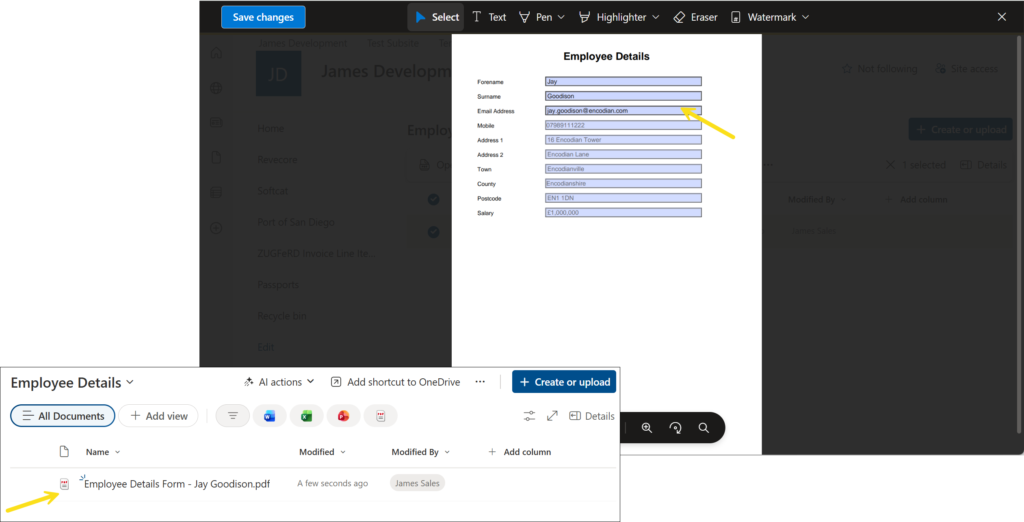
Flattening removes interactive form fields and converts their values into static page content.
Before flattening
After flattening
The result is a fixed, presentation-only document that preserves exactly what was submitted, without relying on viewer-specific behaviour. This removes ambiguity in how PDFs are rendered across different systems, which is essential for reliable automation.
Flattening is recommended when:
In this tutorial, you will create a flow that:
This creates a fully automated process for securing submitted form data.
1. A completed PDF form (example: Employee Details form)
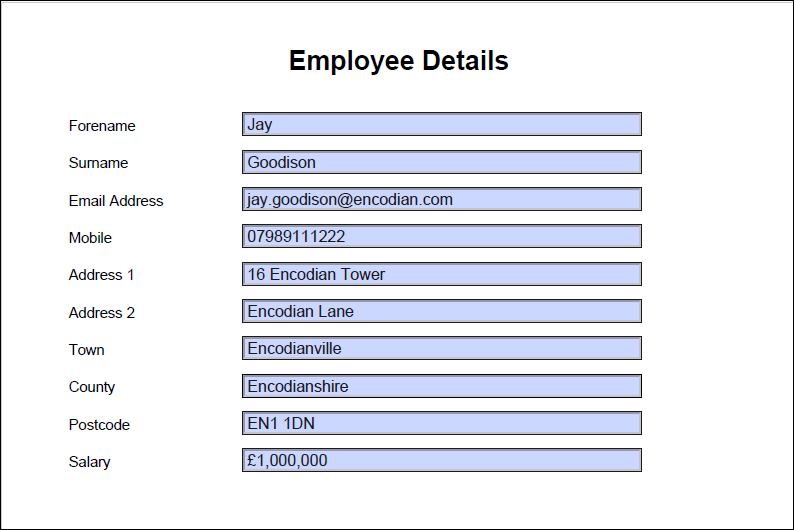
2. A SharePoint document library (example: Employee Details)
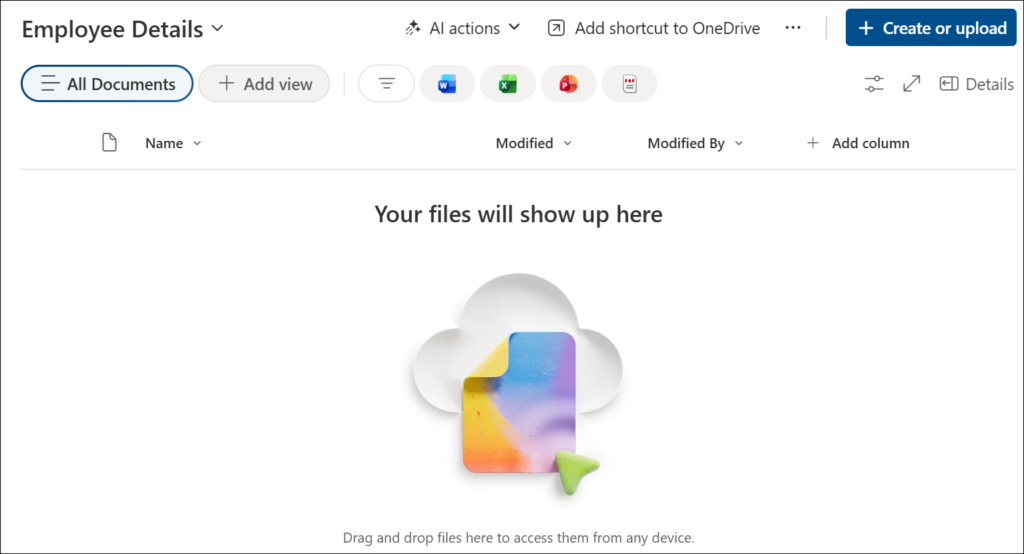
3. An active Encodian Flowr subscription or trial
Not got a Flowr subscription?
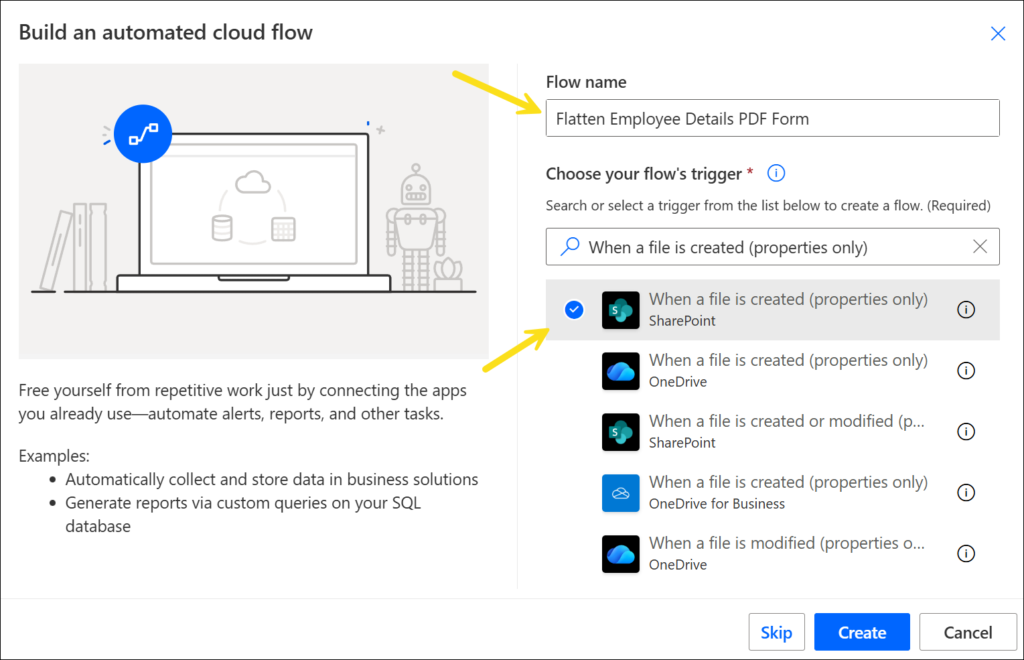
1a. Create a new Automated cloud flow
1b. Name your flow
1c. Select trigger: When a file is created (properties only) (SharePoint)
1d. Click Create
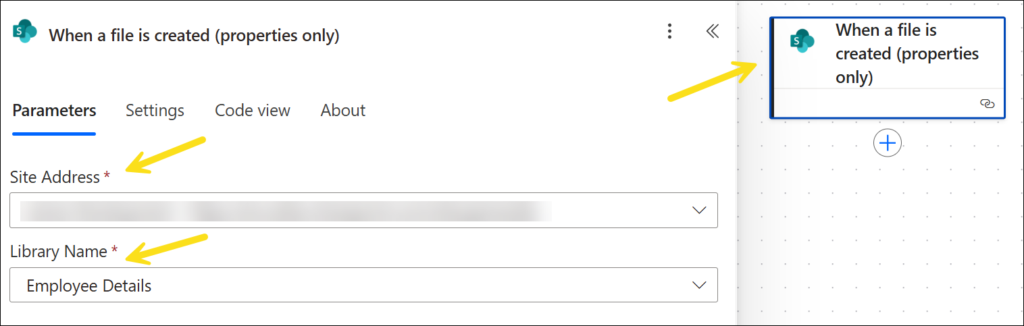
2a. Site Address: Your SharePoint site
2b. Library Name: Employee Details (example)
This trigger fires when a new PDF is uploaded.
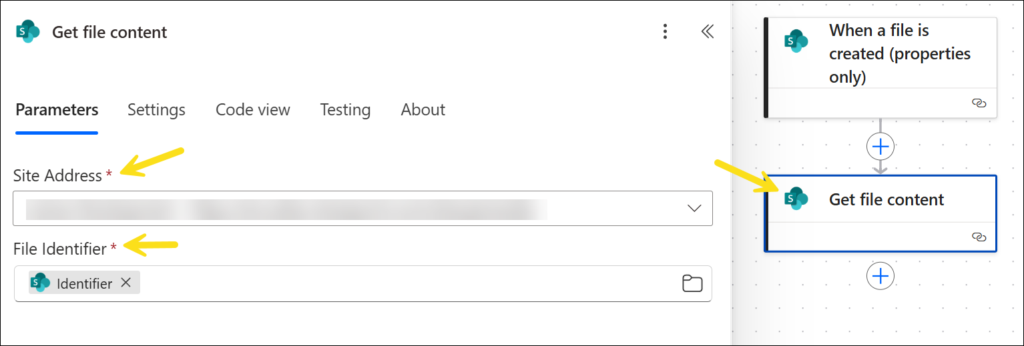
3a. Add action: Get file content (SharePoint)
3b. Site Address: Same as above
3c. File Identifier: Use Identifier from the trigger
This retrieves the binary content required for processing.
4a. Find connector: Encodian – PDF
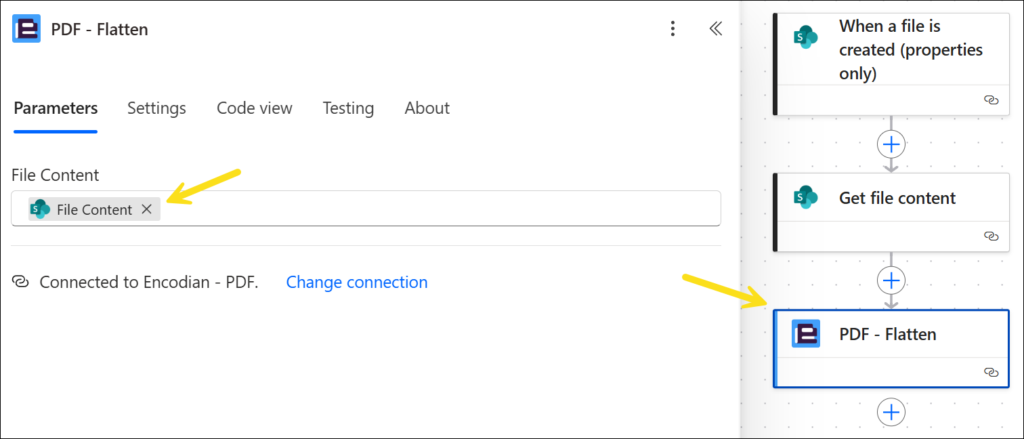
4b. Add action: PDF – Flatten
4c. File Content: Output from Get file content
This converts all form fields into static content. All form field values are embedded into the document, removing editability.
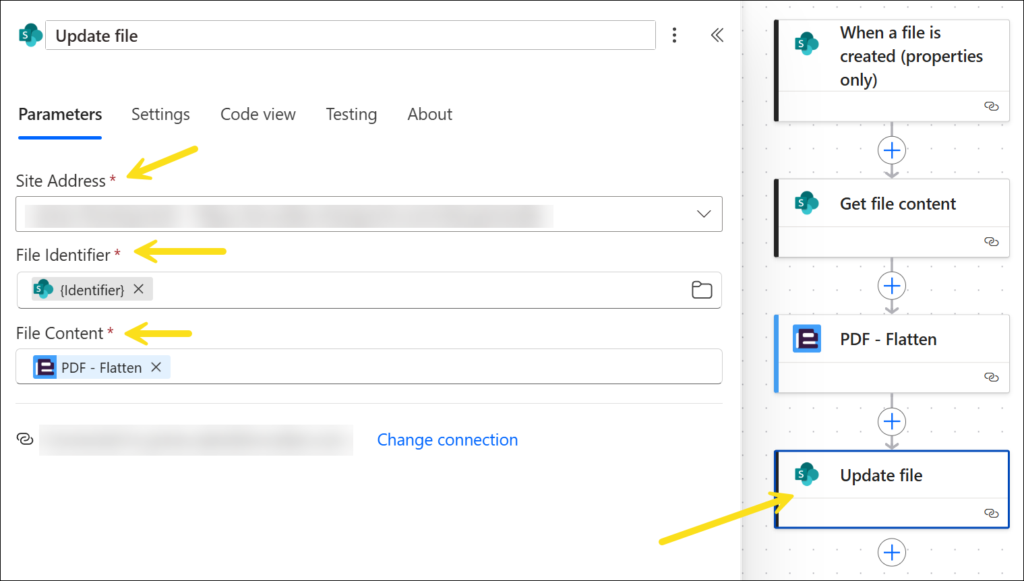
5a. Add action: Update file (SharePoint)
5b. Site Address: Same as above
5c. File Identifier: Identifier from trigger
5d. File Content: Output from PDF – Flatten
This overwrites the original file with the flattened version.
All previously editable fields will now be read-only and embedded in the document.
If you need partial control, use:
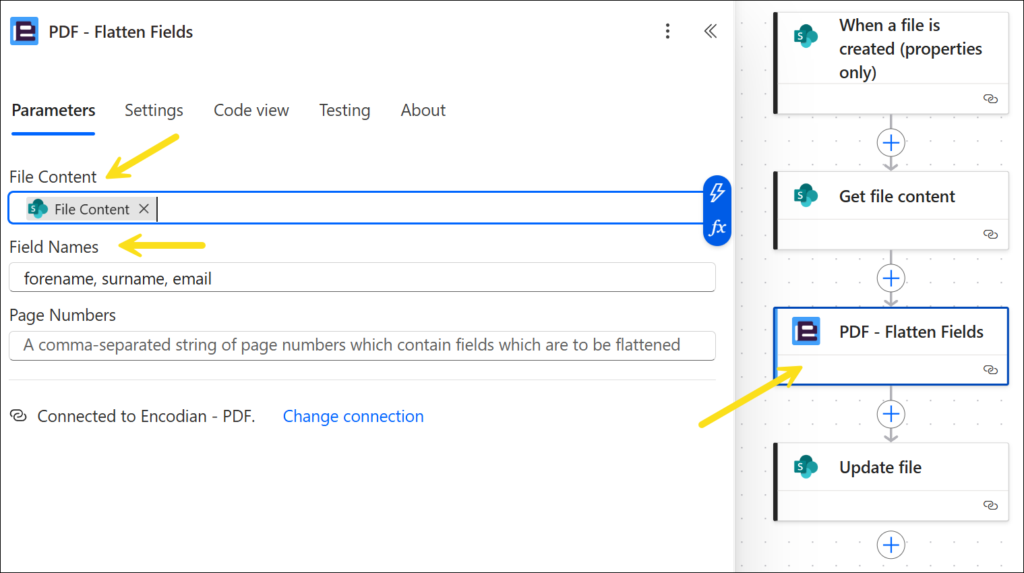
Encodian’s PDF – Flatten Fields action
This allows you to flatten selected fields while keeping others editable, useful for workflows where some fields must remain editable for later stages.
Use internal field names, not display labels, to ensure correct targeting.
Flatten:
Keep:
For example, flatten submitted user data while keeping internal processing fields editable.
Flattening PDFs removes reliance on how different PDF viewers interpret form fields, ensuring consistent output across systems.
In Power Automate workflows, this improves reliability, prevents post-submission changes, and ensures documents are suitable for archiving and compliance. This is particularly important in high-volume or production workflows where consistency is critical.
Using Encodian Flowr, this can be implemented in a few steps within your existing workflows.
Flowr


Automate and generate documents.
CEO