


Prerequisites for this tutorial
A test delivery note / file containing at least one barcode
A SharePoint list that tracks deliveries with Delivery Number and Status columns
An active Encodian Flowr subscription or trial
Not got a Flowr subscription? Start your free Flowr trial today →
Flow structure
When a delivery note is uploaded to SharePoint, the flow retrieves the file, extracts its barcode values, checks whether any barcodes were detected, finds the corresponding delivery records and updates their status.
When a file is created

Get file content

Barcode – Read (AI)

Return barcode array

Use returned data
How to read barcodes with Power Automate
Create a new SharePoint document library
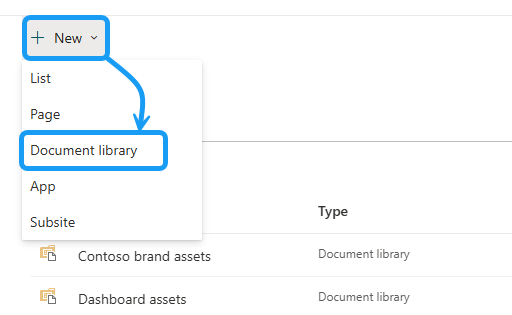
This is where you will upload the files you want to scan for barcodes. The flow will run automatically when a new file is added to this library.
Create a new automated cloud flow
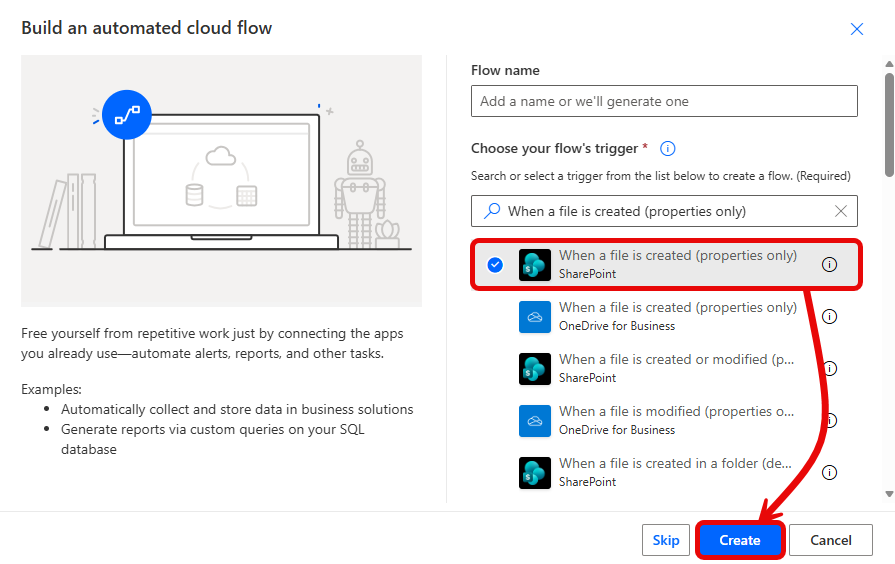
Configure the trigger
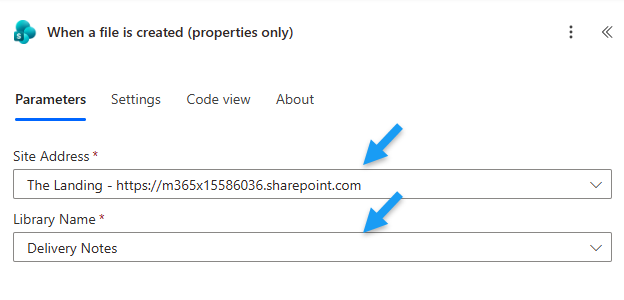
These settings trigger the flow automatically when a file is added to the Delivery Notes document library.
Get the file content from SharePoint
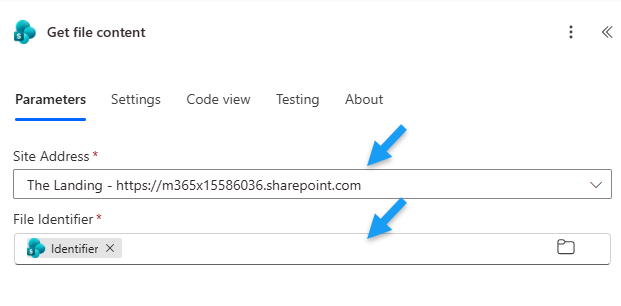
Encodian Flowr’s Barcode – Read (AI) action requires the file’s binary content as input.
SharePoint’s Get file content action retrieves the File Content object for the new file.
Read the barcode using Encodian's 'Barcode - Read (AI)' action
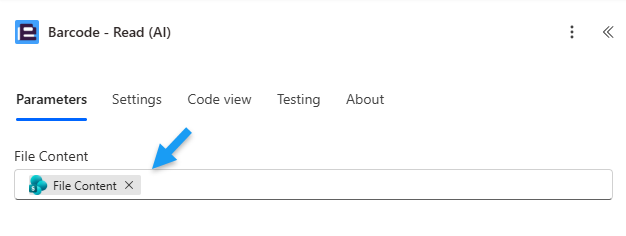
Encodian Flowr’s Barcode – Read (AI) action analyzes the file’s content, identifies any barcodes, and returns their values.
OPTIONAL: Set the advanced parameters to include or exclude specific pages, process the request using a specific culture, or remove control characters from the barcode values.
- Start Page: Sets the first page to read.
- End Page: Sets the last page to read.
- Remove Control Characters: Specifies whether recognized control characters should be removed from the returned values.
- Culture Name: Change the thread culture used to process the request.
Understanding the 'Barcode – Read (AI)' output
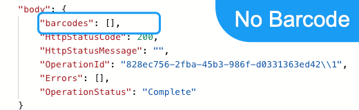
"barcodes": [],
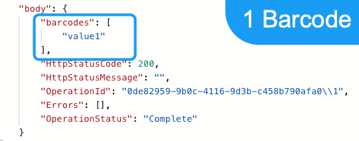
"barcodes": [

"value1"

],
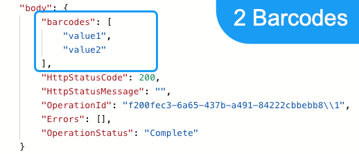
"barcodes": [

"value1",

"value2"

],
Encodian’s Barcode – Read (AI) returns the barcode values in the Barcodes array, even when the file contains only one barcode.
These examples show the output when a file contains no barcode, one barcode, and multiple barcodes.
The Barcodes output is then available as dynamic content for use in subsequent actions.
Check whether a barcode was detected in the document
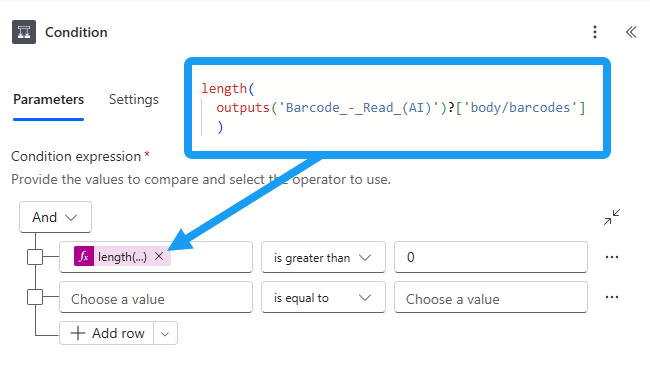
This confirms that the Barcode – Read (AI) action has returned at least one value.
Process each returned barcode value
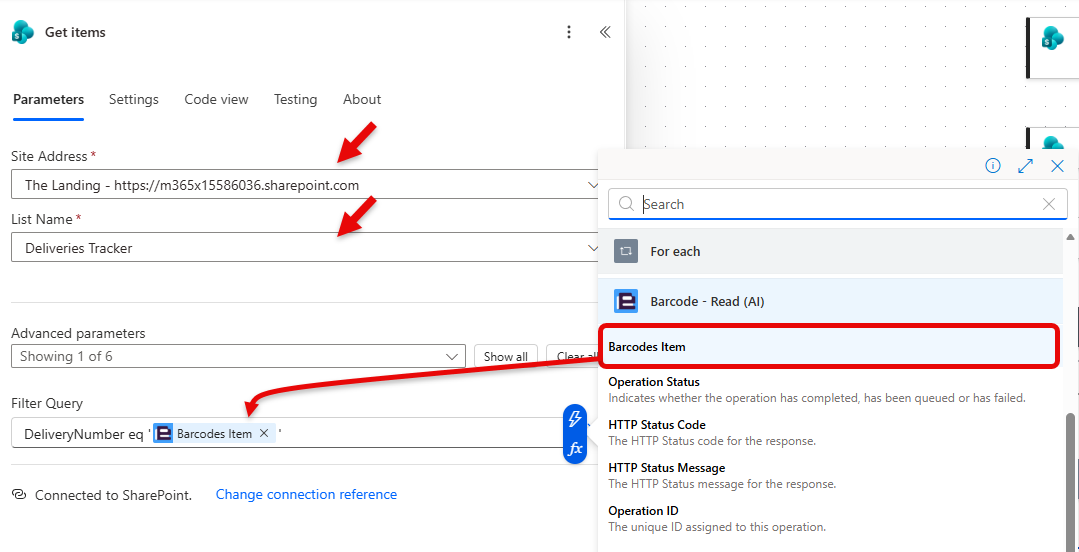
In this example, SharePoint’s Get Items finds matching delivery records in a SharePoint list.
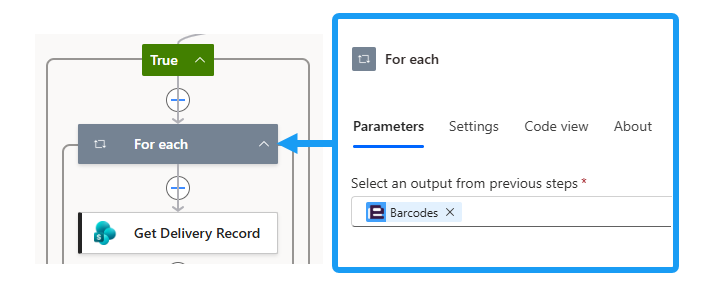
When you select the Barcodes output, Power Automate automatically adds a For each loop, since the output is an array. The loop runs through the enclosed actions once for every returned barcode, even when the array contains only one value.
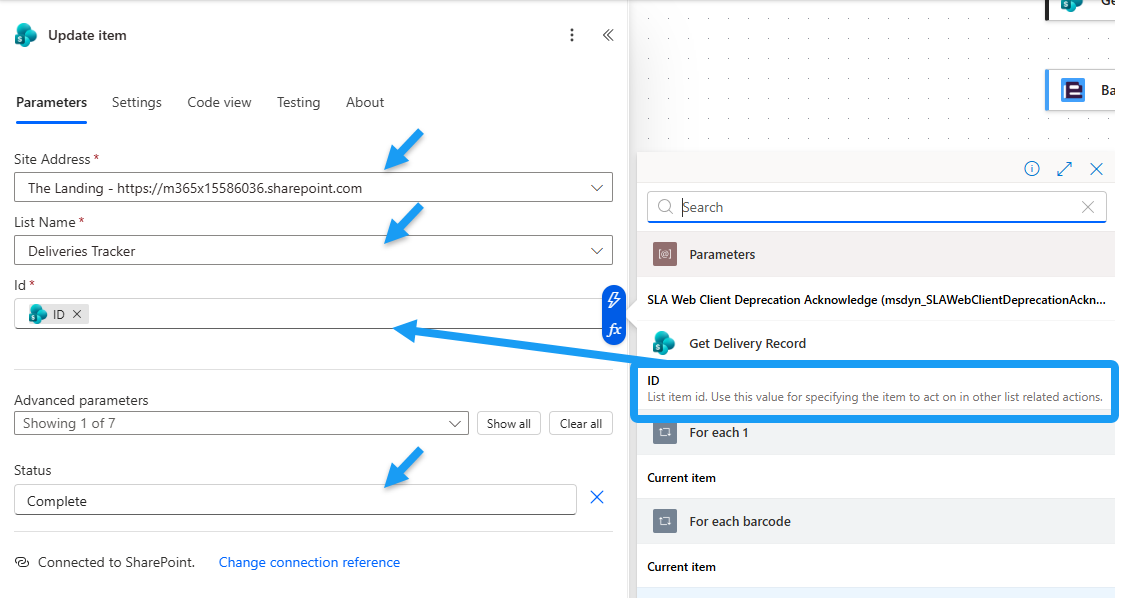
SharePoint’s Update Item action sets their Status value to Complete to update each matching record.
Handle the case where no barcodes are detected
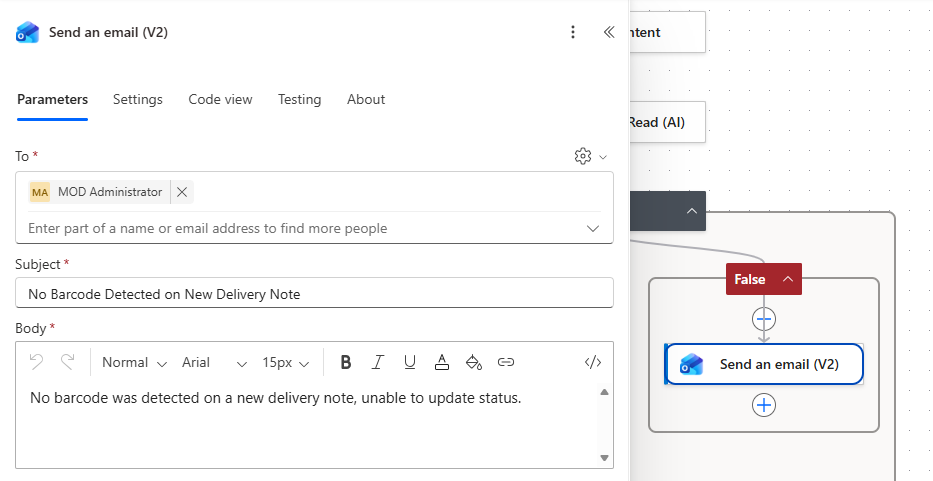
When the Barcodes array is empty in this example, the flow sends an email to notify a user that it could not update any delivery records from the supplied file.
Test the final result
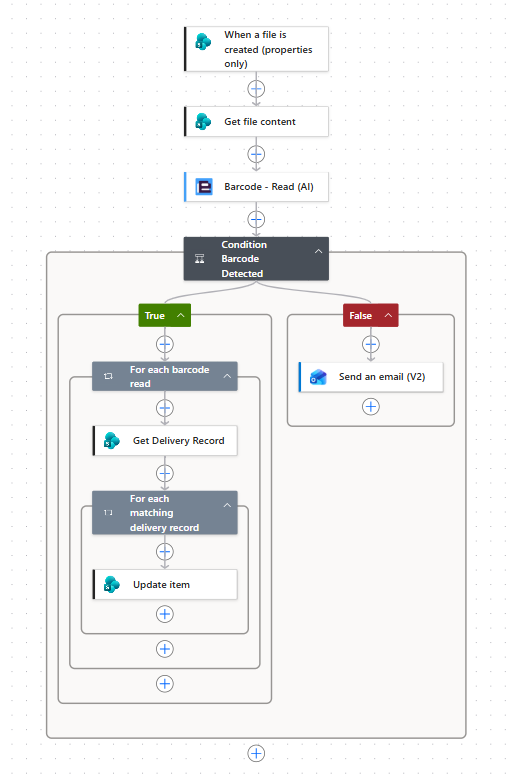
The final flow will look like this.
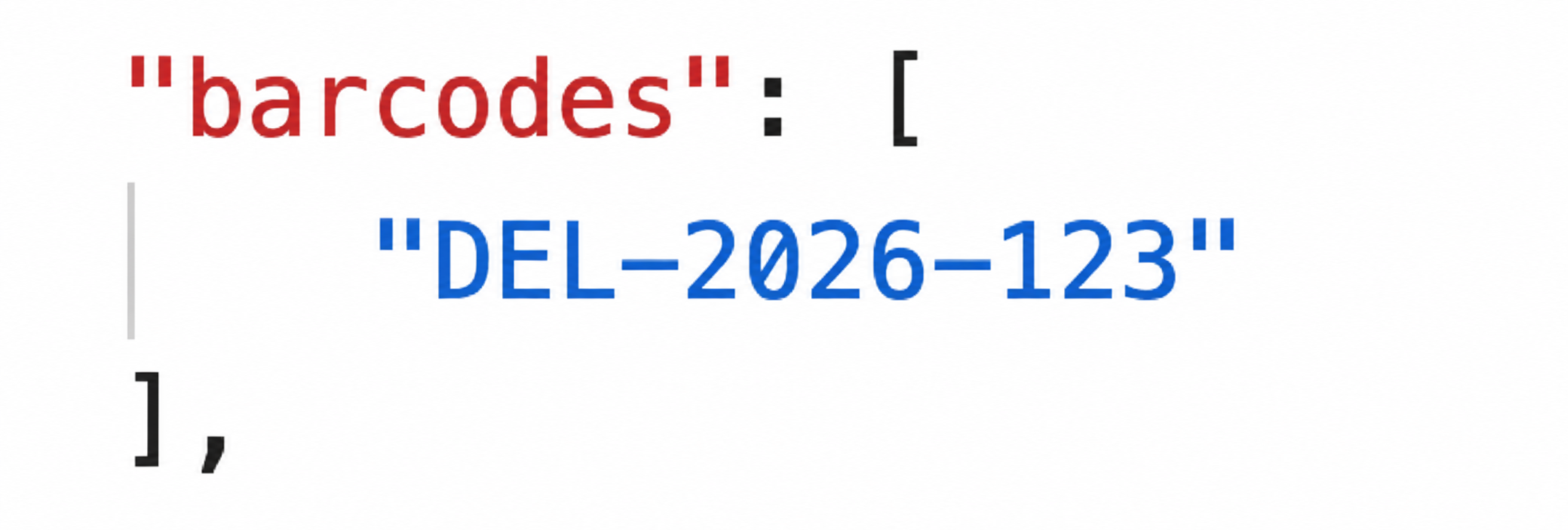
Encodian Flowr’s Barcode – Read (AI) action reads the barcode from the delivery note:
"barcodes": [

"DEL-2026-123"

],
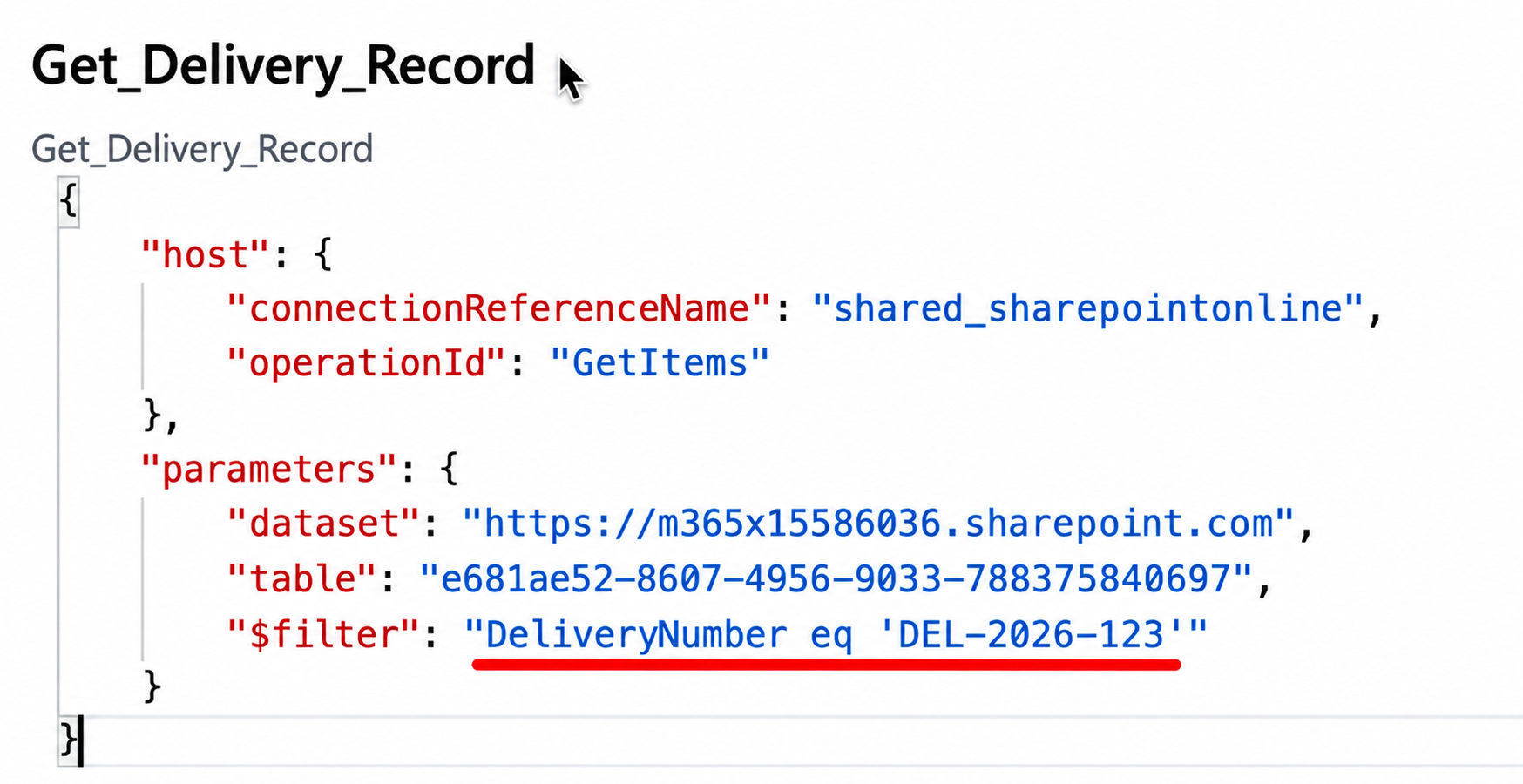
The flow retrieves related delivery records in the Deliveries Tracker SharePoint list.

Records whose Delivery Number matches the returned barcode value are updated so that their Status equals Complete:
"$filter": "DeliveryNumber eq 'DEL-2026-123'"
FAQs
Can Power Automate read barcodes from documents?
Yes. You can use Encodian Flowr’s Barcode – Read (AI) action in Power Automate to detect barcodes in a document and return the barcode values for use in subsequent flow actions.
Can Power Automate read multiple barcodes from one document?
Yes. The Barcode – Read (AI) action returns detected barcode values in the Barcodes array. If multiple barcodes are detected, Power Automate can process each returned value individually using a For each loop.
What happens if no barcode is detected?
If no barcode is detected, the Barcodes array returned by Barcode – Read (AI) will be empty. You can use a Power Automate Condition to check whether the array contains any values and define what should happen when none are found.
In this tutorial, the flow sends an email notification when no barcode is detected.
How do I use a barcode value in Power Automate?
The barcode values returned by Barcode – Read (AI) are available as dynamic content and can be passed to subsequent Power Automate actions.
For example, you could use a barcode value to find a matching SharePoint record, update an item, route a document, rename a file or trigger another process.
Can I choose which pages Power Automate scans for barcodes?
Yes. The Start Page and End Page parameters in Barcode – Read (AI) can be used to specify which pages of a document should be processed. This is useful when you know where the relevant barcode appears and don’t need to process the entire document.
Troubleshooting
Below are solutions to common issues you may come across when building your flow.
Still struggling with your flow? Our Support Team would be happy to help!
Click the link below to raise a ticket on our support site.
Next steps
Now that you can read and process barcode values in Power Automate, you can use the extracted data to build more advanced document automation workflows.
Process documents based on barcode values
Use the returned barcode data to automatically identify, categorize or route documents. For example, move delivery notes to the correct SharePoint folder, associate documents with existing records, or trigger different processes based on the barcode value.
Extract more data from your documents with AI
Barcodes are often only one part of the information you need from a document. Combine barcode reading with Encodian Flowr’s AI document processing actions to extract additional information from invoices, delivery notes, forms and other business documents.
Build end-to-end document workflows
Continue the automation after the barcode has been identified. You could rename or convert the document, update SharePoint records, generate new documents, send files for approval or signature, and archive the completed documents automatically.
Ready to automate barcodes with AI?
Start your free trial of Encodian Flowr for Power Automate to unlock over 250 actions for document automation.