


Prerequisites for this tutorial
A SharePoint document library to store the documents you want to process.
A file to upload to SharePoint.
An active Encodian Flowr subscription or trial.
Not got a Flowr subscription? Start your free Flowr trial today →
Flow structure
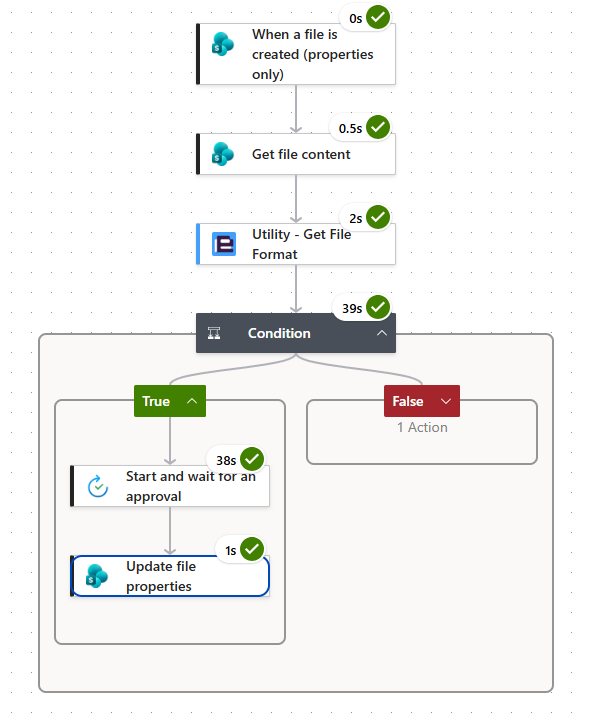
When a document is added to SharePoint, the flow retrieves the file’s content, uses Encodian Flowr’s Utility – Get File Format action to identify the file format, and conditionally processes the file depending on the format. If the file is a PDF, the flow will send it for approval. If it isn’t, the user will receive a warning that the file doesn’t meet the required format.

When a file is created

Get file content

Utility – Get File Format

Return file’s format

Use returned data
Identify a file’s format from its content with ‘Utility – Get File Format’
Create a new automated cloud flow
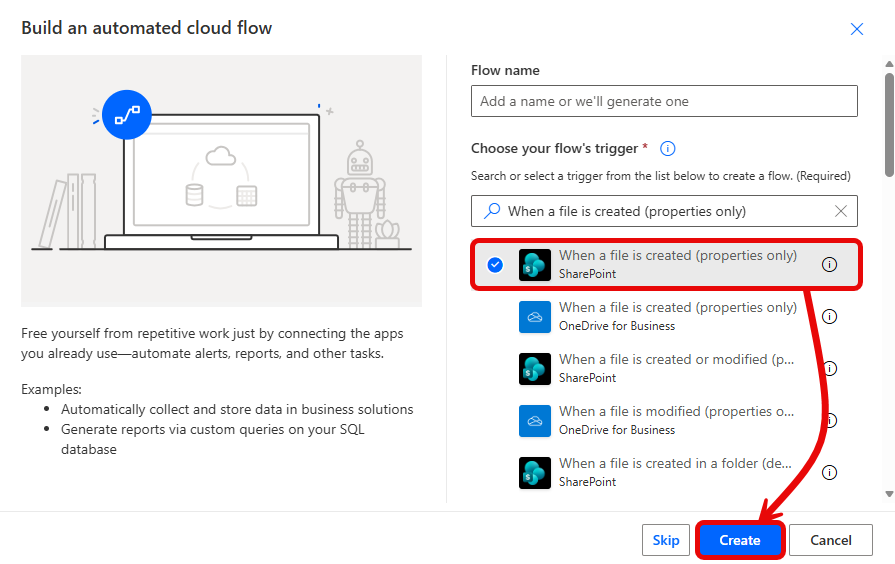
In Power Automate, create a new automated cloud flow.
Configure the trigger
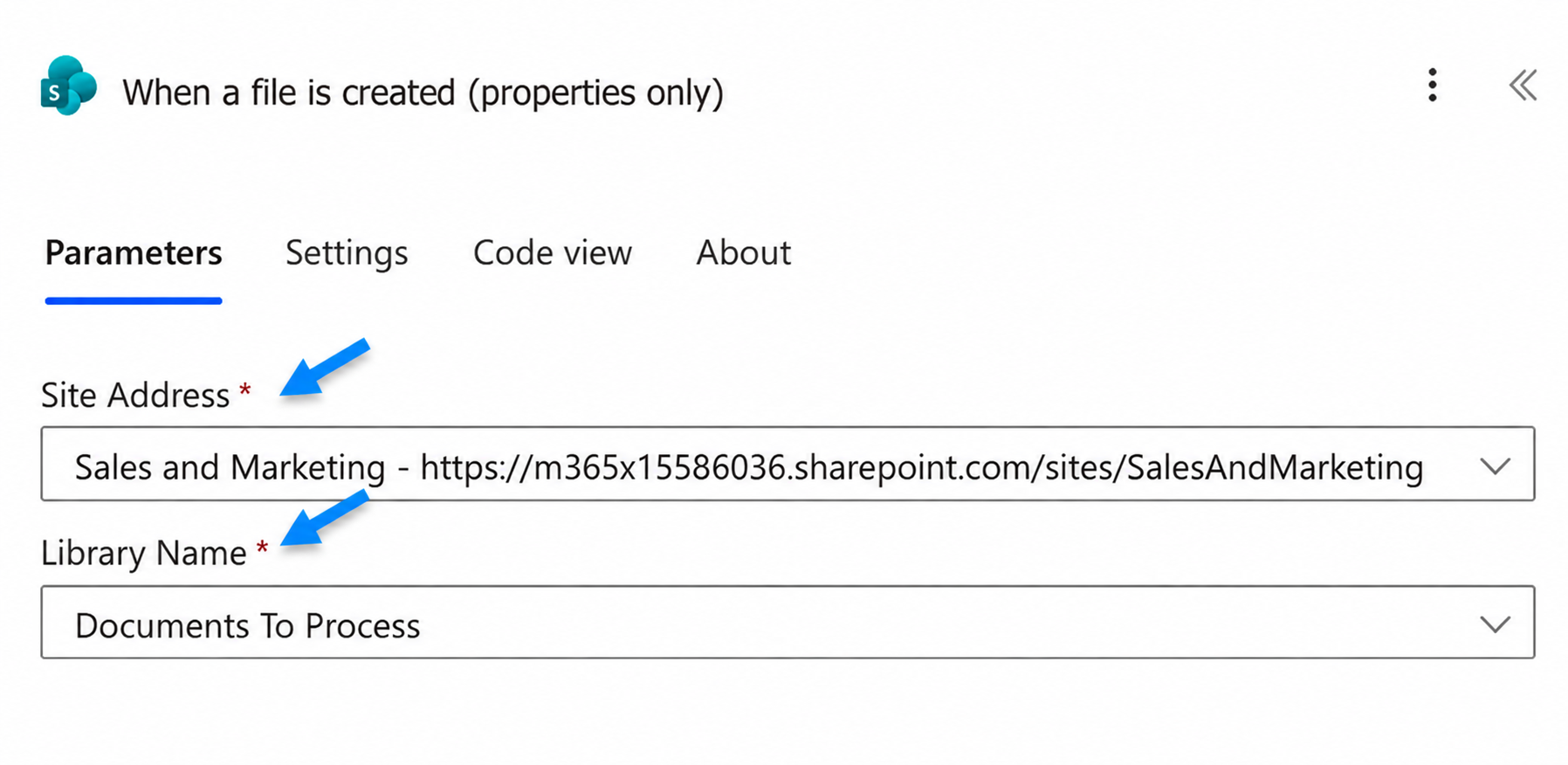
Select the trigger and configure as follows:
This flow will then run whenever a document is added to the Documents to Process SharePoint document library.
Get the file content from SharePoint
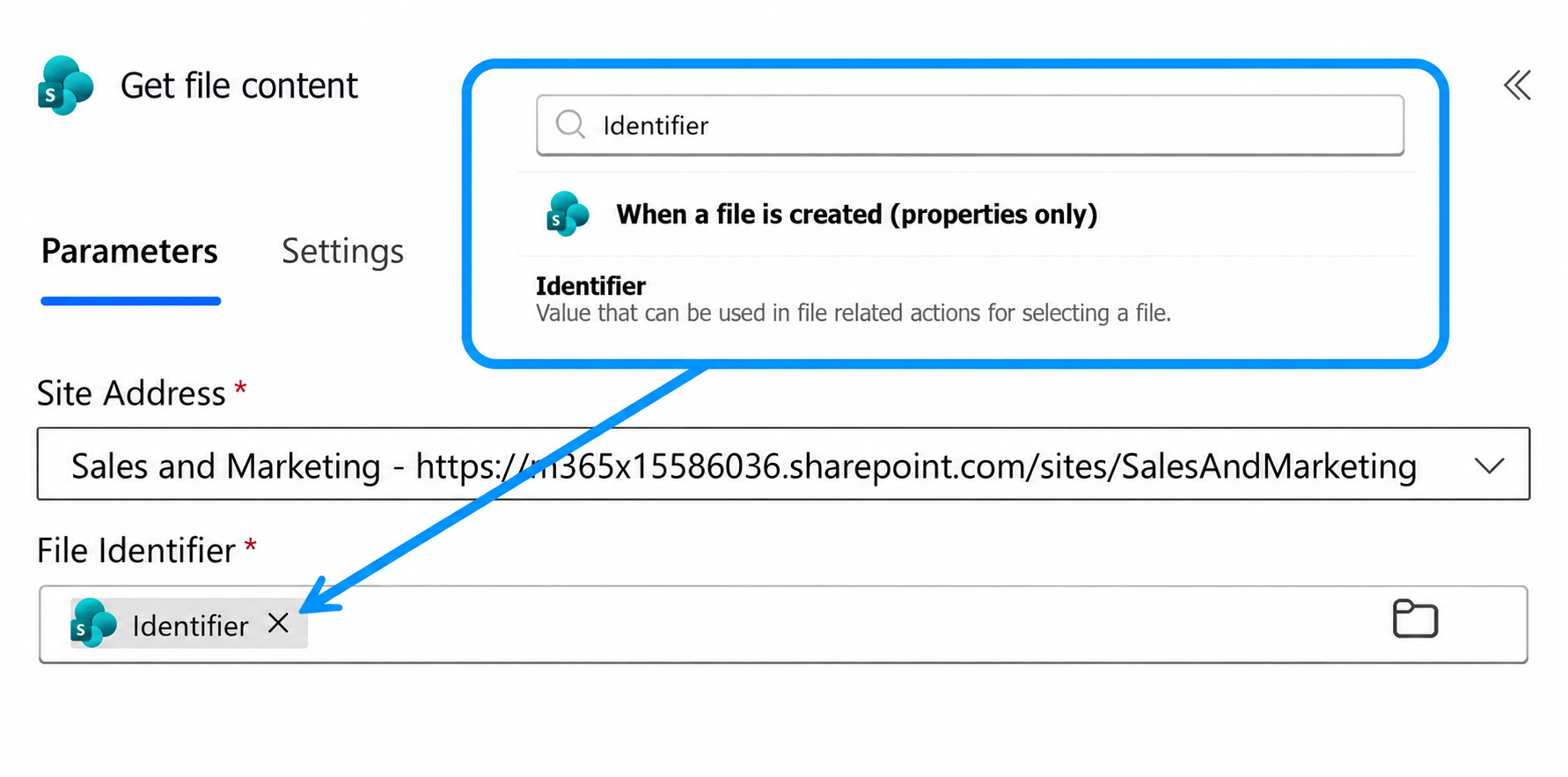
To retrieve the binary contents of the file that has triggered the flow, add the Get file content SharePoint action. This content will then be provided as input for Encodian’s Utility – Get File Format action.
Add the 'Utility - Get File Format' action
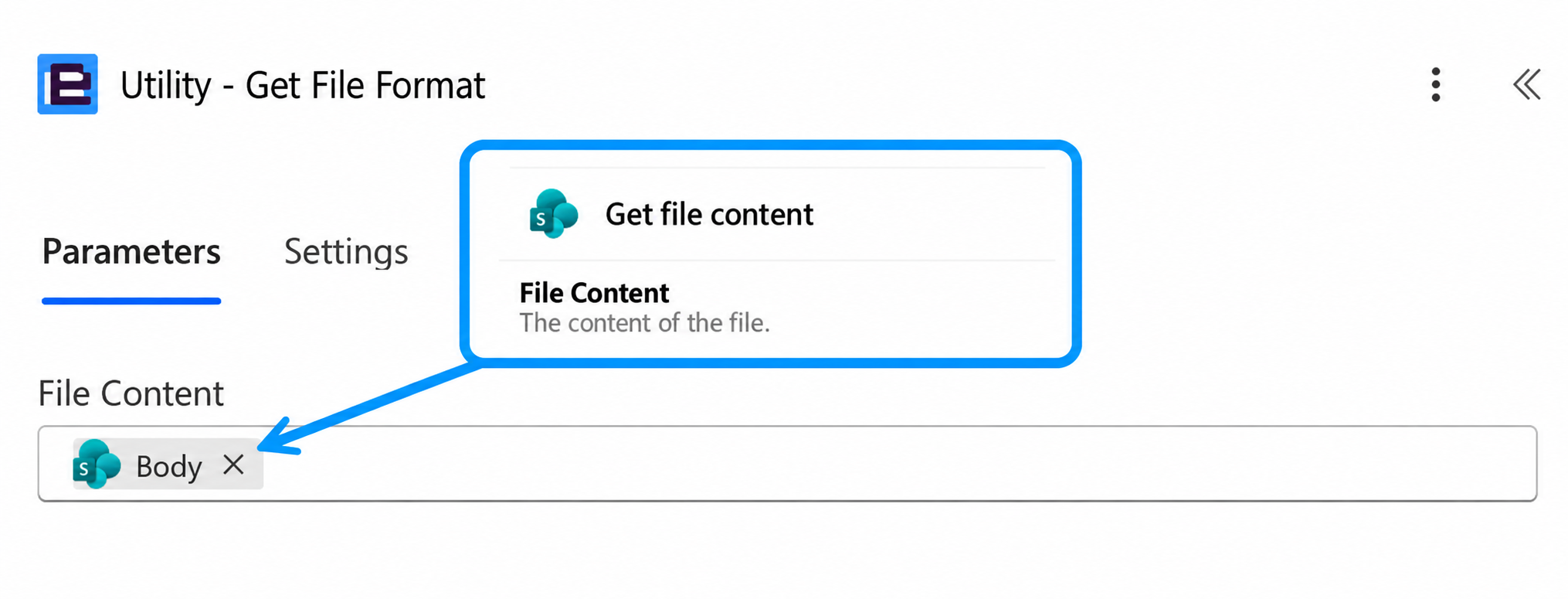
To get the file’s format and corresponding file extension, add the Encodian Flowr Utility – Get File Format action to the flow.
Understanding the output of the ‘Utility – Get File Format’ action
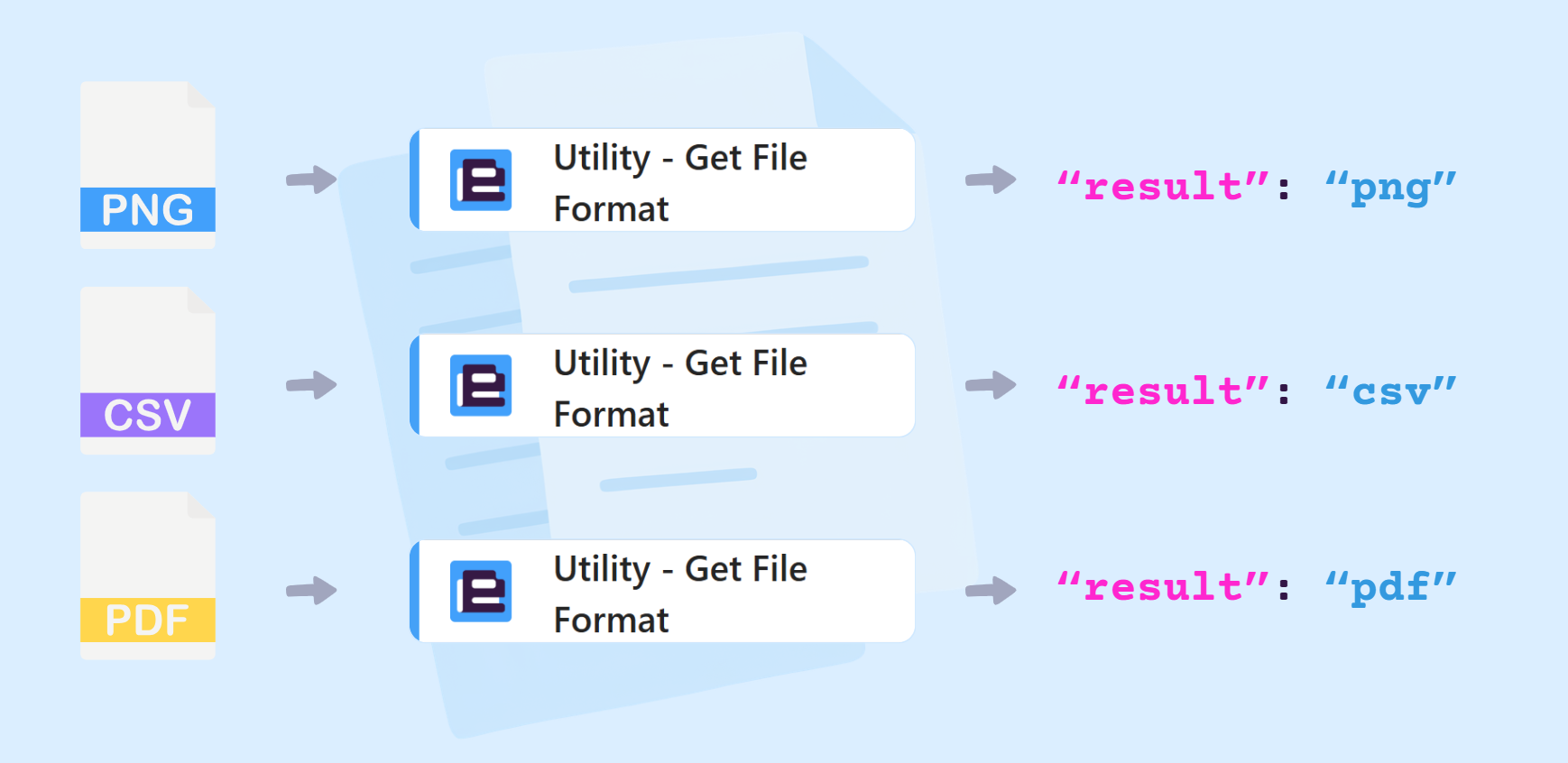
When the flow runs, Encodian Flowr’s Utility – Get File Format action returns the detected file extension in its Result output.
'Get File Extension' vs. 'Get File Format'
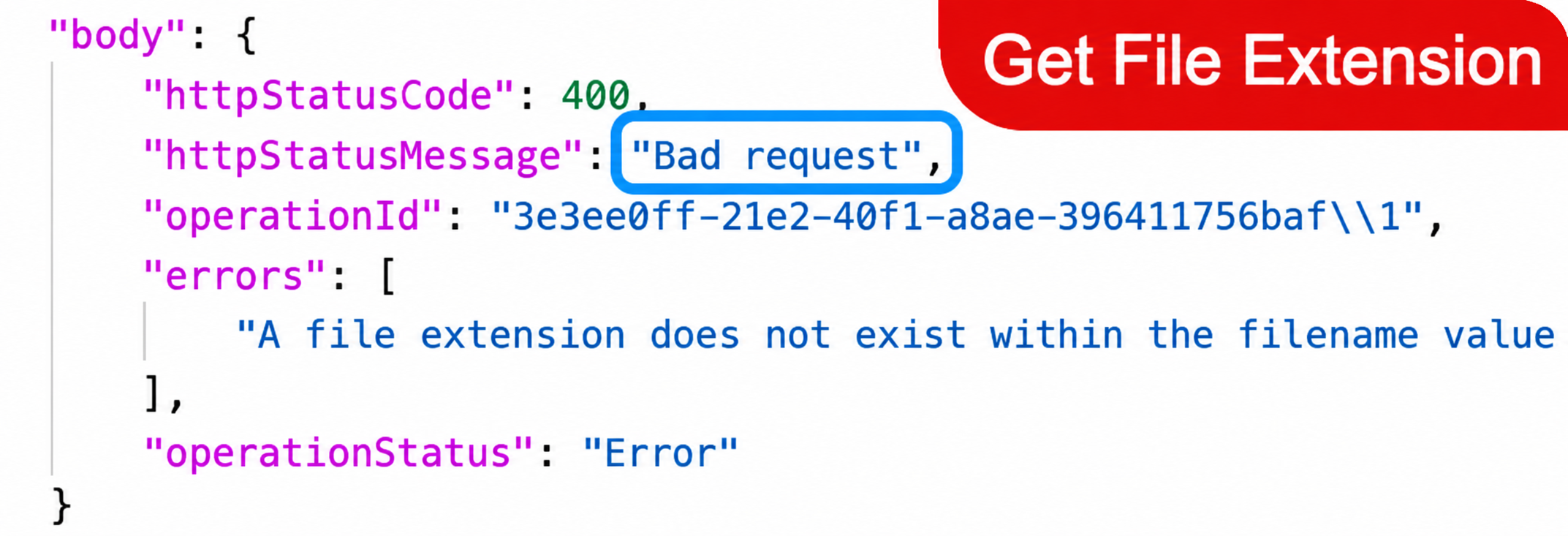
The Utility – Get File Extension action processes a file name (a string value) and extracts its extension. For example, file.pdf would return a value of pdf.
However, a file name does not always represent the format of the underlying content accurately. A file may have no extension, and the file name may not be available in Power Automate.
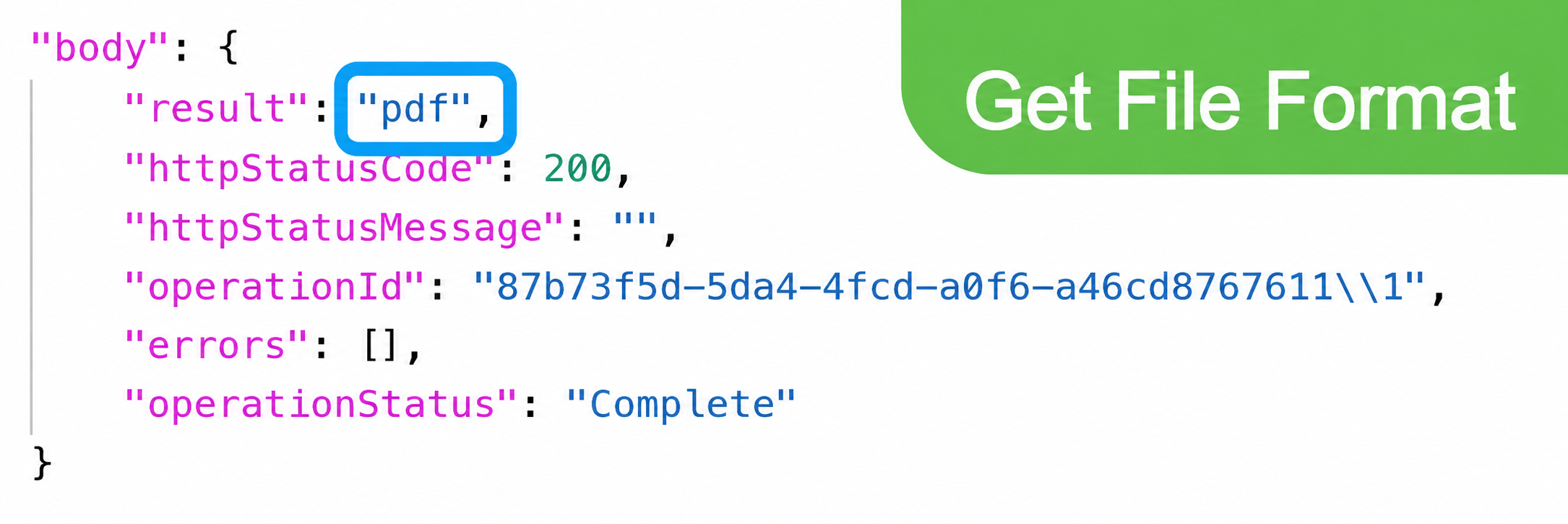
The Utility – Get File Format action determines a file’s format from its binary content (the Power Automate File Content object). This approach is more reliable that relying on a file name, even when the file name is available.
To demonstrate this, the outputs when a file with no extension is processed with Encodian’s Utility – Get File Extension and Utility – Get File Format actions are shown below.
Conditionally process the file based on format
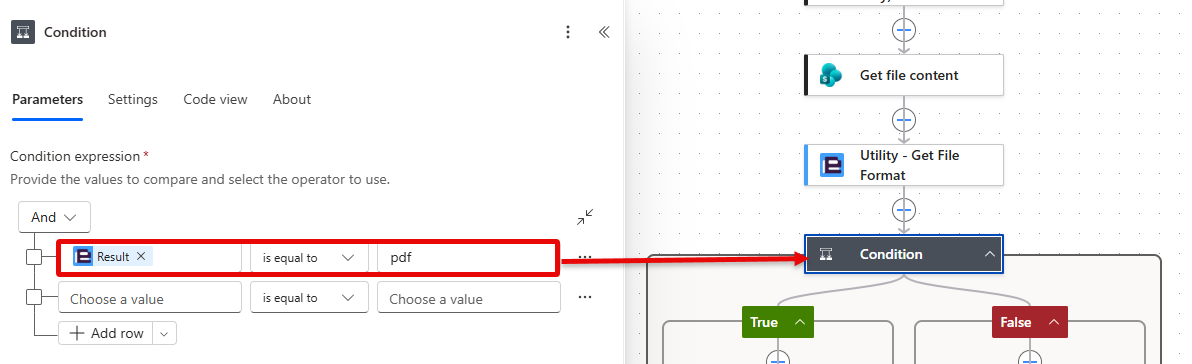
In this example, the flow checks whether the uploaded file is a PDF. To perform this check, add a Condition to the flow.
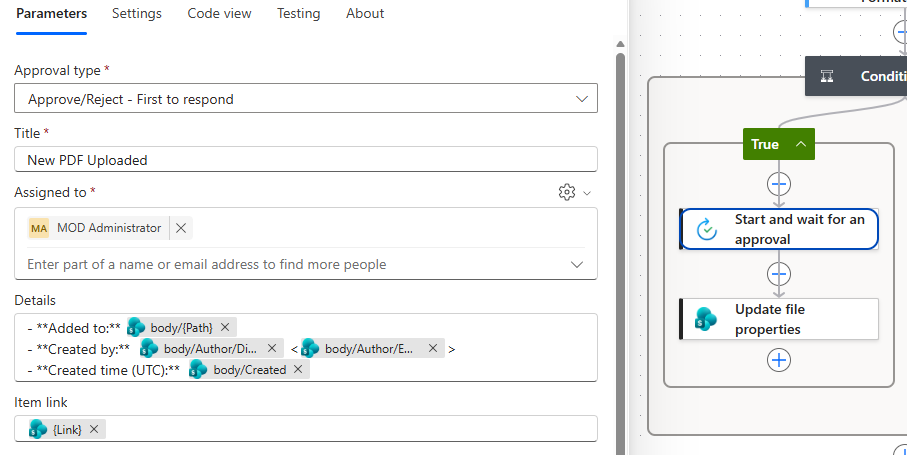
In the True branch, add the Start and wait for an approval action and configure as required.
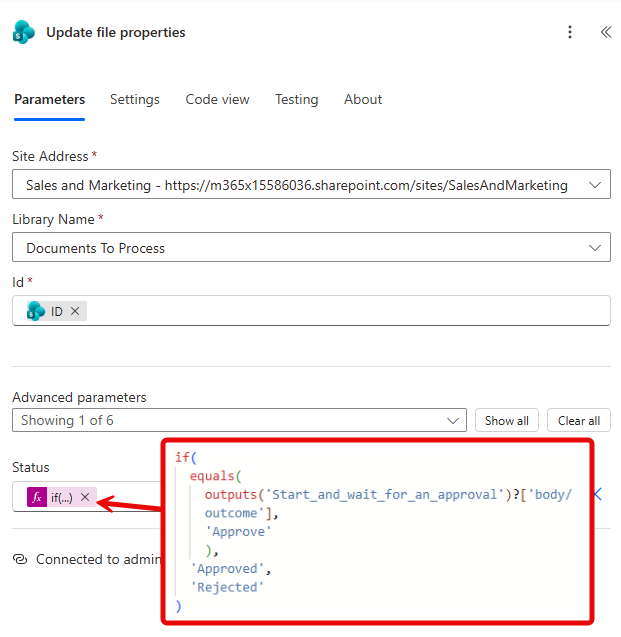
After the approval, add the Update file properties SharePoint action that will update the Status column to Approved upon approval.
Handle documents that aren't PDFs
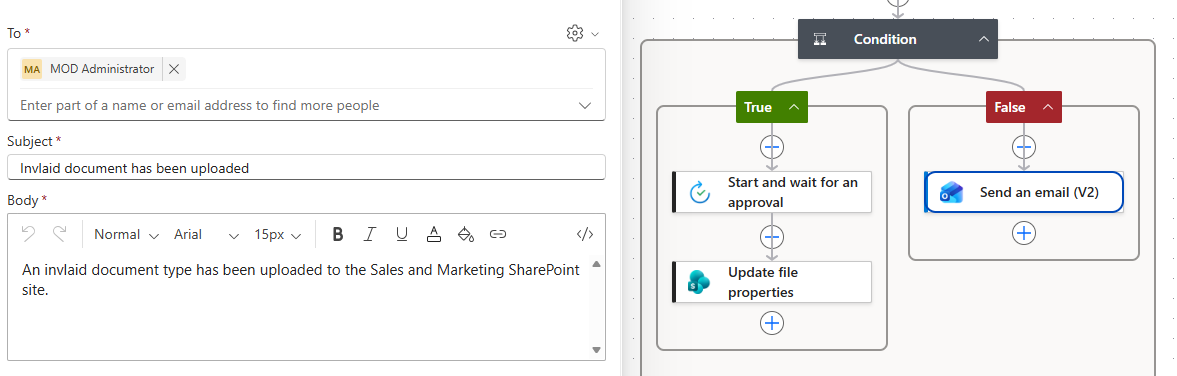
In the False branch, add the Send an email (V2) Outlook action to notify users that the file is invalid.
Test the completed flow
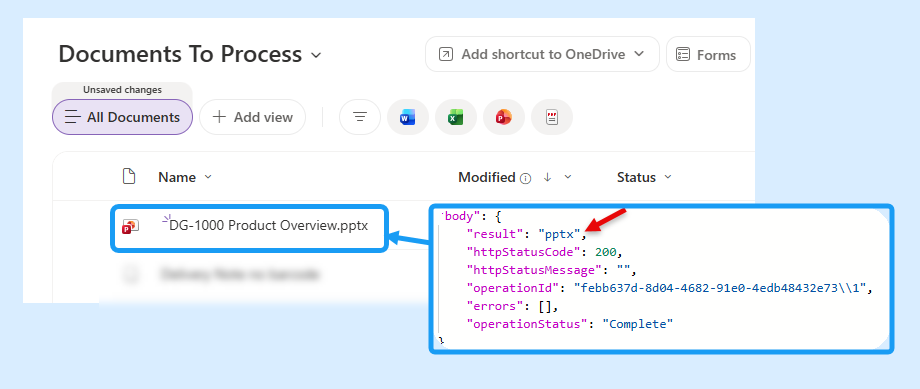
Encodian Flowr’s Utility – Get File Format will identify the file format as pptx.
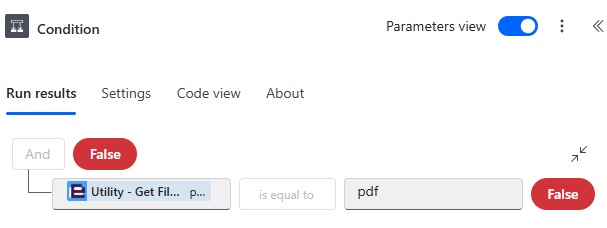
The condition checks whether the returned file format is pdf. In this case, the expression evaluates to False.
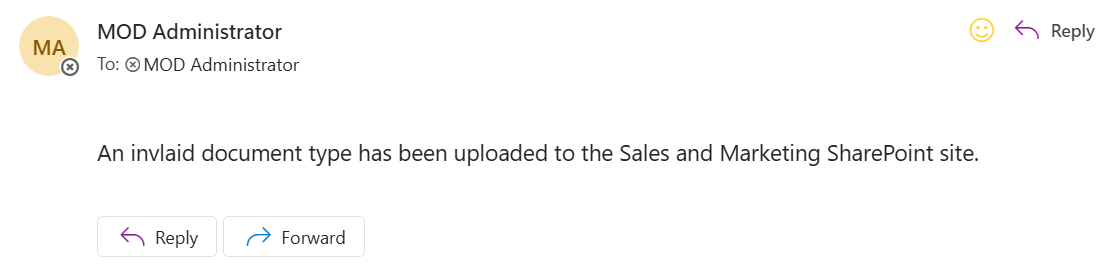
The flow follows the False condition branch, and sends an email to notify the user of the invalid file upload.
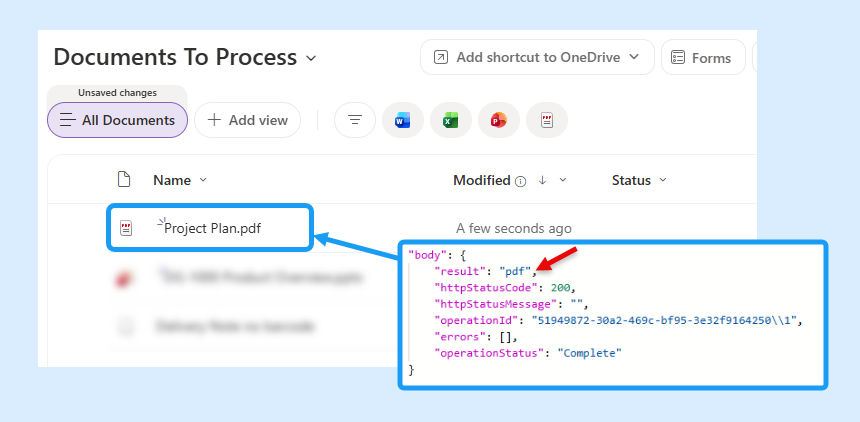
Next, add a PDF to the Documents to Process document library. Utility – Get File Format identifies its format as pdf.
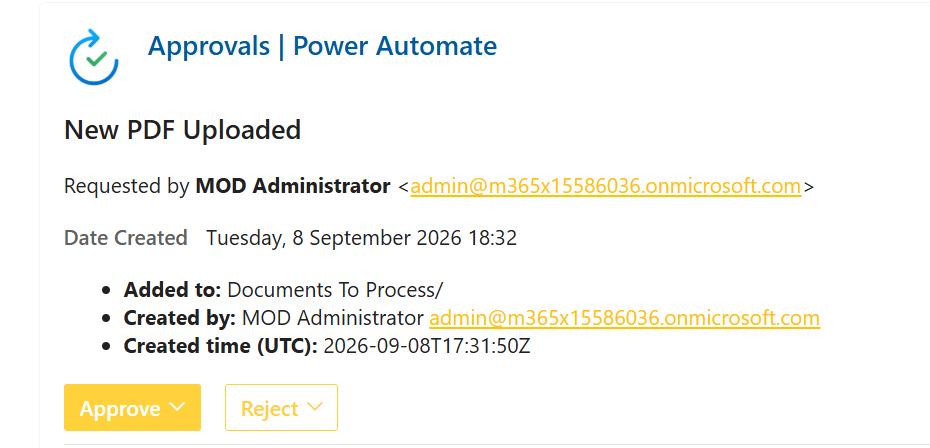
The condition expression evaluates to True, starting an approval for the newly uploaded file.

Once approved, the file’s status is updated in SharePoint to Approved.
FAQs
What is the difference between 'Get File Format' and 'Get File Extension'?
Encodian’s Utility – Get File Extension extracts the extension from a filename. Whereas Encodian’s Utility – Get File Format examines the file’s binary content, so is therefore useful when the file has no extension or when its filename does not accurately represent its content.
How do I process more than two file formats?
Use a Power Automate Switch action and select the Result from Utility – Get File Format as its input. Add a case for each format and use the default case to handle unsupported or unexpected files.
Troubleshooting
Below are solutions to common issues you may come across when building your flow.
Still struggling with your flow? Our Support Team would be happy to help!
Click the link below to raise a ticket on our support site.
Next steps
Once your flow can identify a file’s format from its binary content, you can extend the workflow to support more advanced file validation and processing.
- Handle multiple file formats: Replace the Condition with a Switch action and create a separate case for each supported format, such as PDF, Word, Excel, PowerPoint, or image files.
- Convert files to a standard format: If the uploaded file is not a PDF, use Encodian’s Convert – File to PDF action before sending it for approval. The action supports more than 70 document formats.
- Compare the detected format with the filename: Use Utility – Get File Extension alongside Utility – Get File Format. If the filename says pdf but the binary content is another format, route the file for review.
- Route files to different locations: Move each file into a format-specific SharePoint folder or document library. For example, send PDFs to an approvals library and images to an OCR process.
Or, try another Encodian tutorial to automate more document processing workflows:
- Get the file extension of a filename in Power Automate – compare an extension taken from the filename with the format detected from the file content.
- Working with files and file contents in Power Automate – learn how binary file content is passed between Power Automate actions.
- Automatically convert SharePoint documents to PDF – extend the flow by converting accepted document formats into a consistent PDF output.
Ready to automate file processing?
Start your free trial of Encodian Flowr for Power Automate to unlock over 250 actions for document automation.