



Prerequisites for this tutorial
A SharePoint document library to store the documents you want to process.
A test Word document with a sensitivity label to upload to SharePoint
Power Automate licensing that supports the premium HTTP action.
Permission to create a Microsoft Entra ID app registration, and an administrator who can grant consent for Microsoft Graph application permissions.
An active Azure subscription in the app registration’s tenant, and Contributor access to the subscription.
OPTIONAL: An active Encodian Flowr subscription or trial.
Don’t have a Flowr subscription? Start your free Flowr trial today →
Flow structure
The completed flow runs when a document is added to a SharePoint document library. The SharePoint trigger identifies the new file, and the HTTP action calls Microsoft Graph to request removal of its sensitivity label. Encodian Flowr’s Word – Remove Headers and Footers action then removes any remaining headers. We’ll first use a manual trigger to find the site and drive IDs, then replace it with the automated When a file is created (properties only) SharePoint trigger.

Get SharePoint site ID
Get the document library drive ID

When a file is created in SharePoint

Remove sensitivity label
How sensitivity label removal works with Microsoft Graph
The flow uses a Microsoft Entra ID app registration to authenticate with Microsoft Graph.
The app registration’s application permissions, with admin consent granted, allow the flow to call the metered assignSensitivityLabel API as the app, so users don’t need to sign in each time the flow runs.
Because the API is metered, the app registration must also be linked to an Azure subscription for billing.
PART 1: Set up Microsoft Graph authentication and find the SharePoint drive ID
Create a Microsoft Entra ID app registration
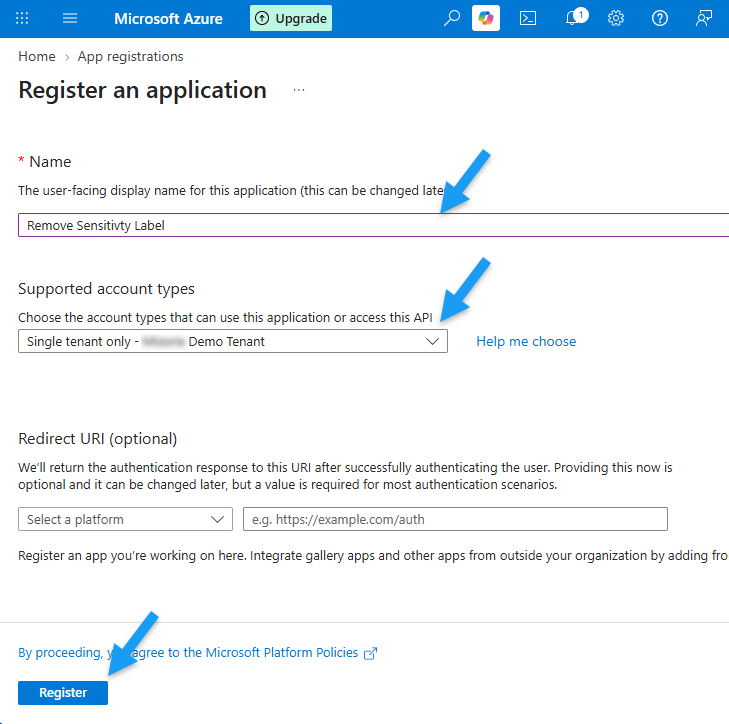
In the Azure portal search for and select App registrations.
Select New Registration.
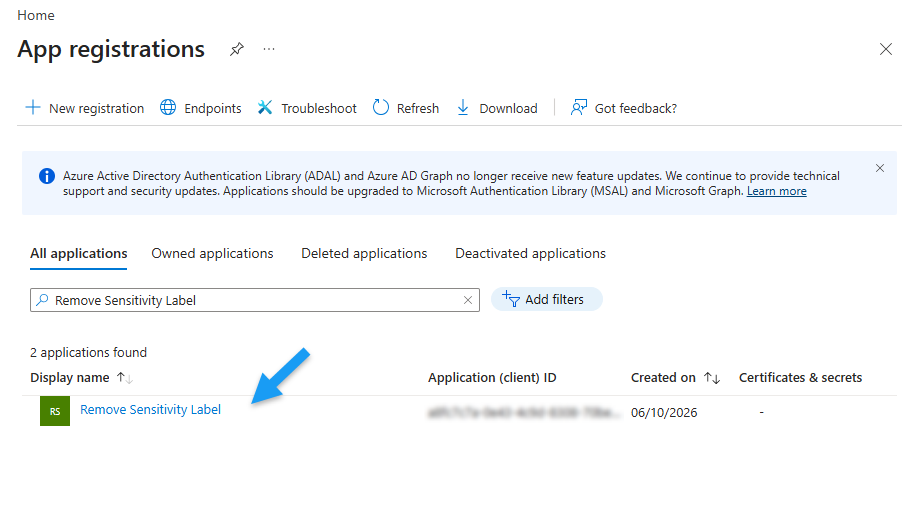
Once created, the Remove Sensitivity Label app appears in the app registrations list.
Create a client secret
The HTTP action uses the app registration’s client secret to authenticate with Microsoft Graph.
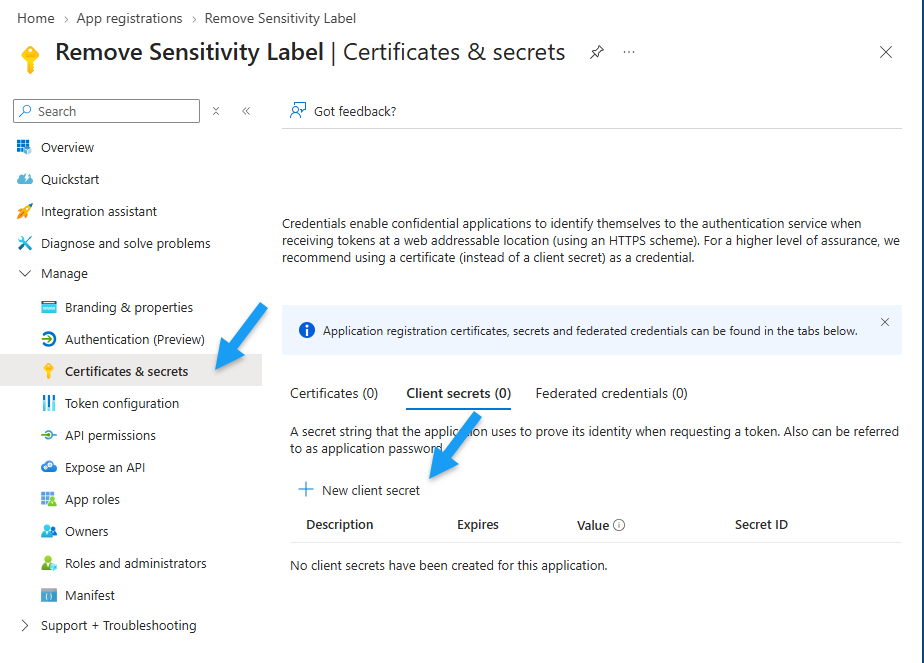
To create a client secret, select the Remove Sensitivity Label app.
Go to Manage > Certificates & Secrets.
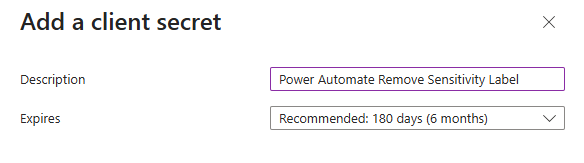
On the Client secrets tab, select New client secret.
Configure API permissions
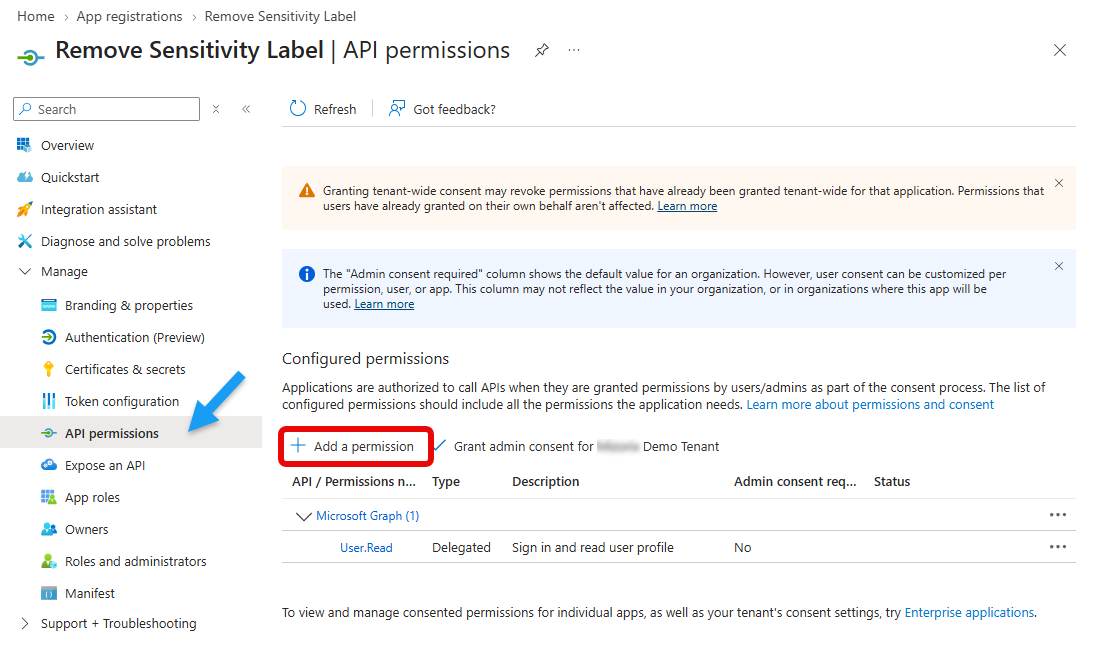
Go to API permissions, then select Add a permission.
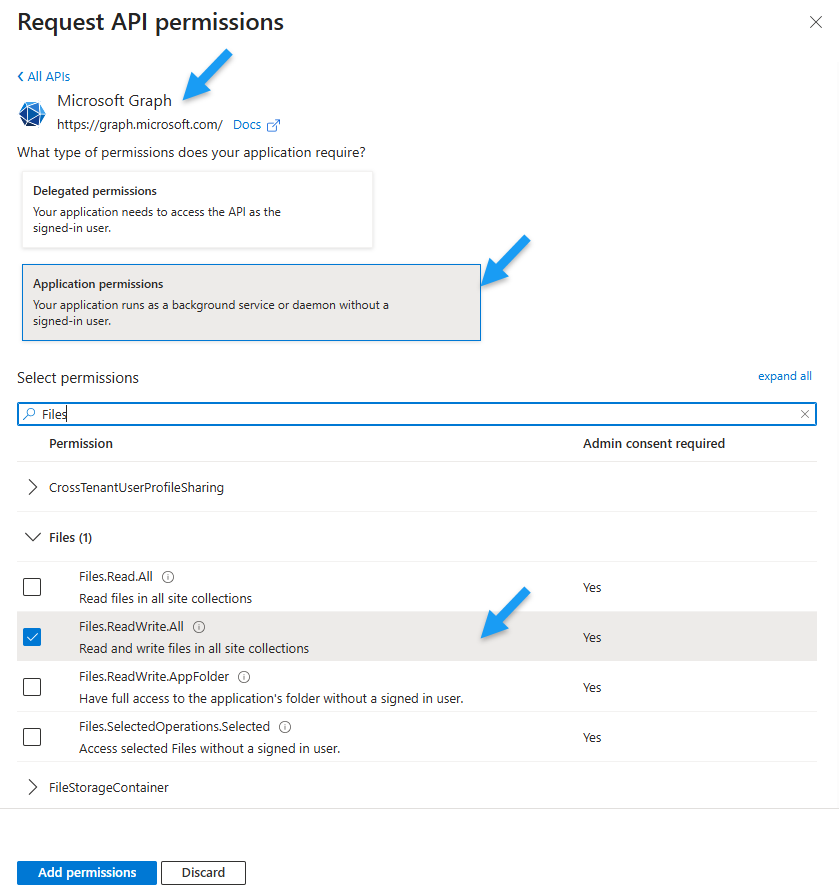
Select Microsoft Graph, then choose Application permissions so the flow can act as the app.
Files.ReadWrite.All allows the app to call assignSensitivityLabel.
Sites.Read.All allows the site search we’ll use to find the target SharePoint site’s ID
Grant admin consent
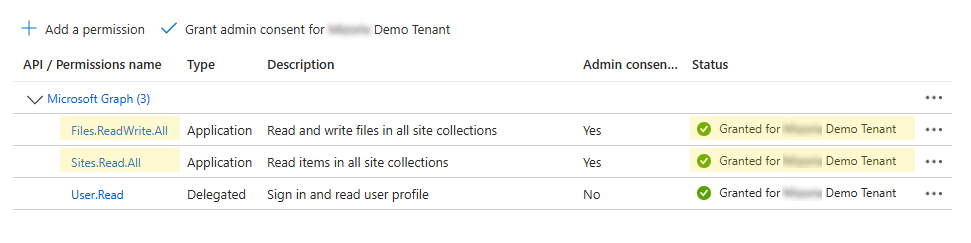
Ask an administrator with the required role to grant admin consent for these permissions. Confirm that the Status column shows that consent has been granted before proceeding.
Create a new instant cloud flow
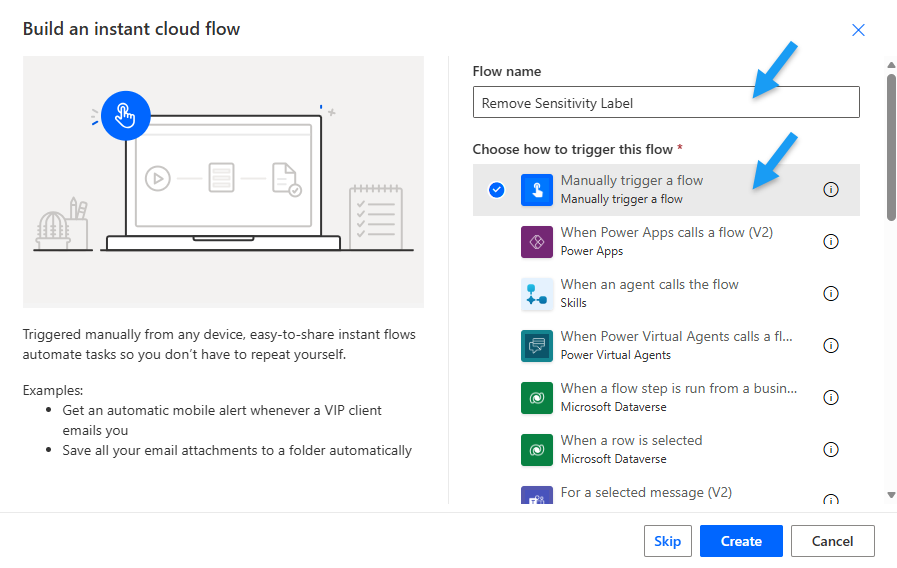
In Power Automate, create a new instant cloud flow.
Find the SharePoint site ID
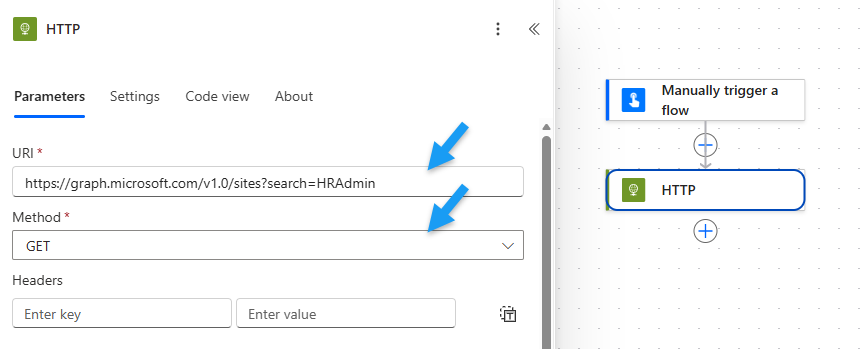
Add an HTTP action to find the target SharePoint site, replacing HRAdmin with the search term for your SharePoint site.
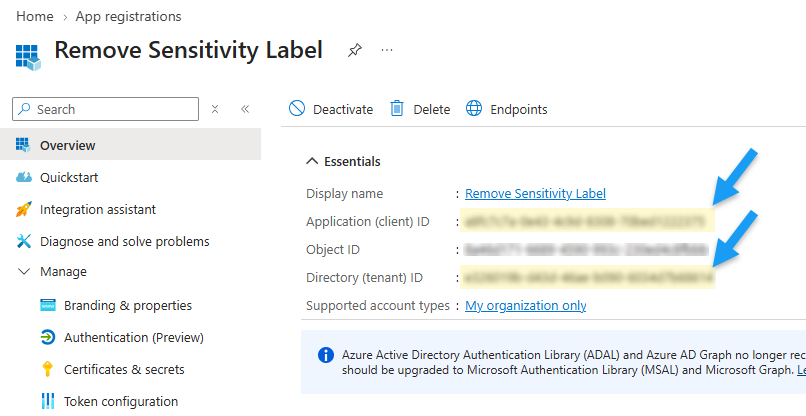
In the advanced parameters, set the authentication type to Active Directory OAuth.
Run the flow to get the site ID
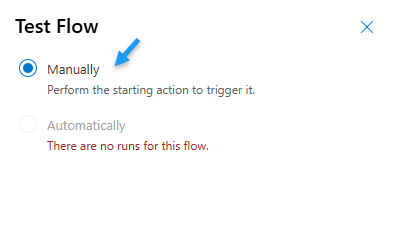
Test the flow manually, then open the completed flow run from the flow’s run history.
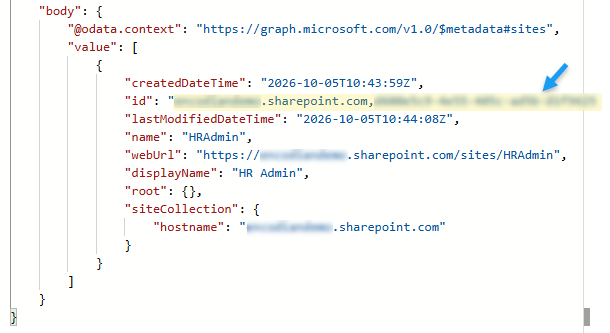
Review the HTTP action’s output.
In the value array, locate the SharePoint site whose webUrl matches your target site. Copy its id value.
Get the SharePoint library’s drive ID
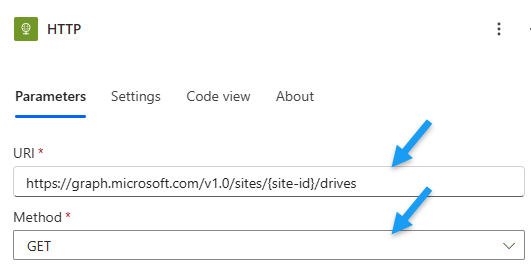
Change the HTTP action’s URI to list the document libraries for the target site.
Keep the other parameters unchanged.
Replace {site-id} in the URI above with the site ID copied in the previous step (without the braces).
Run the flow to get the drive ID
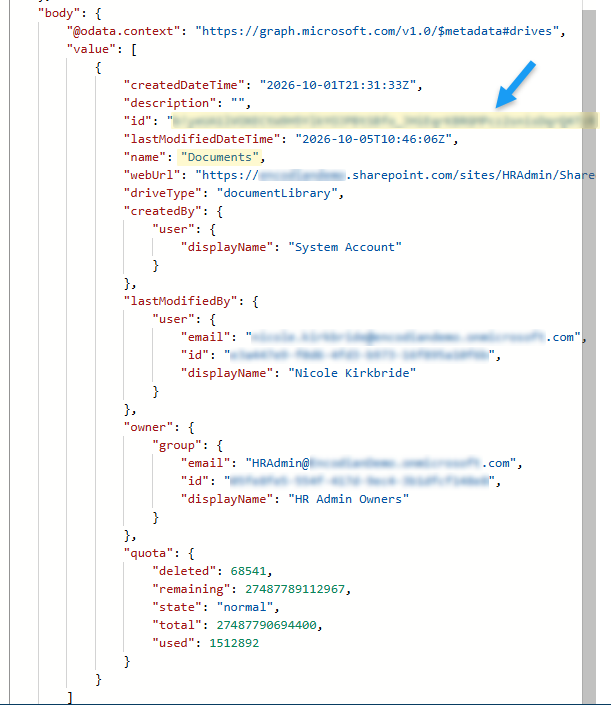
Test the flow manually again, then open the completed flow run from the flow’s run history.
In the HTTP action’s output, find the document library in the value array. Check its name and webUrl, then copy its id value.
This is the drive ID of your document library.
PART 2: Remove a document’s sensitivity label in Power Automate
Replace the flow’s trigger
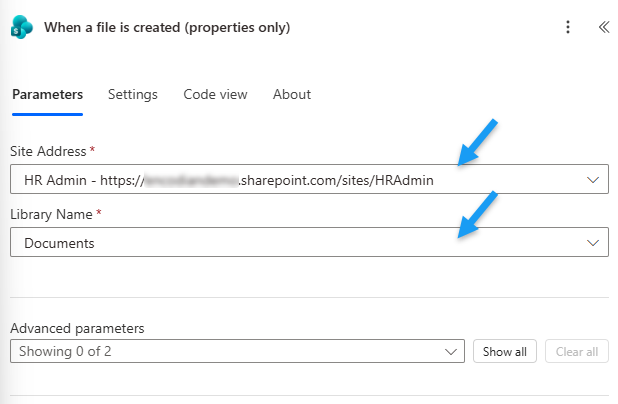
Once you have the drive ID, delete the manual trigger and replace it with SharePoint’s When a file is created (properties only) trigger action.
Remove the document’s sensitivity label
To remove a sensitivity label, set sensitivityLabelId to an empty string ("") in the POST request body. The URI must identify the file by its path relative to the document library.
For this example, upload the document to the library’s root so that the File name with extension from the trigger provides the relative path.
Insert uriComponent(triggerBody()?['{FilenameWithExtension}']) through the expression editor for the filename portion to encode the filename.
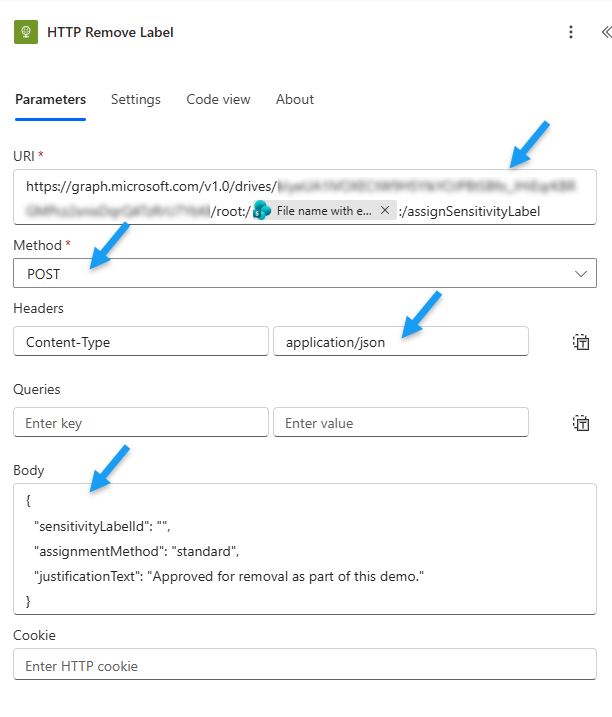
Reconfigure the HTTP action as follows. Keep the authentication settings from the previous steps and replace {drive-id} with your library’s drive ID, without the braces.
Link the app registration to an Azure subscription
The HTTP action calls the metered assignSensitivityLabel API. Link the app registration used for authentication to an Azure subscription so Microsoft Graph can bill its API usage.
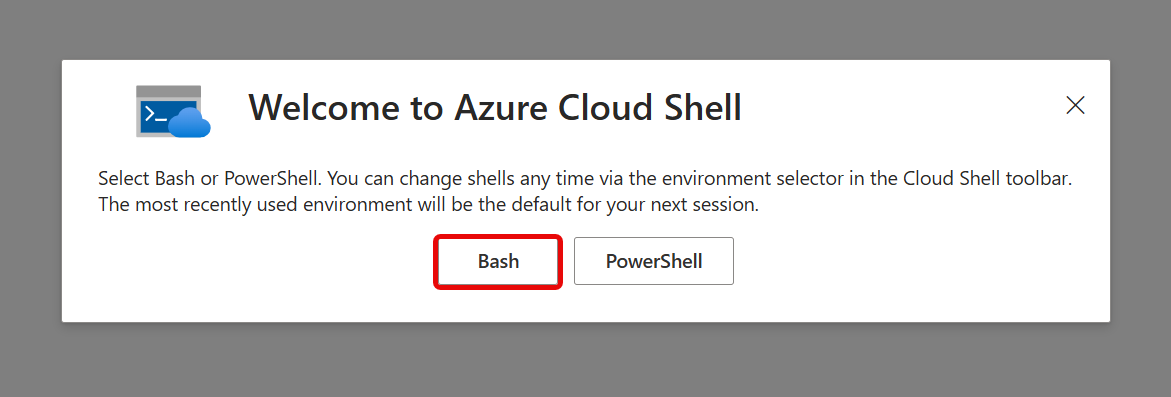
Open Azure Cloud Shell and select Bash to run the following Azure CLI commands.
Select No storage acct required and choose the appropriate Azure subscription from the subscription list dropdown.
Create the Azure resource group that will contain the billing resource. If you already have a suitable resource group in the same subscription, skip this command.
Replace the placeholder values with the following (do not include the braces):
{resource-group}: Name of the resource group, e.g. GraphDemo.
{subscription-id}: Search for ‘Subscriptions’ in the Azure portal, and copy the value in the subscription ID column of the appropriate subscription.
Run this command to create the Microsoft.GraphServices/accounts billing resource and associate the app registration with your Azure subscription.
Replace the placeholder values with the following (do not include the braces):
{resource-group}: Name of the resource group created with the previous command, or the name of your existing resource group.
{billing-resource}: Choose a name for the billing resource, e.g. GraphDemoBilling.
{subscription-id}: Search for Subscriptions in the Azure portal. Copy the Subscription ID for the appropriate subscription.
{application-id}: Copy the Application (client) ID from the app registration’s Overview page.
Test the flow
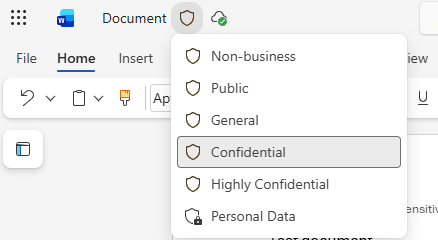
Save the flow, then upload a test document with a sensitivity label to the root of the selected document library to trigger it.
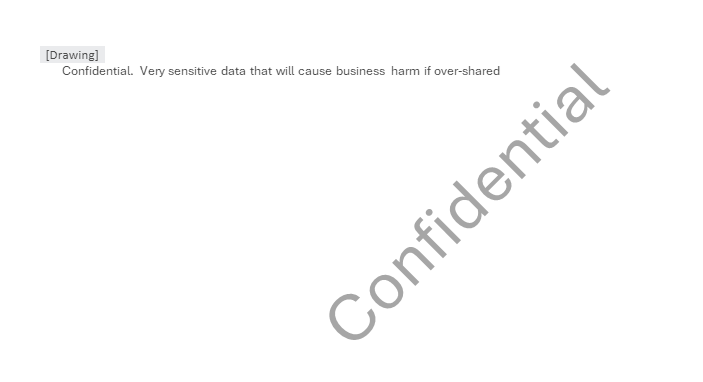
Once the flow run is complete, reopen the document. Confirm that it no longer has a sensitivity label, and check whether the document still contains headers displaying its previous classification. If it does, complete the following steps to remove them.
Remove outdated classification headers
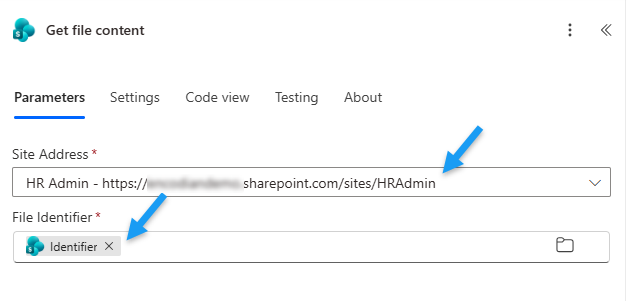
Add the Get file content SharePoint action.
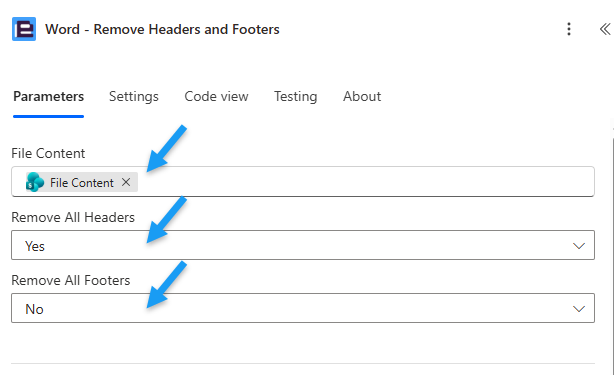
Add Encodian Flowr’s Word – Remove Headers and Footers action to remove headers that contain outdated classification information.
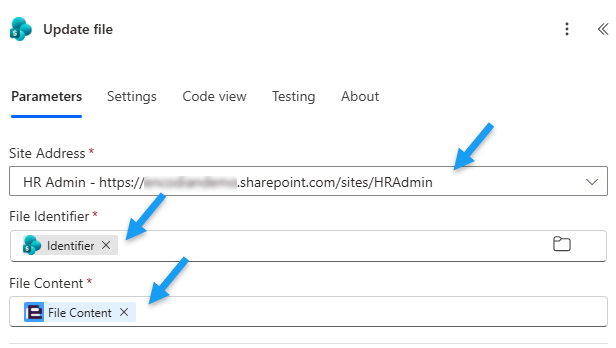
Add the Update file SharePoint action to update the file with the output from Word – Remove Headers and Footers.
FAQs
Can Power Automate remove sensitivity labels from SharePoint documents?
Yes. Power Automate can call Microsoft Graph’s assignSensitivityLabel API using an HTTP action. To request removal, set sensitivityLabelId to an empty string (""). The app also needs the required permissions, admin consent, and billing configuration.
Do I need Encodian to remove the sensitivity label?
The label removal itself uses Microsoft Graph and doesn’t require Encodian. In this tutorial, Encodian Flowr provides the optional Word – Remove Headers and Footers action to remove headers containing outdated classification information.
Is there a cost associated with removing sensitivity labels in Power Automate?
The assignSensitivityLabel API is metered, so its usage incurs charges through the linked Azure subscription. You also need Power Automate licensing that supports the premium HTTP action. If you follow the optional header-cleanup step, you’ll need an Encodian Flowr subscription or trial with available credits.
Why does a “Confidential” watermark or header remain after the label is removed?
Removing a sensitivity label through Microsoft Graph doesn’t necessarily remove classification markings already embedded in the document, such as headers, footers, or watermarks.
If the classification information appears in a header or footer, you can use Encodian Flowr’s Word – Remove Headers and Footers action to remove that content. However, this action removes the entire header or footer, and it won’t necessarily remove watermarks stored elsewhere in the document.
Troubleshooting
Next steps
Now that you’ve built a flow to remove sensitivity labels and clean up outdated headers, here are some ways to extend your document preparation process:
- Email the processed document: Add an Outlook Send an email (V2) action to send the final document to its intended recipients. Use the latest file content after label removal and any header cleanup have completed.
- Convert the document to PDF: Use Encodian Flowr’s Convert – Word action to create a PDF version of the processed document, then save it to SharePoint or attach it to an email.
- Add an approval before removing the label: Use Start and wait for an approval, followed by a condition, to request confirmation from the document owner. Continue with label removal only when the request is approved.
Or, consider automating more document processing workflows:
- Convert Microsoft Word Files in Power Automate – learn how to create PDF versions using Convert – Word.
- Create and insert a document approval sheet using Power Automate approval data – extend your approval process by adding approval dates, comments, and decisions to a PDF rendition.
Ready to automate more file processing?
Start your free trial of Encodian Flowr for Power Automate to unlock over 250 actions for document automation.