



Prerequisites for this tutorial
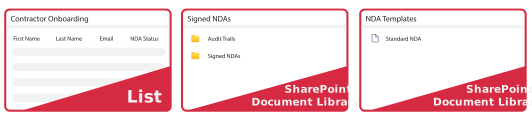
A SharePoint list containing recipient details. The flow will be triggered when a new item is added to this list. This example uses a Contractor Onboarding list with First Name, Last Name, Email, and an ‘NDA Status’ choice column.
A SharePoint document library to store signed documents and audit trails. This example uses a SharePoint library called Signed NDAs with “Audit Trails” and “Signed Documents” folders.
A SharePoint document library that acts as the source for the file to be signed. This example uses a document library named NDA Templates.
A document containing a signature field placeholder (e.g. “Sign here”), or an existing target field that can be referenced by name.
An active Encodian Sign trial or subscription, and a sender email address associated with a licensed member of the Sign workspace.
What You'll Build
In this example, the Power Automate flow is automatically triggered when a new item is created in a SharePoint list. The flow retrieves the document from a SharePoint document library, creates an e-signature envelope using Encodian Sign, and sends it to the specified recipient for electronic signature.
The flow then monitors the envelope’s status to track signing progress. Once all required signatures have been collected and the envelope is complete, the signed document and associated audit trail are automatically downloaded and saved to SharePoint.

New recipient added to a SharePoint list

Create an Encodian Sign envelope
Add recipient and signature fields

Await signature
Download signed documents and audit trails
What the Recipient Will See
Once the envelope is created and sent, the recipient will review and sign the document. The following steps illustrate the signing process from the recipient’s perspective.
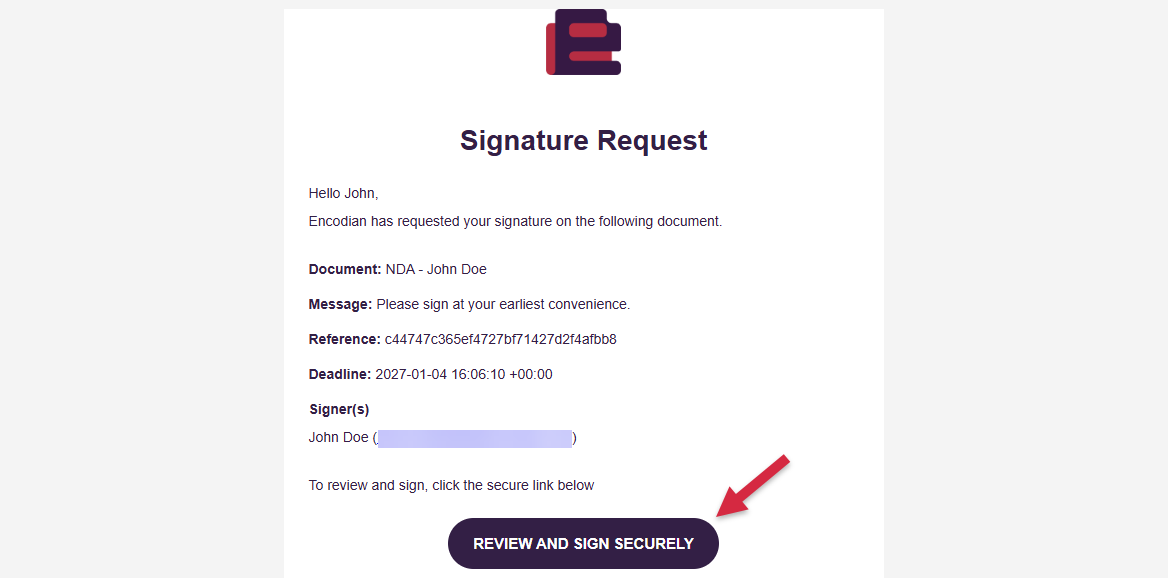
1. The recipient receives an email containing a secure link to review and sign the document.
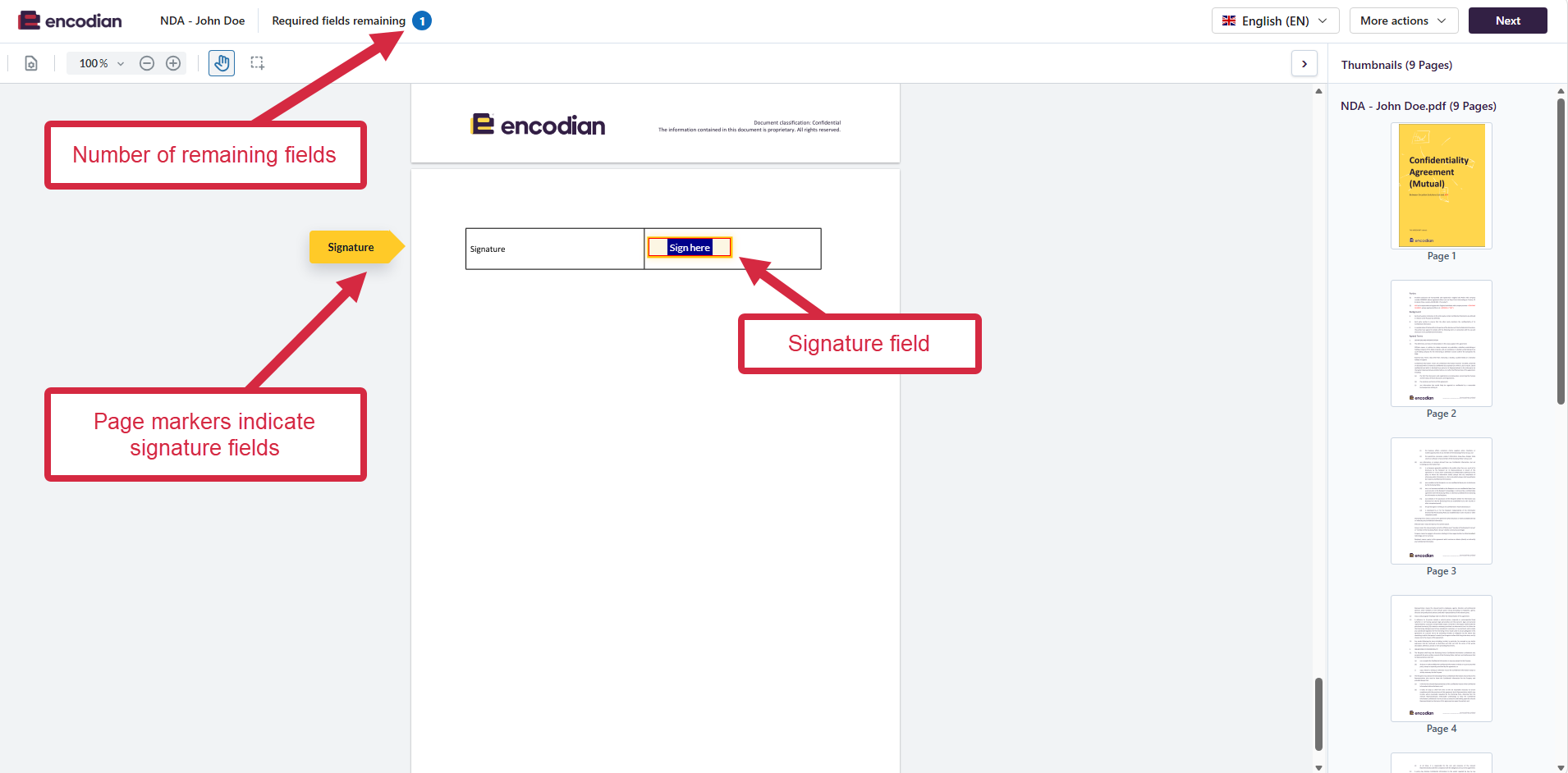
2. The document opens with the required signature fields clearly highlighted.
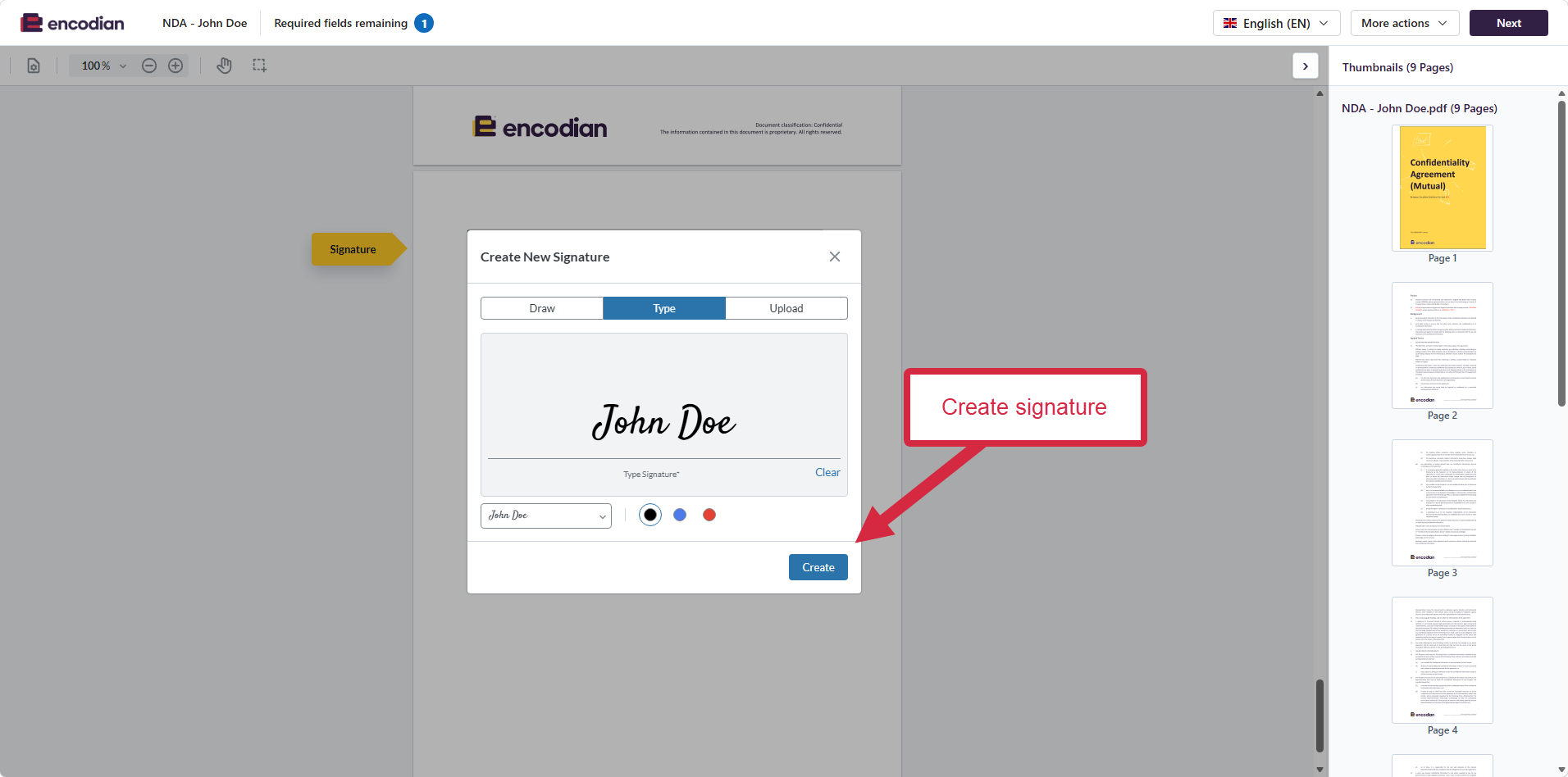
3. The recipient can create or select a signature and complete any additional required fields.
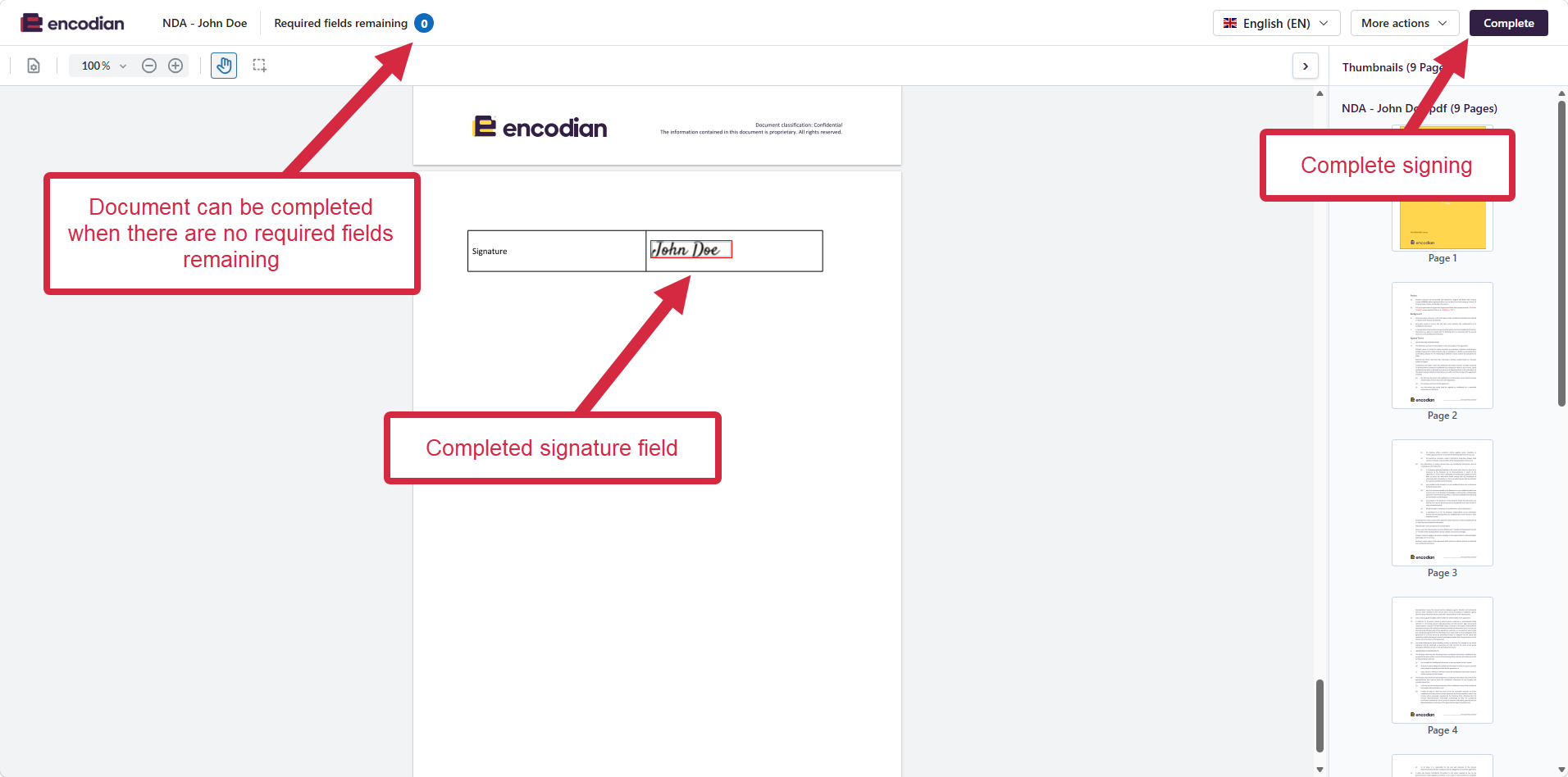
4. Once all required fields are completed, the recipient can finalise the signing process. They’ll then receive an email confirming completion.
PART 1: Create an envelope in Power Automate and monitor its status
Create an automated cloud flow
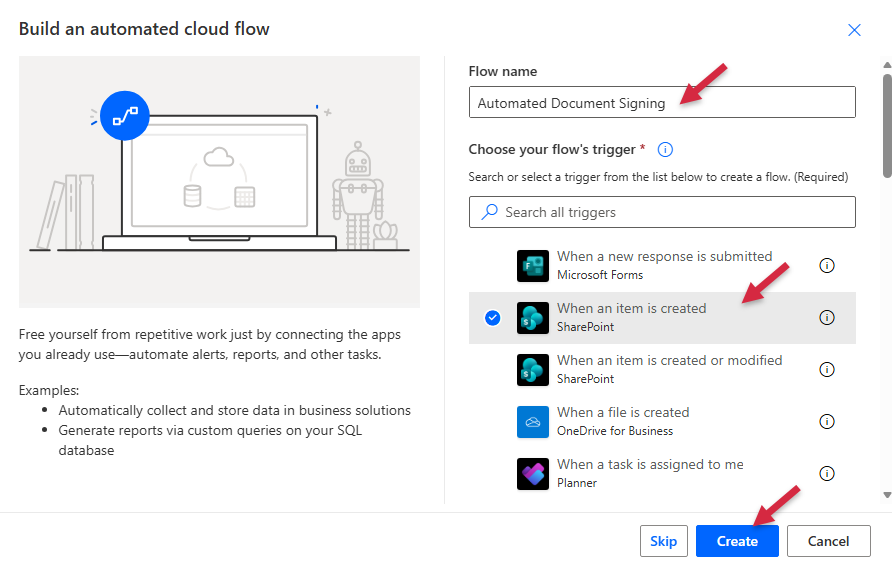
In Power Automate, create a new automated cloud flow.
Configure the trigger
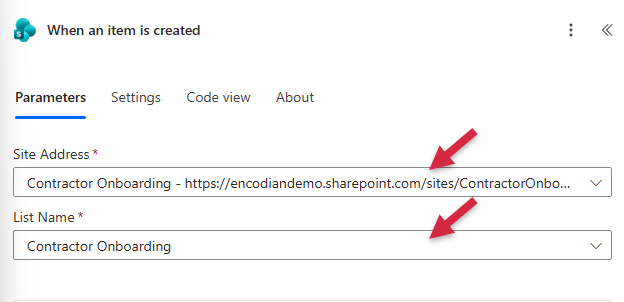
Retrieve the file to be signed
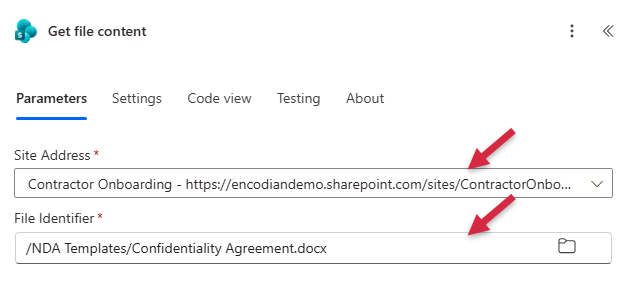
This example assumes the file is ready to send, and only requires signature fields to be added. If your file needs to be personalized first, add the actions necessary to prepare the document before creating the envelope.
Add SharePoint’s Get file content action to retrieve the file’s content of the NDA that will be sent to the recipient.
Add the ‘Envelope – Sign Single File’ action
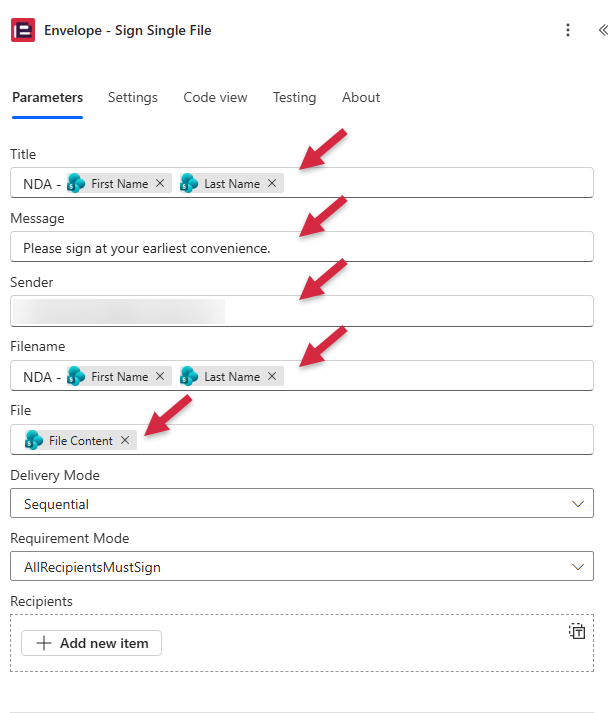
Add Encodian Sign’s Envelope – Sign Single File action. This creates a signing envelope for a single file. If prompted, create a connection using the API key for your Encodian Sign workspace.
Configure the envelope recipient
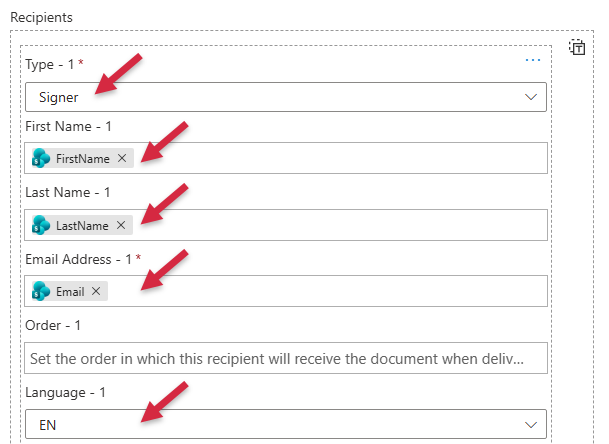
In Recipients, select Add New Item. This example populates one signer using SharePoint list values.
Configure the signature field
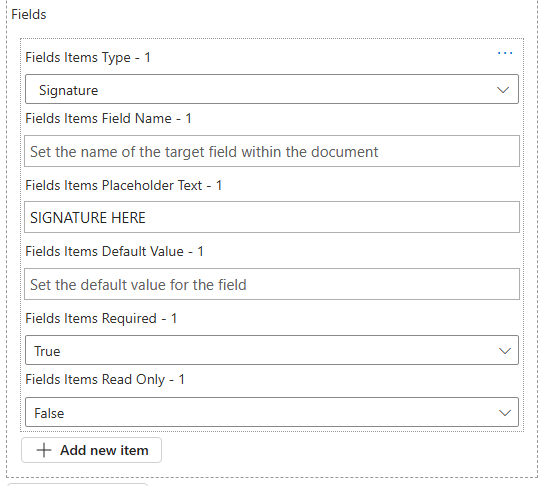
Under the recipient’s Fields section, select Add New Item.
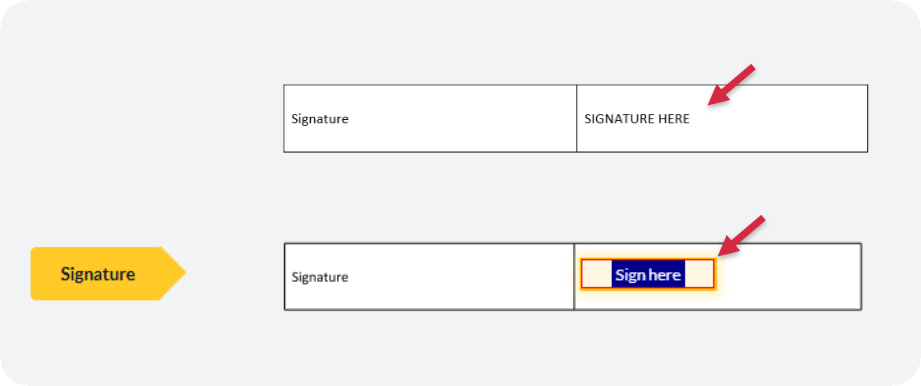
This example shows how placeholder text in the source document is used to position a signature field.
Monitor the envelope status
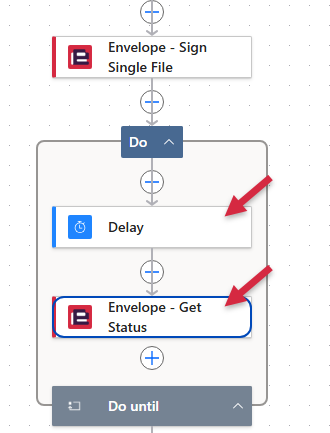
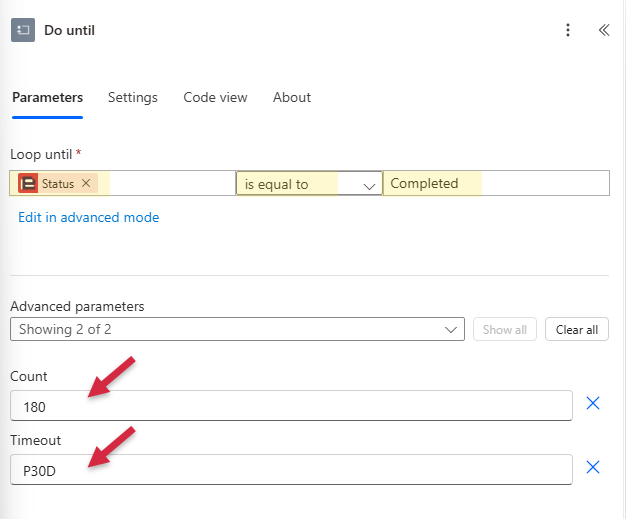
Add a Do until loop to check the envelope’s latest status, using Envelope – Get Status inside the loop. When Envelope – Get Status returns ‘Completed’, the recipient has completed the required fields set out in the document.
Inside Do until, add a Delay action, followed by Encodian Sign’s Envelope – Get Status action.
Optional: Update recipient item when the document has been signed
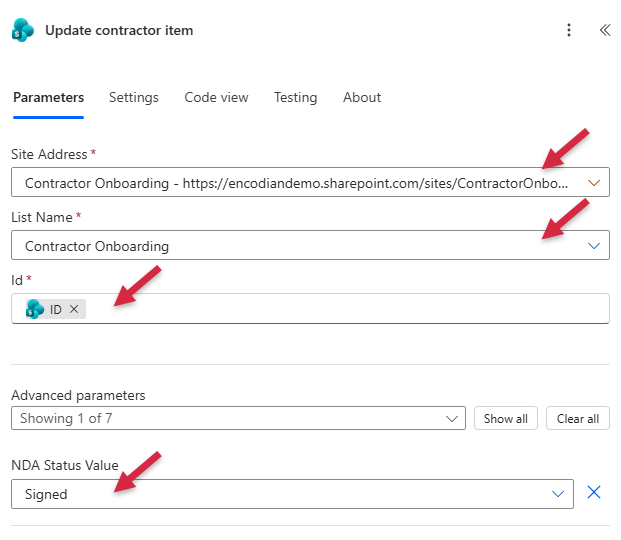
After verifying the envelope status is ‘Completed’, you can update the record that initiated the request. In this example, add SharePoint’s Update item action to update the item’s NDA Status to ‘Signed’.
PART 2: Download and save the completed signing records
Download the envelope audit trail
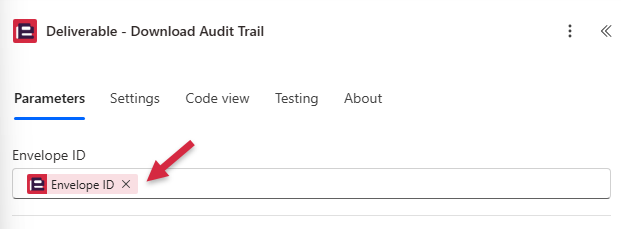
Add Encodian Sign’s Deliverable – Download Audit Trail action to retrieve the completed envelope’s audit trail PDF.
Save the audit trail
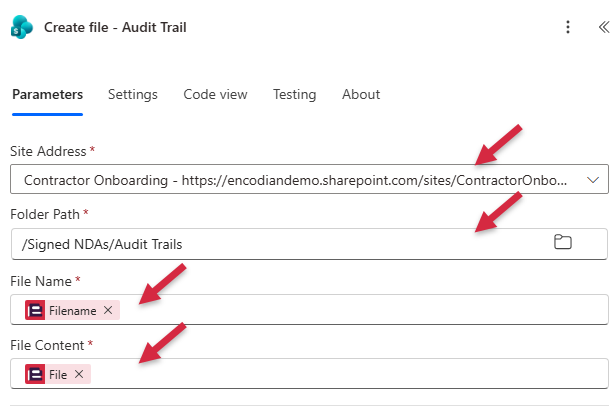
Add SharePoint’s Create file action to save the audit trail in your destination SharePoint library.
Download the envelope’s signed documents
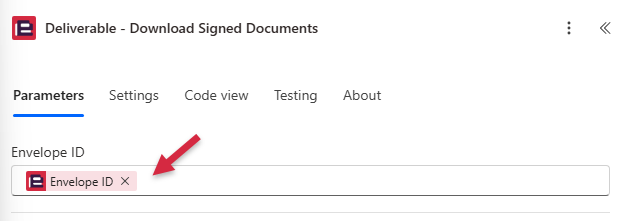
Add Encodian Sign’s Deliverable – Download Signed Documents action to retrieve the signed files from the completed envelope.
Save the completed envelope’s signed documents
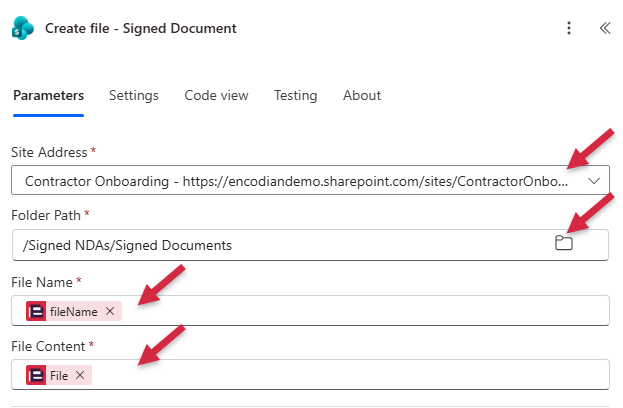
Add SharePoint’s Create file action.
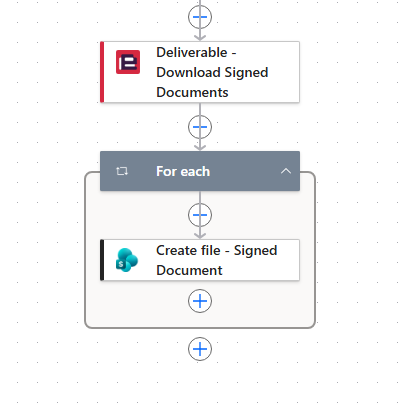
When you select a signed documents array output, Power Automate will add a For each loop so that a file is created for each retrieved document.
Troubleshooting
If your signing workflow isn’t working as expected, check the following common issues.
The recipient doesn't receive the signature request
Verify that the recipient’s email address is correct and that the envelope was created successfully. Check the envelope’s current status on the Encodian Sign dashboard and ask the recipient to check their junk or spam folder.
The signature field doesn't appear in the correct location
Check that Fields Items Placeholder Text exactly matches the text in the source document. If you’re targeting an existing field instead, confirm that Fields Items Field Name references the correct field name. Review the source document to ensure the intended placeholder or field is present.
The “Do until” loop doesn't complete when the document is signed
Check that the loop compares the latest status returned by Envelope – Get Status with Completed, rather than the initial status returned by Envelope – Sign Single File. Confirm that the Envelope ID is correct and that the expression references the correct action name and output property. Also review the loop’s iteration count, delay interval, and timeout settings.
The envelope hasn't been completed when the loop stops
The Do until loop may reach its configured limits before the recipient signs. Check the envelope’s latest status before updating records or downloading completed documents. Consider adding a Condition action after the loop to handle incomplete, declined, or expired envelopes separately, as described in Next Steps.
FAQs
Can I automatically send documents for electronic signature using Power Automate?
Yes. You can use Encodian Sign’s Envelope – Sign Single File action to create an e-signature envelope and send a document to one or more recipients directly from Power Automate. The process can be triggered automatically by an event, such as a new SharePoint list item, form submission, or approval.
Can I send an envelope to multiple recipients?
Yes. Encodian Sign supports multiple recipients within an envelope. You can configure recipients and their signing fields using the Envelope – Sign Single File action. Depending on your requirements, you can use sequential delivery to control signing order or parallel delivery to send the document to multiple recipients without a sequential signing order.
Can I automatically populate a document before sending it for signature?
Yes. You can add document preparation actions earlier in your Power Automate flow to populate a template with dynamic information, such as names, dates, or agreement details. For example, Encodian Flowr’s Word – Populate can populate Word templates before the resulting document is passed to Encodian Sign for signature.
Can I automatically download signed documents and audit trails?
Yes. Once an envelope has been completed, use Deliverable – Download Signed Documents to retrieve the signed files and Deliverable – Download Audit Trail to retrieve the signing activity record. You can then save these outputs to SharePoint or another storage location using additional Power Automate actions.
Next Steps
Handle incomplete or expired envelopes
Add a Condition action after the Do until loop to verify that the latest status returned by Envelope – Get Status is Completed. This handles cases where the loop reaches its iteration limit or timeout if the envelope hasn’t been signed. Configure the True branch to update the SharePoint record and download the completed signing documents. Use the False branch to handle incomplete envelopes, such as notifying an administrator or updating the record to indicate that the signing process hasn’t been completed.
Automate more post-signing actions
Email the signed agreement, update a record, or initiate other processes.
Ready to simplify electronic signatures?
Start your free trial of Encodian Sign for Power Automate to send documents for signature, manage signing workflows, and integrate electronic signatures into Power Automate.
