



In Encodian Sign, the Delivery Mode setting determines whether recipients are invited to sign sequentially or in parallel.
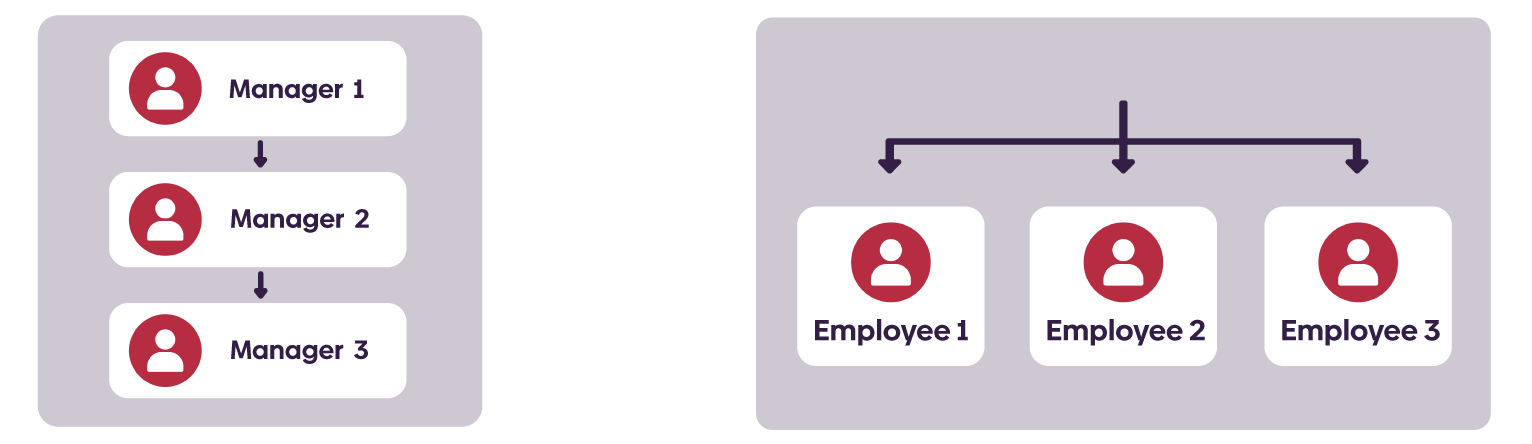
Sequential delivery
Recipients sign in a defined order. Each recipient is invited to sign after the preceding recipient has completed their signing task.
Parallel delivery
Recipients are invited to sign independently, without waiting for other recipients in the same stage.
Combine Delivery Modes with Signing Stages
You can use either delivery mode in a single-stage process, or combine modes across multiple stages.
- With one stage, recipients can sign sequentially or in parallel.
- With multiple stages, each stage can use its own recipient signing order.
A later stage begins only after the preceding stage meets its completion requirements. These are determined by the envelope’s Fields settings, which define the required signing fields, and the Requirement Mode, which controls how many recipients must complete their signing tasks before the next stage can begin.
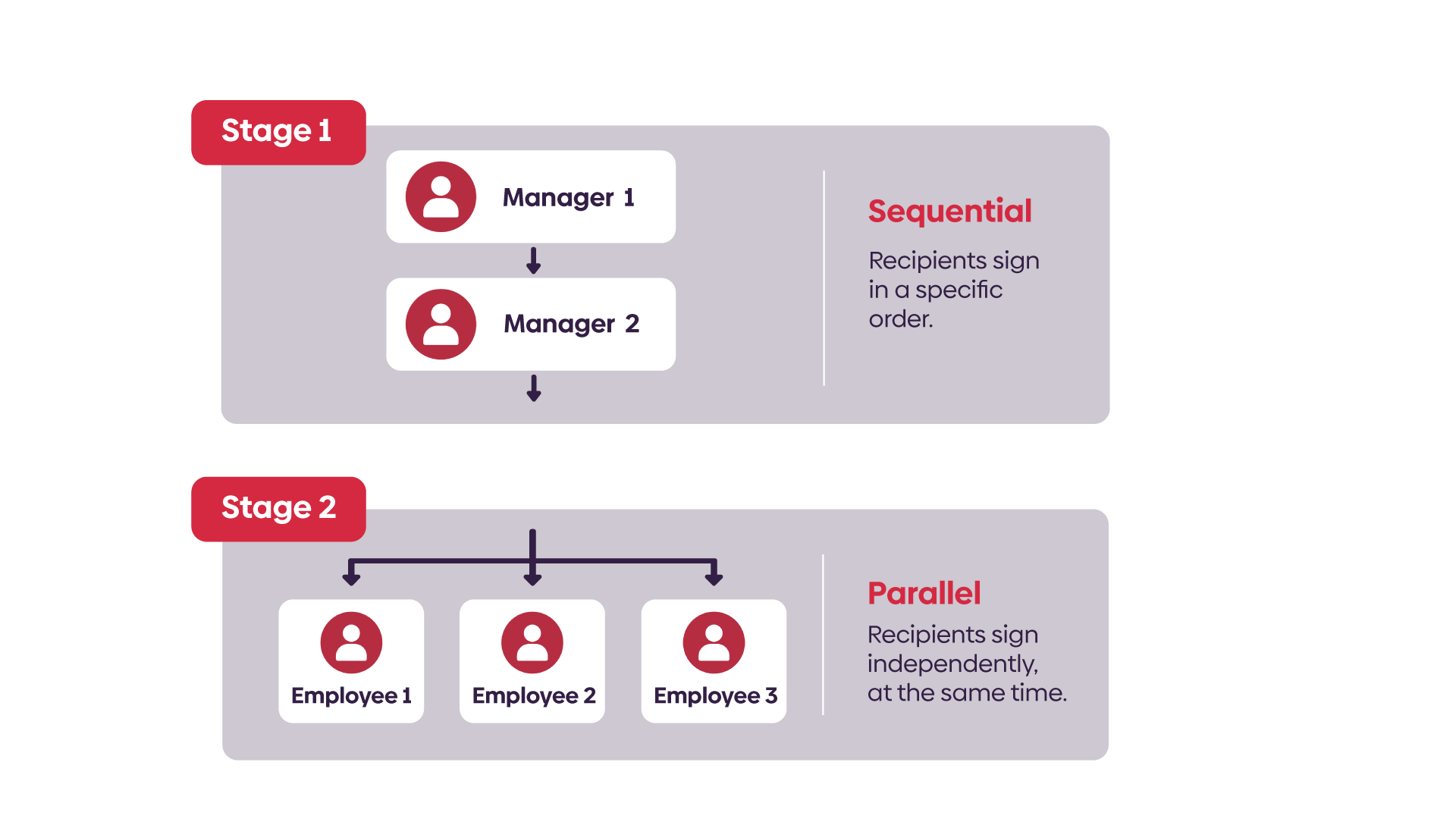
Alternatively, both stages could use sequential signing, or both could use parallel signing. The key distinction is that:
- Stages control when different groups of recipients are invited to sign
- Delivery mode controls how recipients sign within each stage
Configure Delivery Mode in the Encodian Sign Dashboard
Single-stage signing
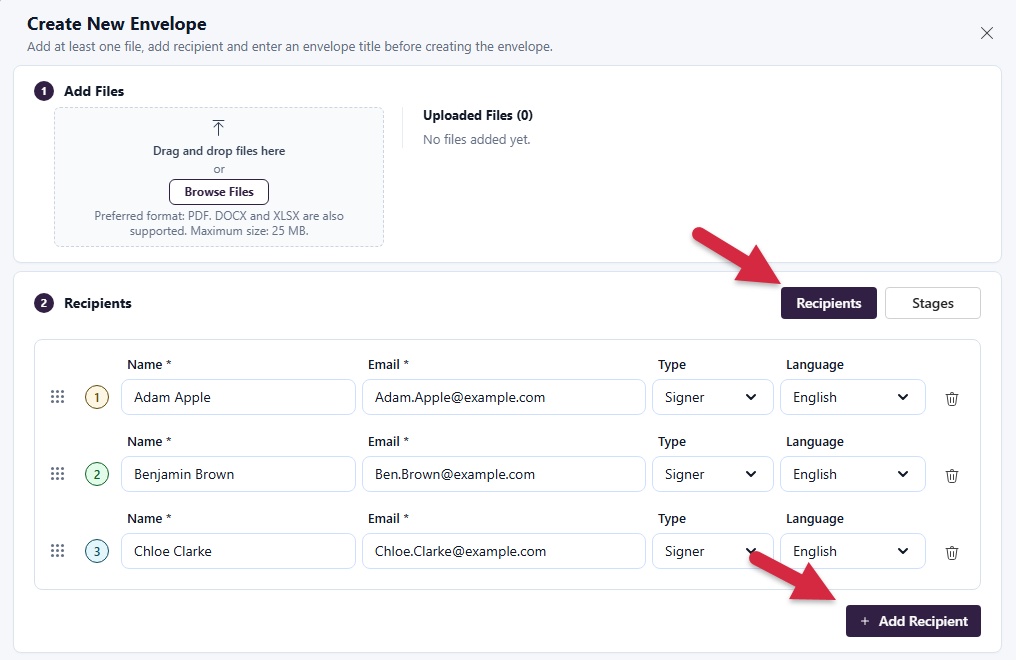
When creating a new envelope, select the Recipients tab, and add the recipients.
If using Sequential delivery, drag and drop the recipients into the required signing order.
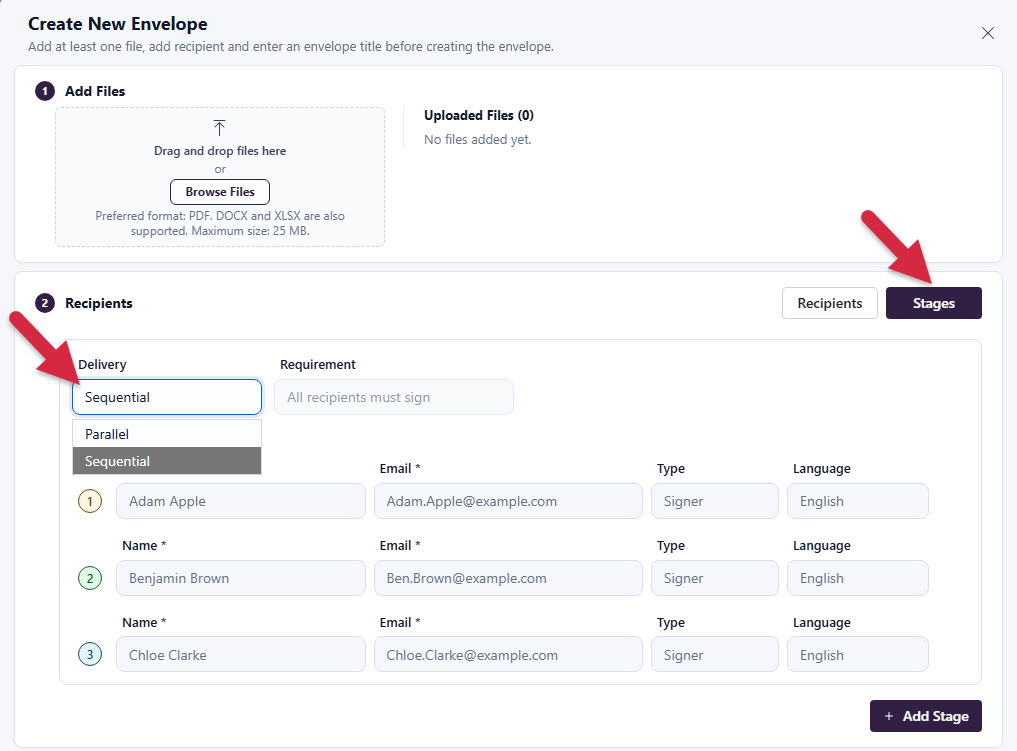
Select Stages, and choose Sequential or Parallel from the Delivery Mode dropdown.
Multi-stage signing
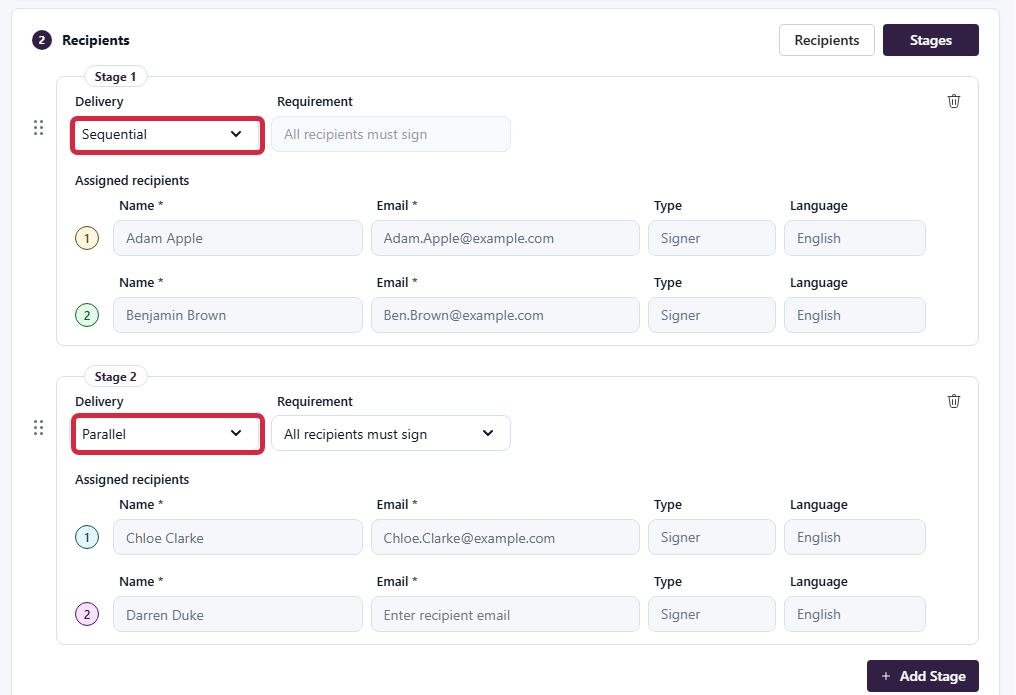
To use multiple signing stages, select Stages, then select Add Stage to create each additional signing stage.
Choose the Delivery option for each stage independently.
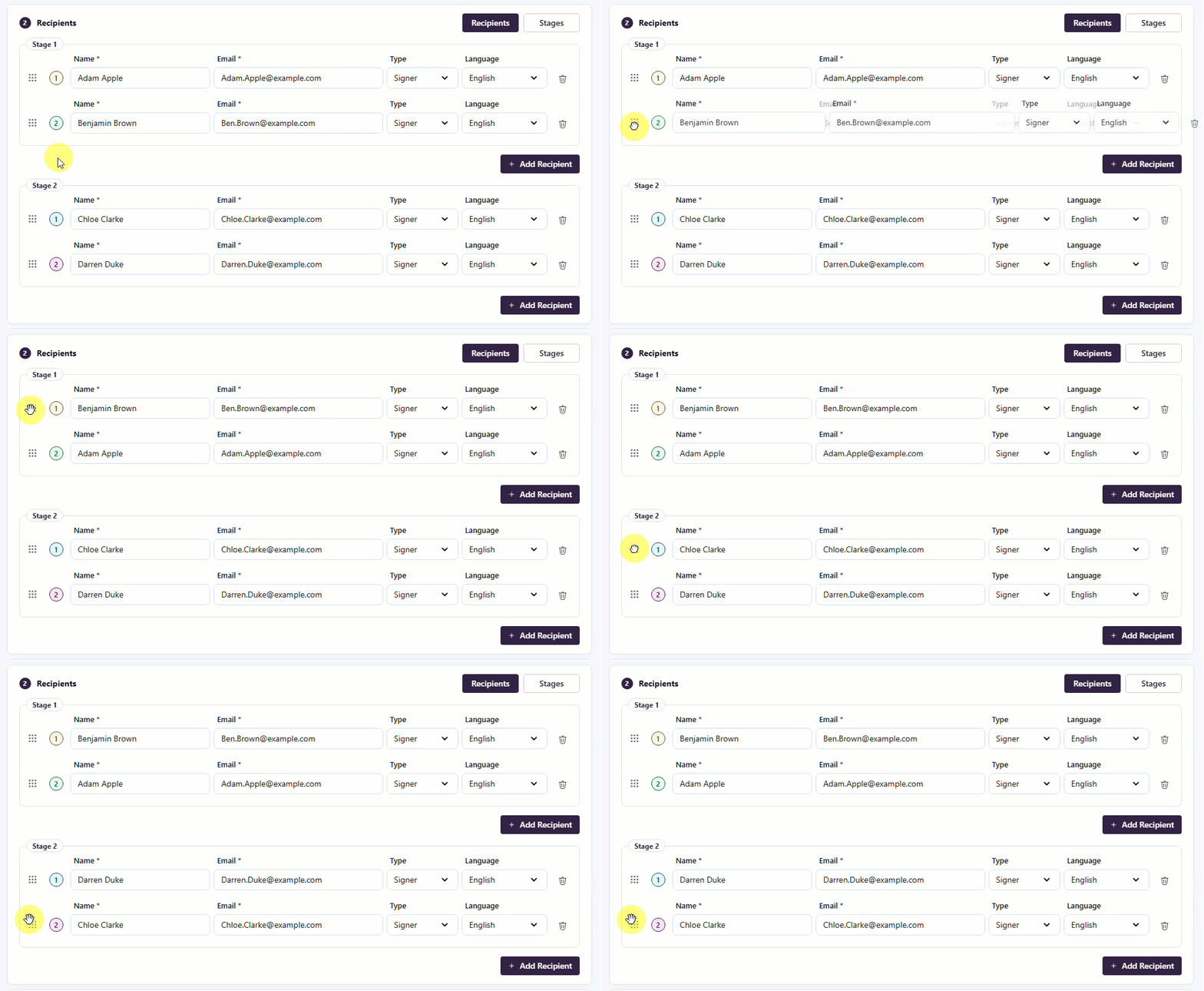
For stages using Sequential delivery, drag and drop the recipients into the required signing order in the Recipients tab.
Configure Delivery Mode in Power Automate
Choose the Appropriate Encodian Sign Action
You can also configure recipient delivery order when using Encodian Sign actions in Power Automate.
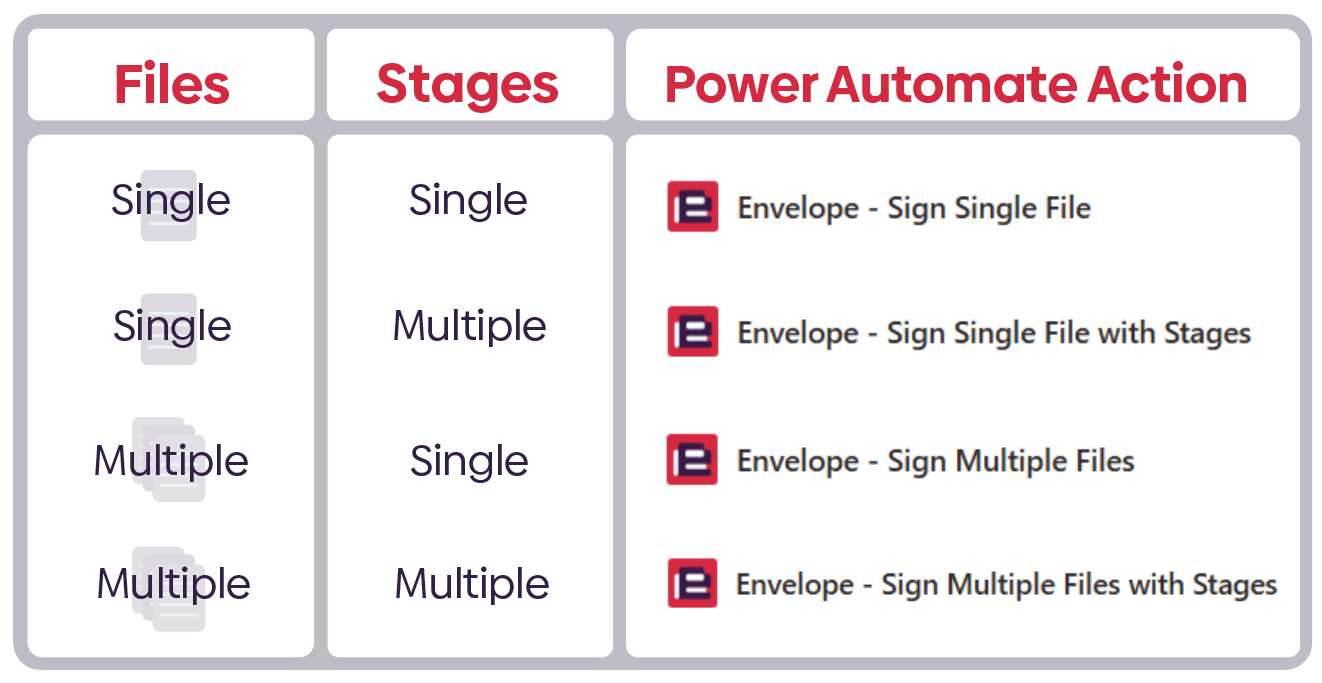
Encodian Sign provides multiple actions for creating and sending e-signature envelopes, depending on the number of files you want to send, and whether or not your signing process requires multiple stages.
The illustration shows which action to use for each combination of files and signing stages.
Single-stage signing
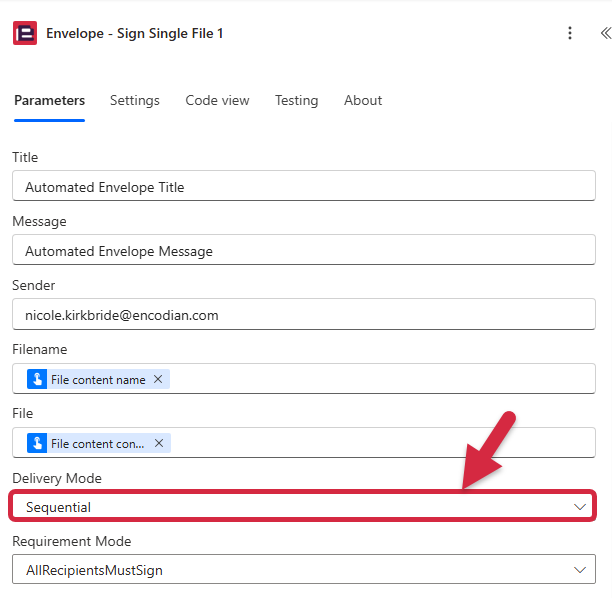
When configuring the chosen Encodian Sign action, locate the Delivery Mode parameter and select either ‘Sequential’ or ‘Parallel’.
Continue configuring the action with your recipients and signature fields.
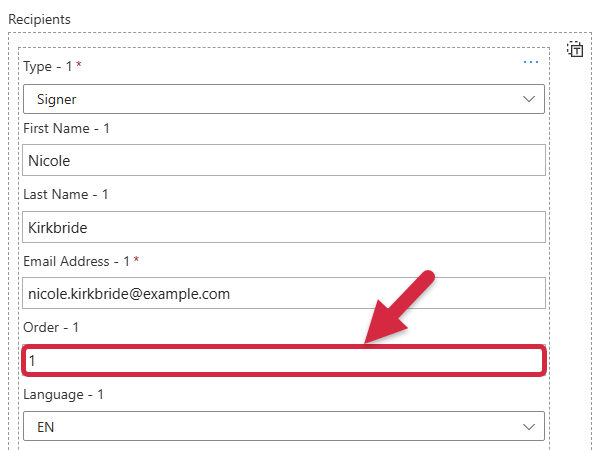
If selecting Sequential delivery, add the recipients in the required signing order, or use the Order parameter to set the signing order.
Multi-stage signing
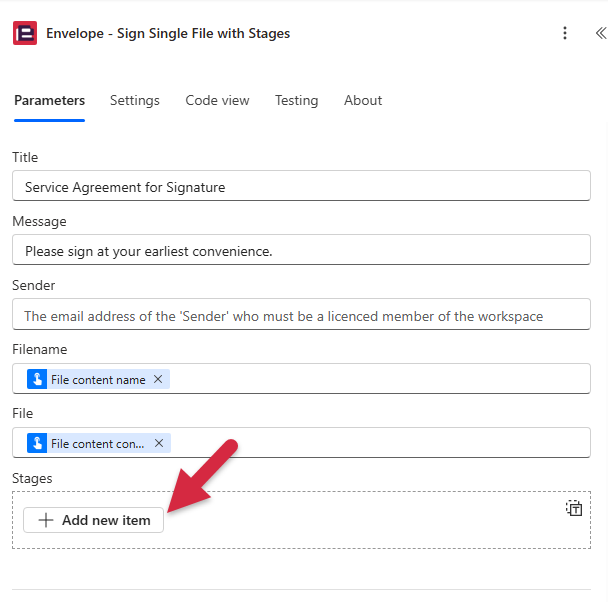
In the chosen Encodian Sign action, add the required stages by selecting Add New Item.
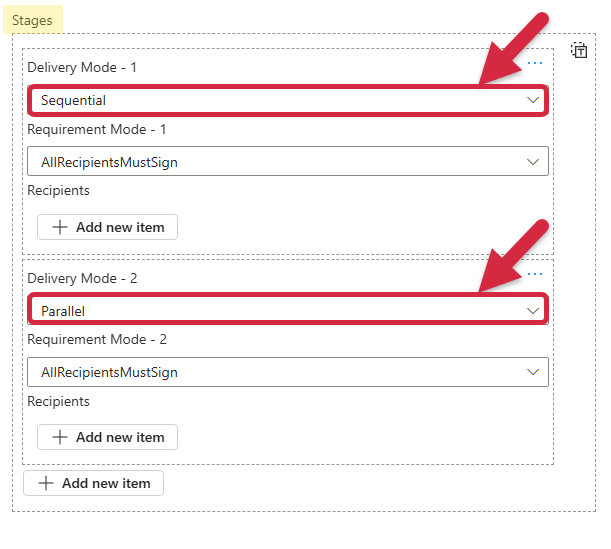
Set the Delivery Mode for each stage to Sequential or Parallel, then add the appropriate recipients to each stage.
For stages using Sequential delivery, add the recipients in the required signing order, or use the Order parameter to set the signing order.
Troubleshooting
If your signing workflow isn’t working as expected, check the following common issues.
FAQs
Can I mix sequential and parallel signing?
Yes. When using multiple stages, each stage can have its own delivery mode.
Does parallel signing mean everyone signs at the same time?
It means recipients can complete their tasks independently without waiting for one another.
Next Steps
Automate electronic signatures in Power Automate
Put your knowledge of delivery modes into practice by following our tutorial, How to Create an E-Signature Envelope in Power Automate.
Learn how to automate the creation and delivery of an e-signature envelope, monitor its signing status, and retrieve the signed document and audit trail. Extend the workflow by adding multiple recipients and configuring the appropriate delivery mode.
Ready to simplify electronic signatures?
Start your free trial of Encodian Sign for Power Automate to send documents for signature, manage signing workflows, and integrate electronic signatures into Power Automate.