


Prerequisites for this tutorial
A sample US Health Insurance card for testing. This example uses this sample card.
An active Encodian Flowr subscription or trial
Not got a Flowr subscription? Start your free Flowr trial today →
Flow structure
When a health insurance card is uploaded to SharePoint, the flow retrieves the file, extracts the card’s data, checks whether any required fields are missing, then updates the file’s properties with the extracted data.

When a file is created

Get file content

AI – Process Health Insurance Card (US)

Return extracted card data

Use returned data
Build a Power Automate flow that processes health insurance cards
Create a new SharePoint document library
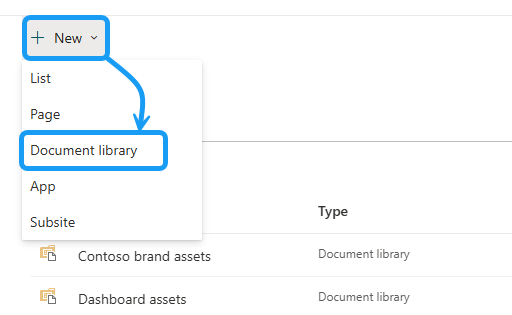
Create a SharePoint document library to store the health insurance cards.
Choose the column type that matches the extracted value. In this example, Effective From A and Effective From B use the Date and Time column type, while the remaining columns use the Single line of text column type.
Create a new automated cloud flow
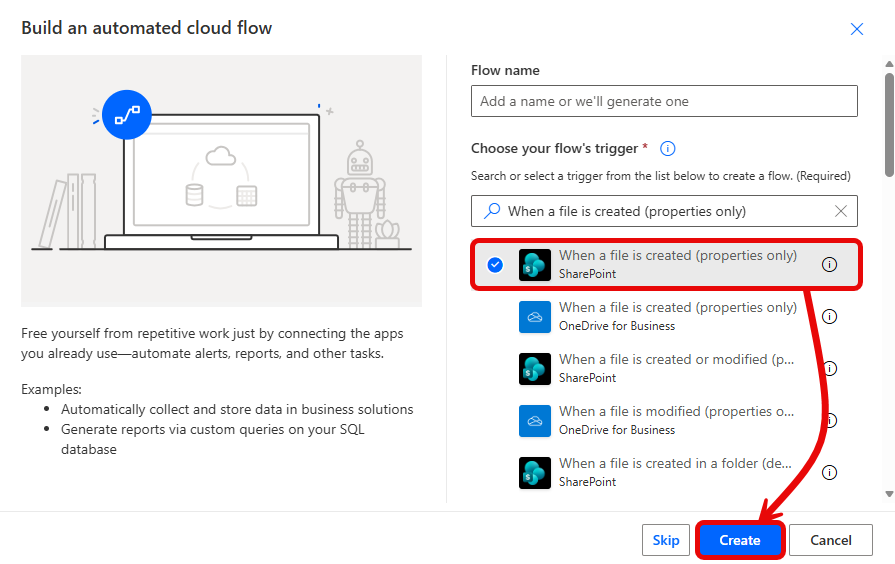
In Power Automate, create a new automated cloud flow.
Configure the trigger
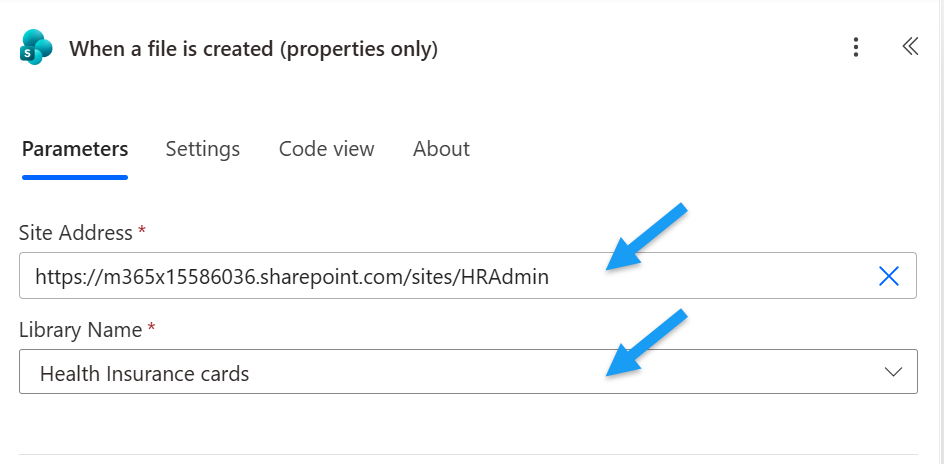
Select the trigger and configure as follows:
These settings trigger the flow automatically when a file is added to the SharePoint document library.
Get the file content from SharePoint
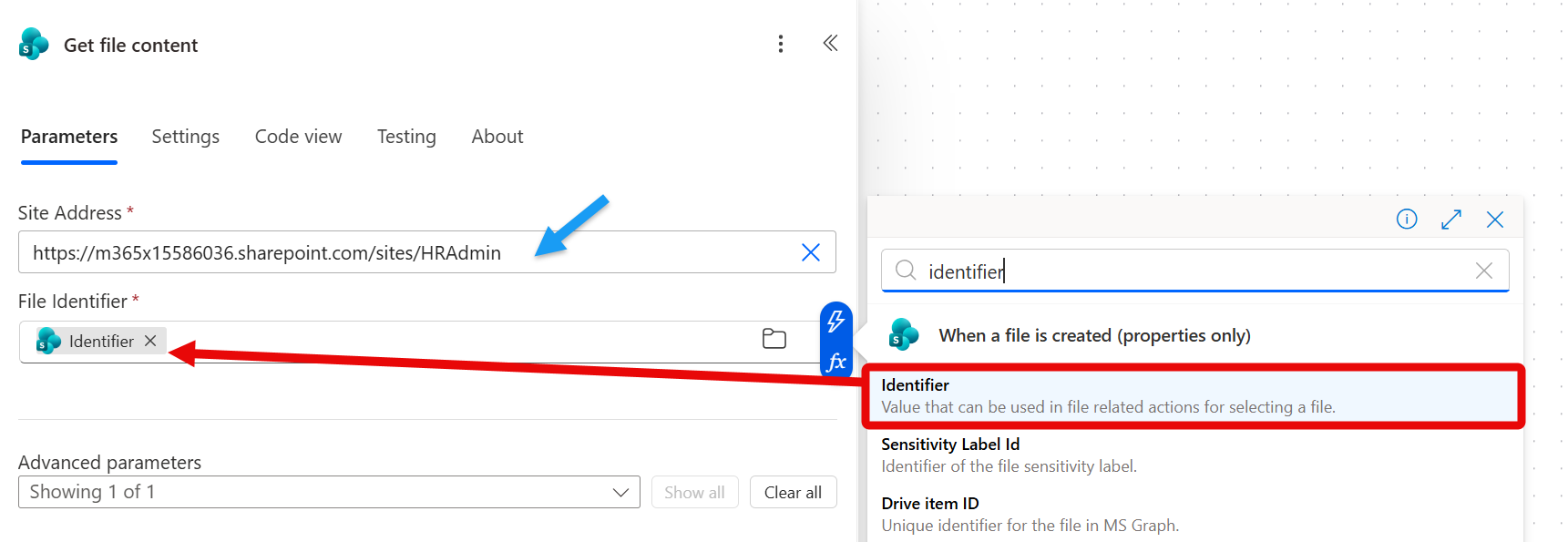
Encodian’s AI – Process Health Insurance Card (US) action requires the file’s binary content as input. Add SharePoint’s Get file content action to retrieve the File Content property of the SharePoint file.
Process the card with the ‘AI – Process Health Insurance Card’ action
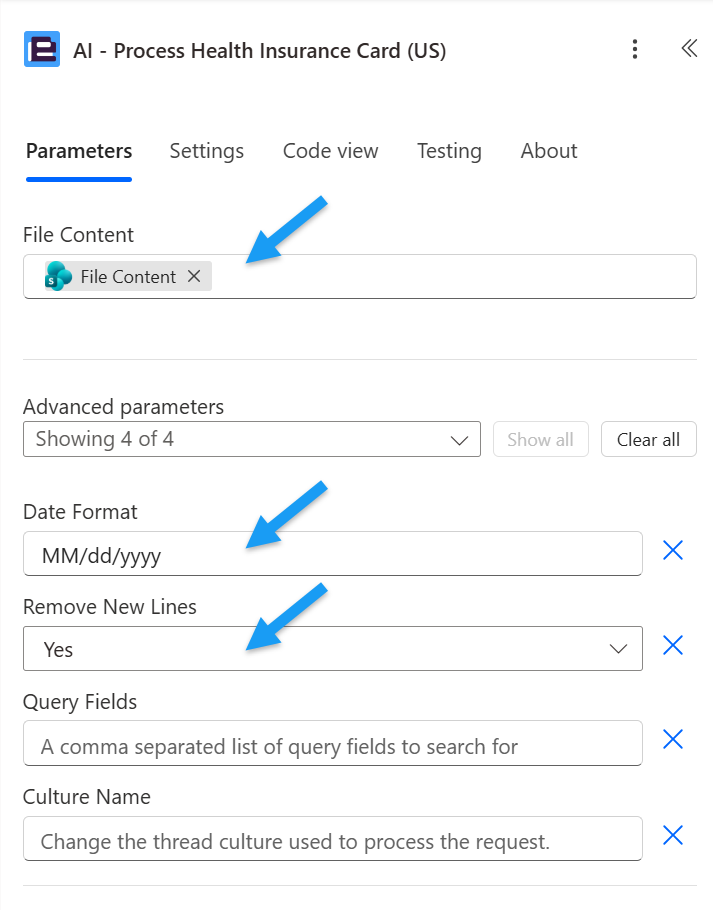
Add Encodian Flowr’s AI – Process Health Insurance Card (US) action.
This action analyses the health insurance card and returns the extracted data as JSON.
Parse the action output
The Result property in the AI – Process Health Insurace Card (US) output contains the extracted card data as a JSON formatted string. Add a Parse JSON action and provide the expected schema to expose each property as dynamic content for later flow actions.
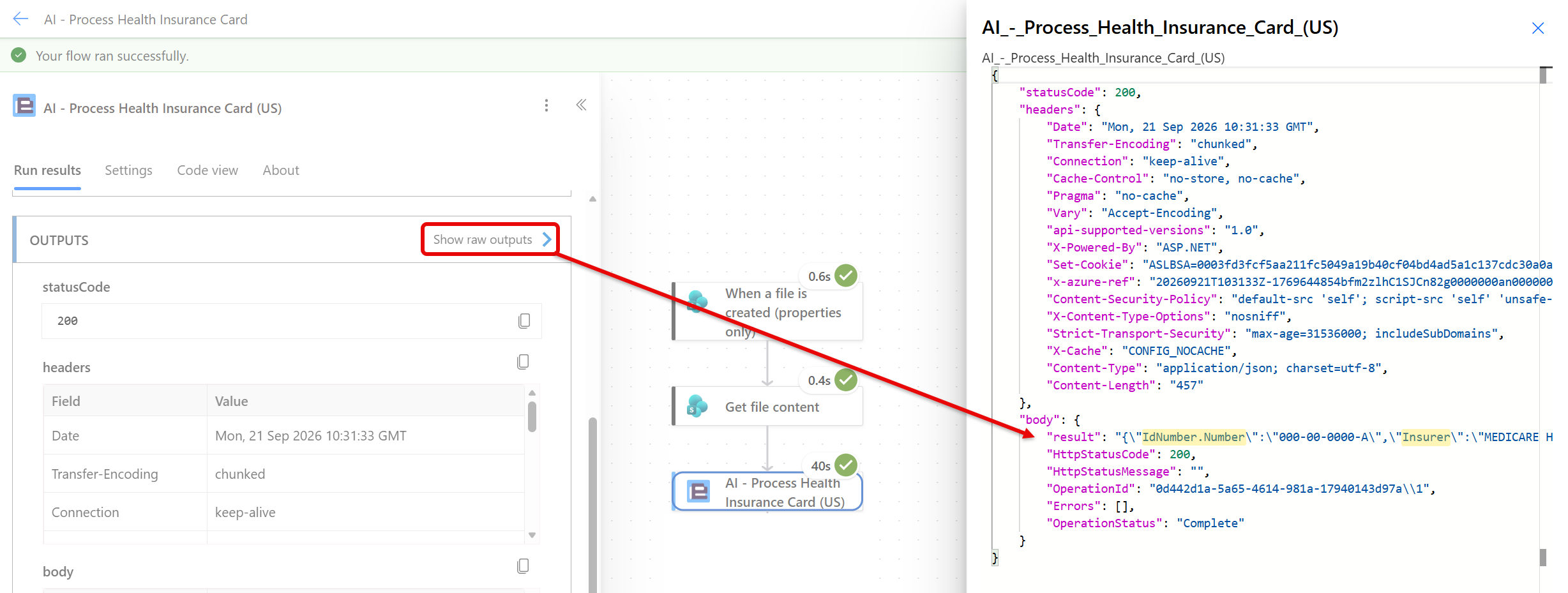
To identify the expected properties, add a sample health insurance card to the document library and let the flow run.
Select the run in the flow’s run history, expand the AI – Process Health Insurance Card (US) Encodian action, and review the field names in the Result property.
Configure the Parse JSON action with a schema that uses these field names.
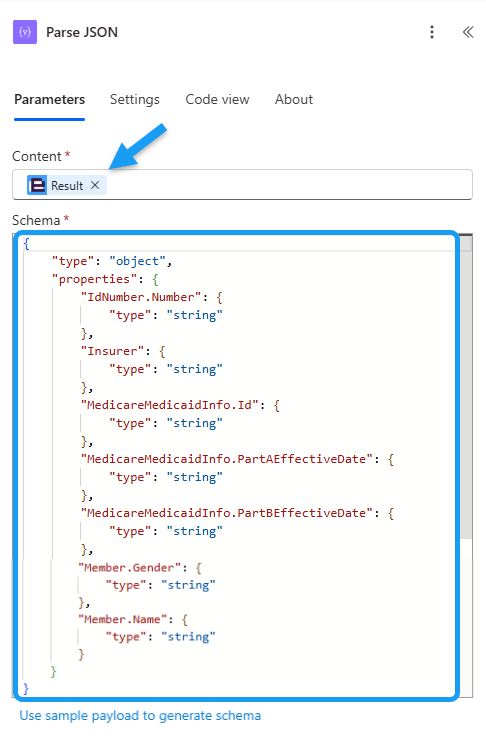
Dates remain as type string since JSON does not have a date data type. SharePoint will interpret the formatted strings when the flow writes them to Date and Time columns.
Once you save the flow, each property will be available in dynamic content.
Check that the required card data was extracted
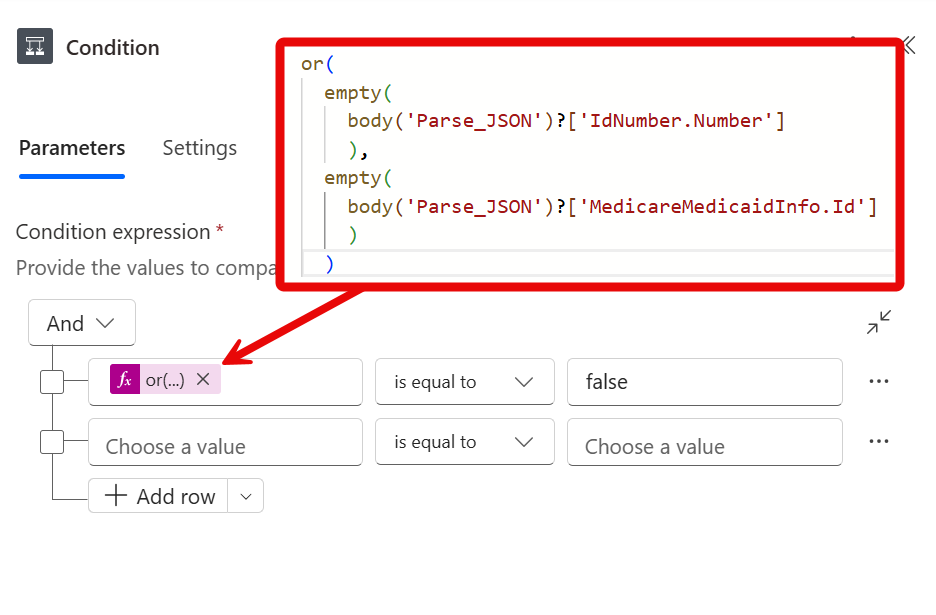
Add a Condition action to check that both required ID properties contain values.
The expression checks whether IdNumber.Number or MedicareMedicaidInfo.Id is empty, and the condition compares that result with False. When both properties contain values, the expression returns False, the Condition evaluates to True, and the flow continues down the True branch.
Update the file properties with the extracted card data
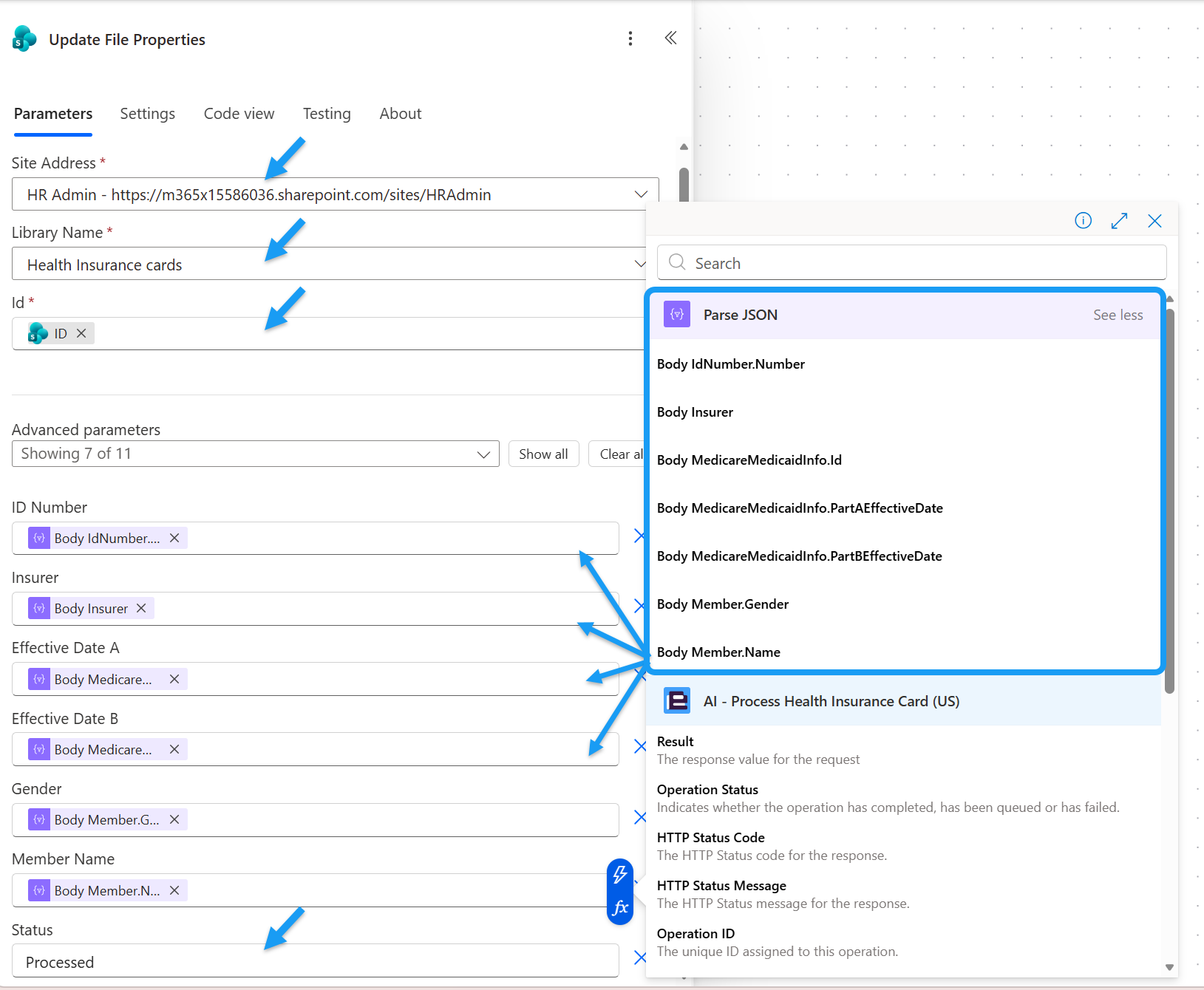
In the True branch of the Condition, add SharePoint’s Update File Properties action. Configure as follows:
Handle cards that require review
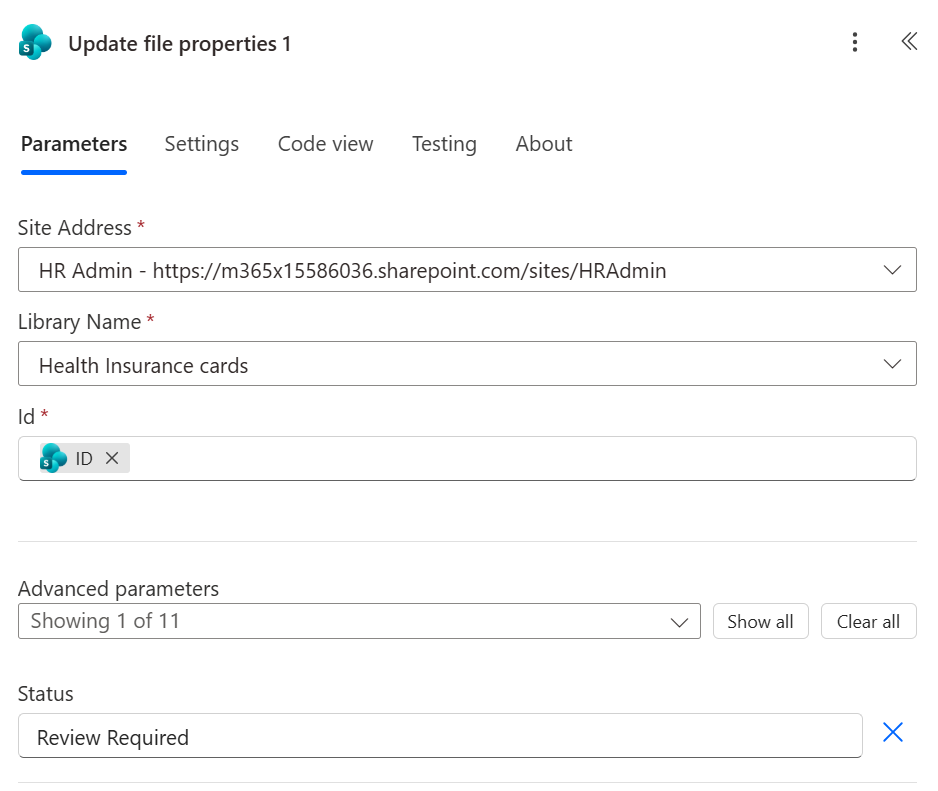
In the False branch of the Condition, add the actions that should run when either required ID property is empty. First, add the Update File Properties by SharePoint action. Configure as follows:
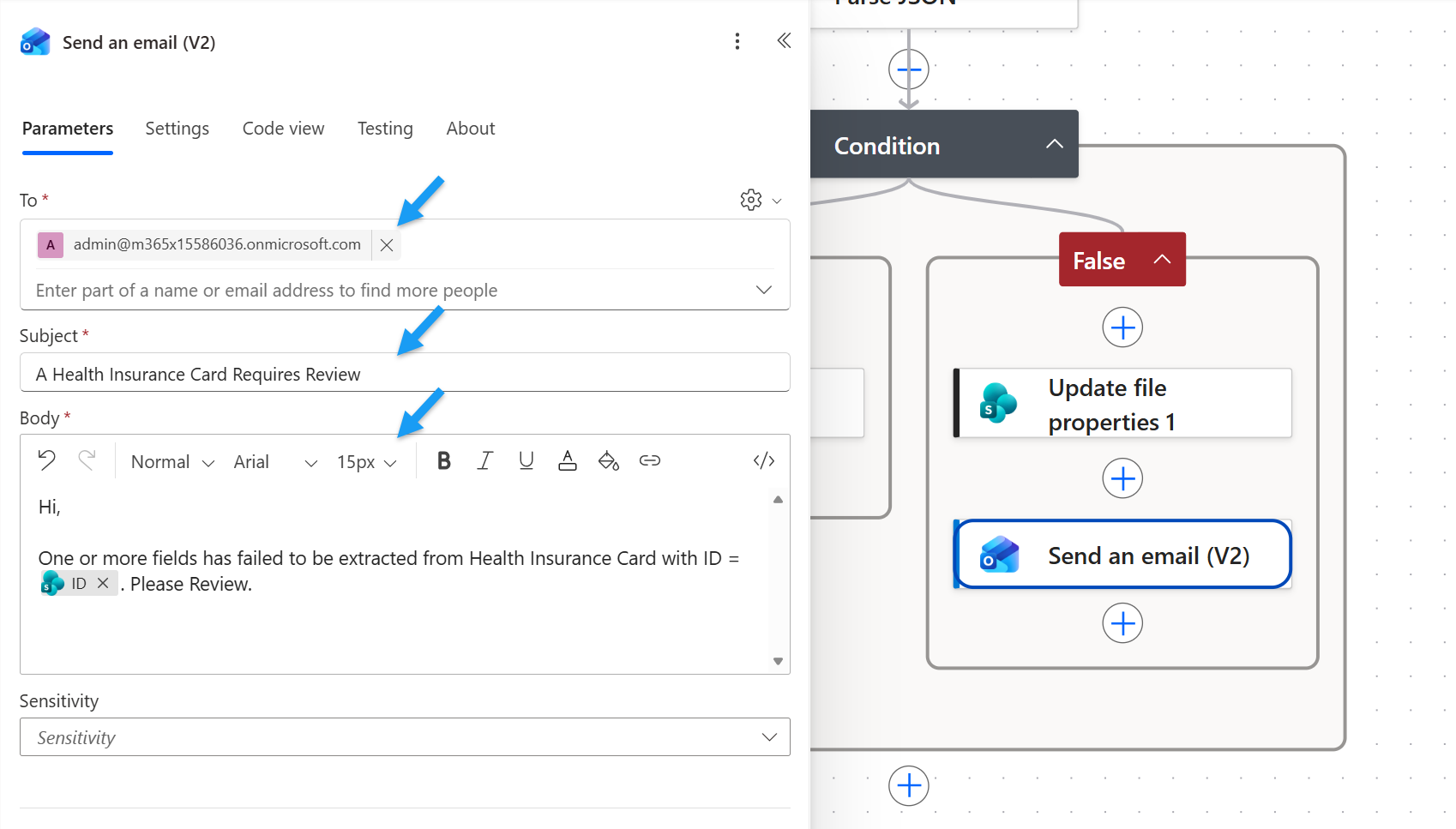
Then, add Outlook’s Send an email (V2) action.
Test the completed flow
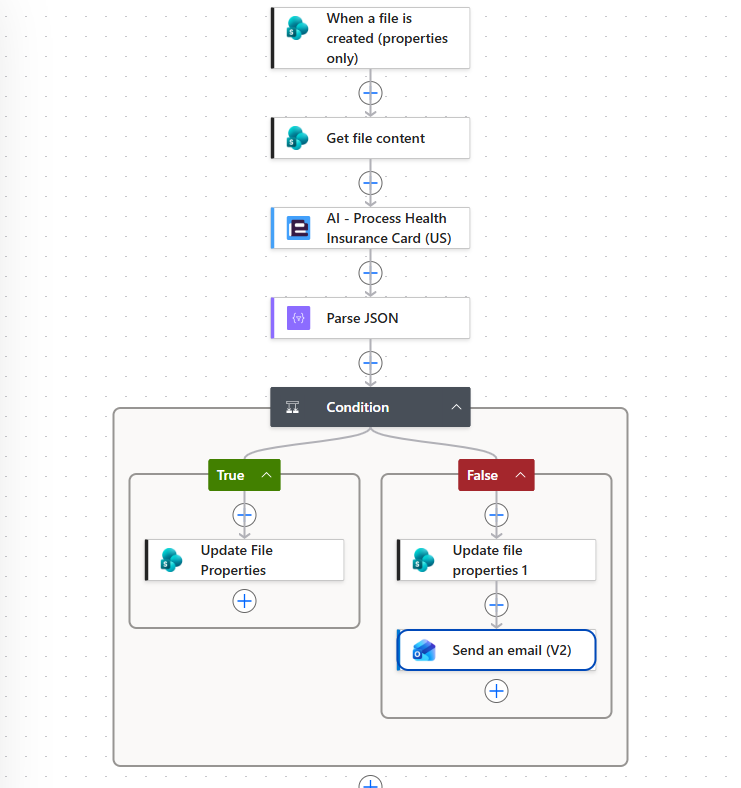
The final flow will look like this.
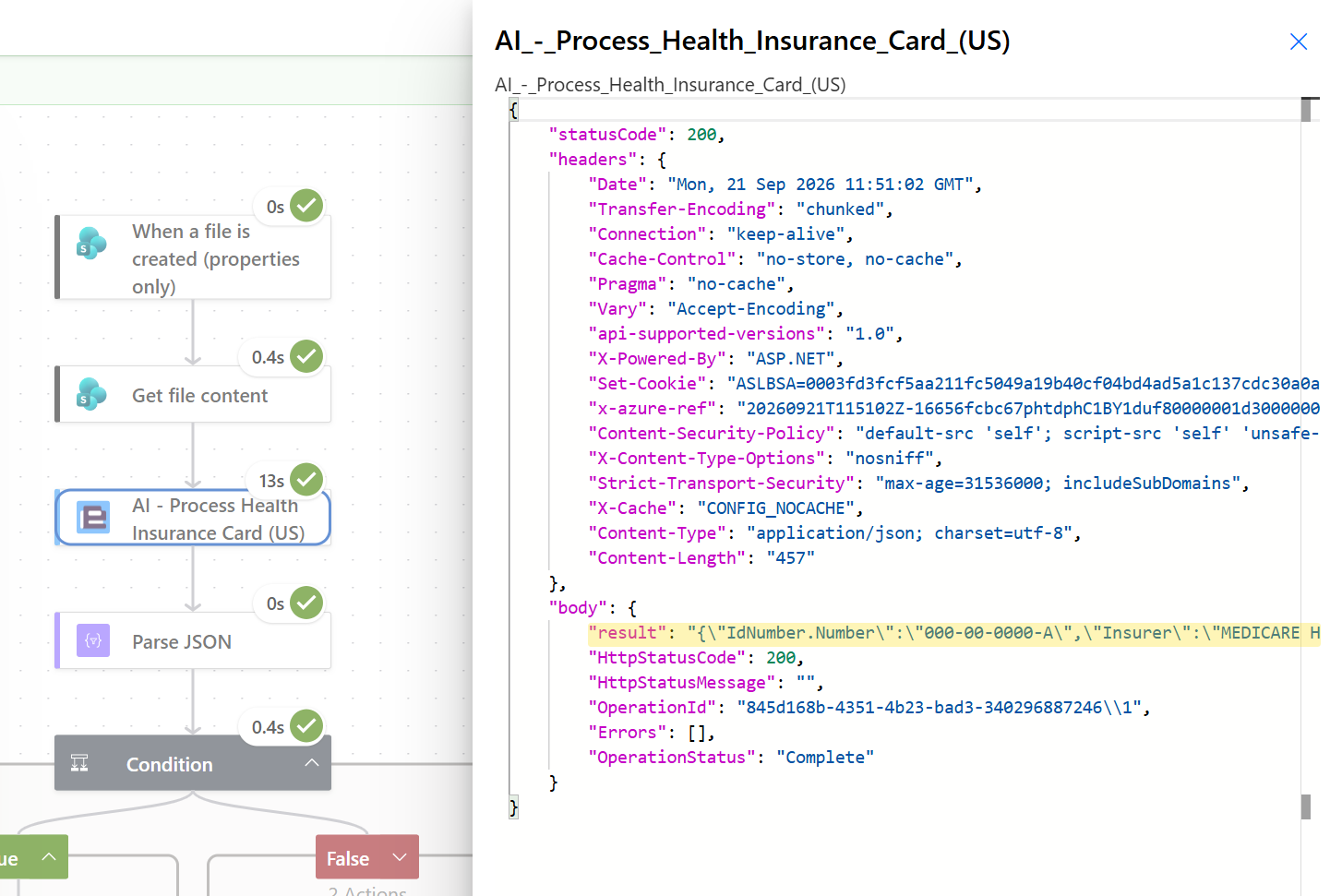
The flow retrieves the new file’s content, and passes it to Encodian Flowr’s AI – Process Health Insurance Card (US) action. The action extracts card data and returns it in the Result property.
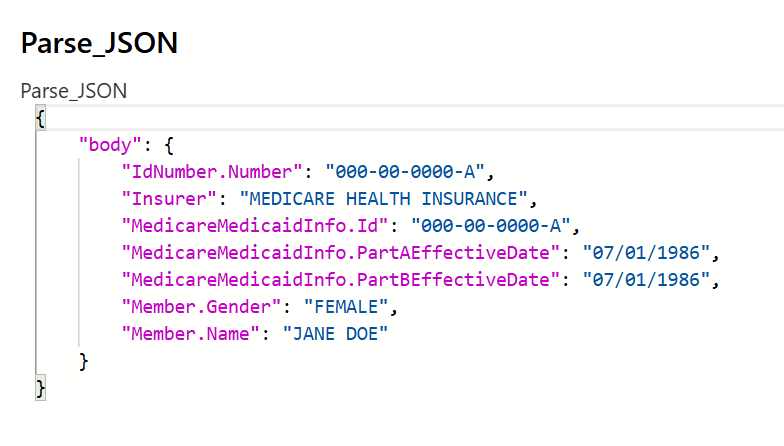
The Parse JSON action uses the sample schema to parse the Result value and expose the extracted properties as dynamic content.
FAQs
Can Power Automate extract data from a US health insurance card?
Yes. Encodian’s AI – Process Health Insurance Card (US) action analyses a health insurance card, and returns recognised information as JSON. You can parse the JSON in Power Automate and use the extracted values in SharePoint, emails, approval flows, databases, or other actions.
What happens if a required field is not detected?
If a required field is not detected, it will be absent from the parsed Result JSON string. You can use a Power Automate Condition to check whether the output contains specific values, and define what should happen when none are found.
In this tutorial, the flow sends an email notification and sets the card’s status to Review Required when a required field is not detected.
How do I use health insurance card data in Power Automate?
The flow built in this tutorial exposes the card data returned by AI – Process Health Insurance Cards (US) as dynamic content. It can then be passed to subsequent Power Automate actions.
What information can 'AI - Process Health Insurance Cards (US)' extract from a health insurance card?
The available information depends on the card and what the action can recognise. It may include the Member Name, Member ID, Insurer, Gender, and Effective Dates. Review the action’s Result output to see which properties were detected for your card.
Troubleshooting
Below are solutions to common issues you may come across when building your flow.
Still struggling with your flow? Our Support Team would be happy to help!
Click the link below to raise a ticket on our support site.
Next steps
Now that you can read and process health insurance cards in Power Automate, here are some ways you can extend your automation for a more advanced document automation workflow.
- Validate the extracted values: Add additional condition expressions to check that extracted values are in the required format.
- Build a Power App upload interface: Allow users to upload pictures of their health insurance cards from a Power App, automatically triggering the flow.
Or, consider automating more document processing workflows:
- Process passports and ID documents with AI – extract names, document numbers, dates, and other identity information, parse the JSON result, and save the values in SharePoint.
- Process contract documents with AI – extract structured contract information, including parties, dates, and jurisdiction, for use in downstream processes.
- Automate receipt processing – extract receipt data and store it in Dataverse for an expense-management Power App.
- Read barcodes in Power Automate with AI – detect barcode values, locate matching SharePoint records, and update their status automatically.
Ready to automate health insurance card processing with AI?
Start your free trial of Encodian Flowr for Power Automate to unlock over 250 actions for document automation.