To read Swiss QR codes from invoices in Power Automate:
This automatically captures invoice payment data such as IBAN, amount, reference number, and creditor or debtor details from uploaded documents.
Swiss QR codes are now the standard for payment information on invoices in Switzerland. They contain structured payment data such as account details, payment amounts, currency, reference numbers, and creditor or debtor information.
While these codes make payments easier for banks and mobile apps, many organisations still receive invoices as PDF or Word documents and must manually extract the data for internal processing. This adds time, increases the risk of human error, and slows down accounts payable workflows.
Automating Swiss QR invoice processing removes this manual step. Instead of opening each invoice and copying payment details into a system or document library, Power Automate can extract the data automatically as soon as the file is uploaded.
Using Encodian Flowr, organisations can read Swiss QR code data directly from documents and immediately use it in approval workflows, finance processes, notifications, or downstream integrations.
Swiss QR code extraction reads the payment data embedded within the QR code and returns the values in a structured format for use in Power Automate.
Before automation
After automation
The result is a streamlined invoice intake process that reduces manual effort and makes payment information immediately available for automation.
Automating Swiss QR invoice extraction is useful when:
In this tutorial, you will create a flow that:
This creates a fully automated process for capturing Swiss QR payment information alongside the original invoice.
1. A PDF invoice containing a Swiss QR code (example: Example Invoice)
2. A SharePoint document library (example set up below)
Create a document library called, for example Invoices and add the your columns. In this example we will use:

3. An active Encodian Flowr subscription or trial
Not got a Flowr subscription?
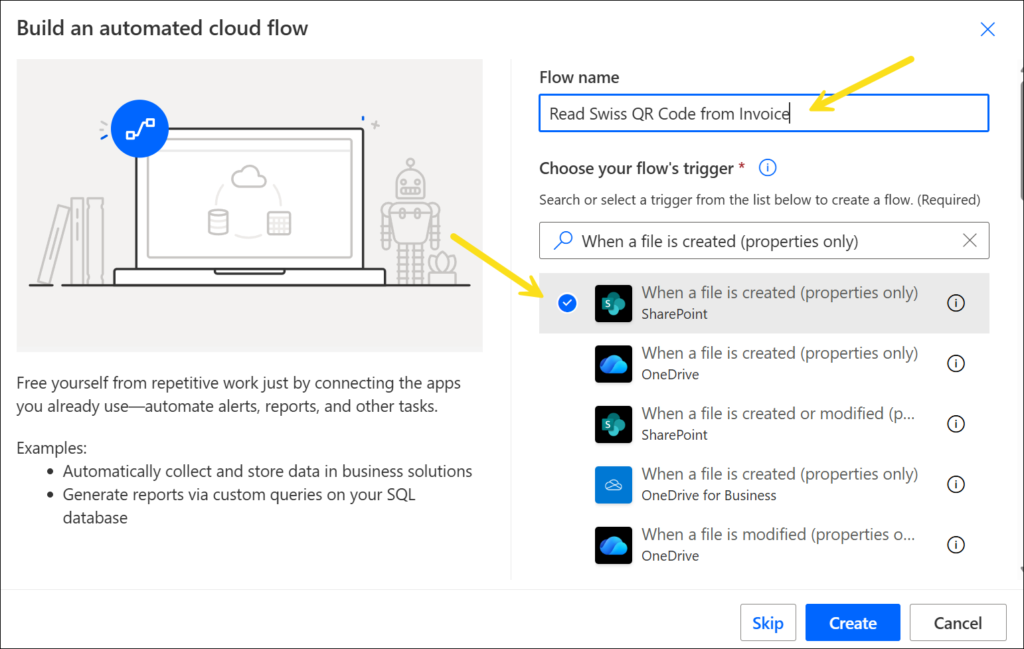
1a. Create a new Automated cloud flow
1b. Name your flow
1c. Select trigger: When a file is created (properties only) (SharePoint)
1d. Click Create
This flow will run automatically whenever a new invoice is uploaded to the SharePoint library.
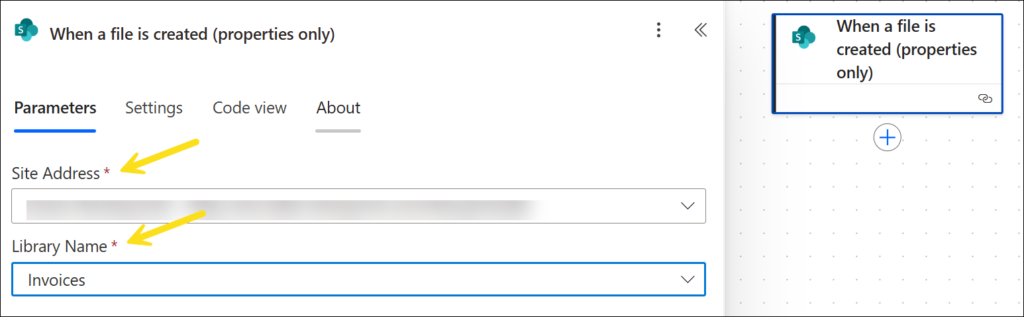
2a. Site Address: Your SharePoint site
2b. Library Name: Invoices (example)
This trigger fires when a new file is added to the invoice library.
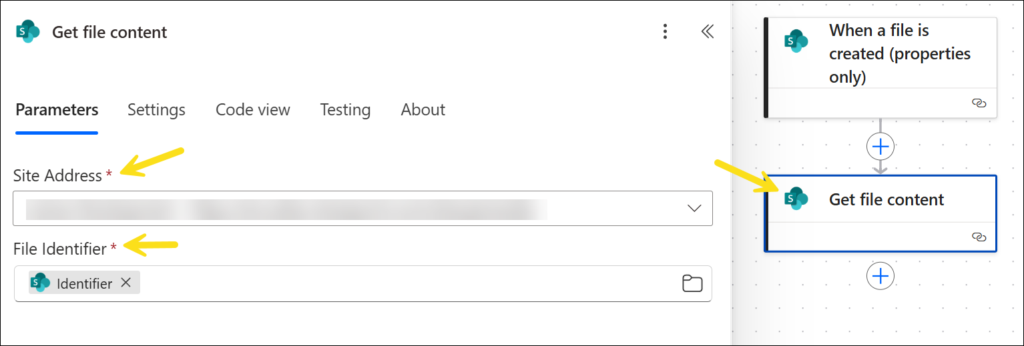
3a. Add action: Get file content (SharePoint)
3b. Site Address: Same as above
3c. File Identifier: Use Identifier from the trigger
This retrieves the document content required for QR code processing.
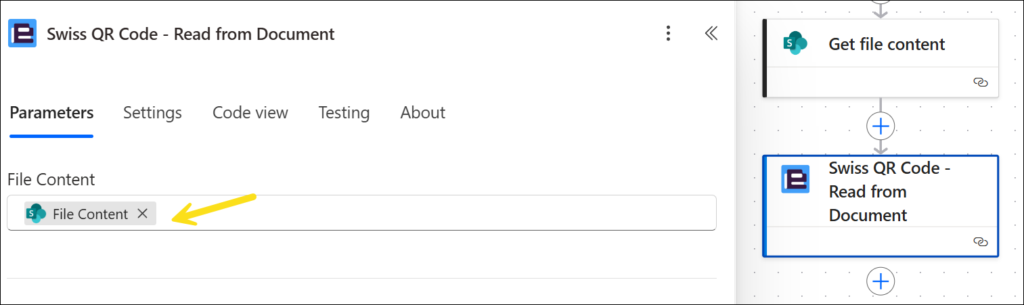
4a. Find connector: Encodian – Barcode
4b. Add action: Swiss QR Code – Read from Document
4c. File Content: Output from Get file content
4d. Leave advanced parameters at their default values
This action automatically detects the Swiss QR code in the document and extracts the available payment data.
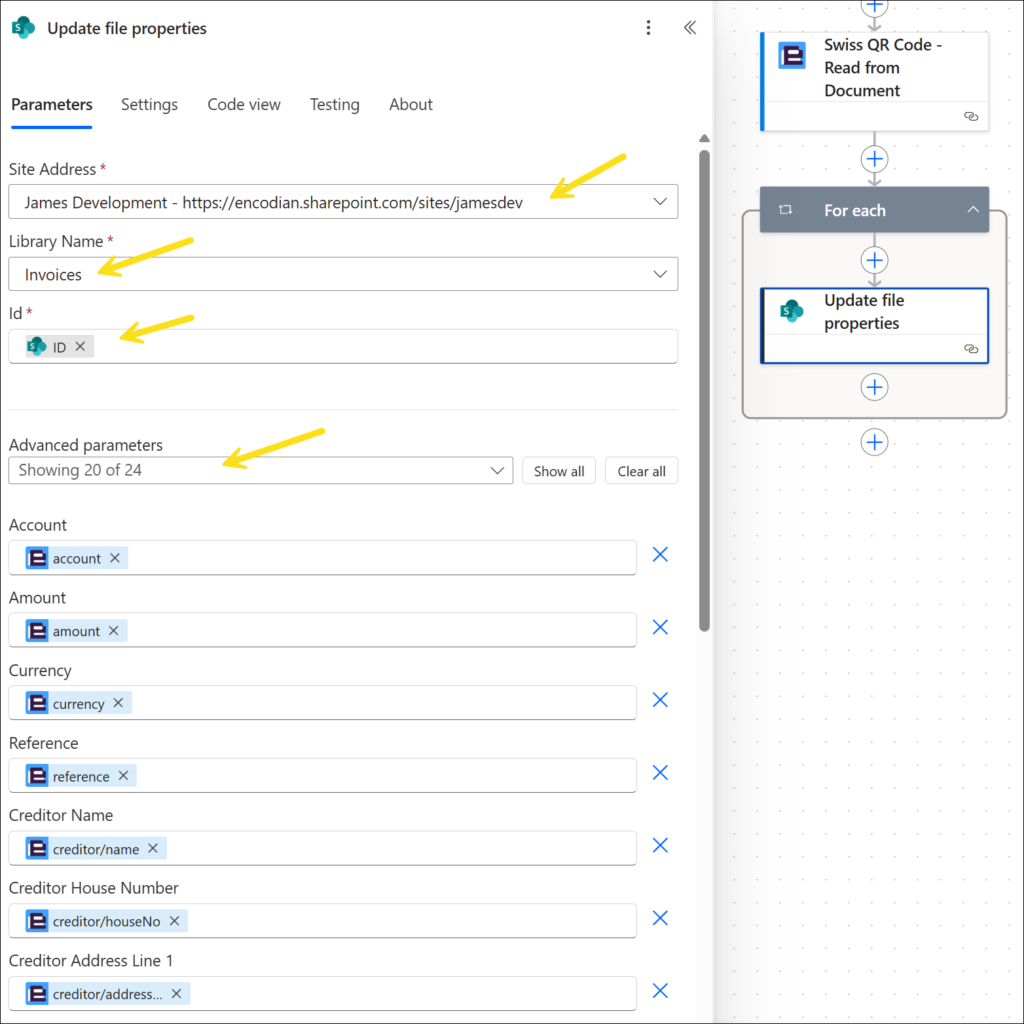
5a. Add action: Update file properties (SharePoint)
5b. Site Address: Same as above
5c. Library Name: Invoices (example)
5d. Id: Use ID from the trigger
5e. Advanced Parameter: Map each SharePoint column to the matching output from Swiss QR Code – Read from Document
Map the extracted values into the corresponding SharePoint fields.
Power Automate may automatically place this action inside an Apply to each loop because the Encodian action returns data as a JSON collection. This is expected and will not cause any issues, as only one set of invoice data is returned per document.
You should now see the Swiss QR code data extracted and stored directly in the library columns.
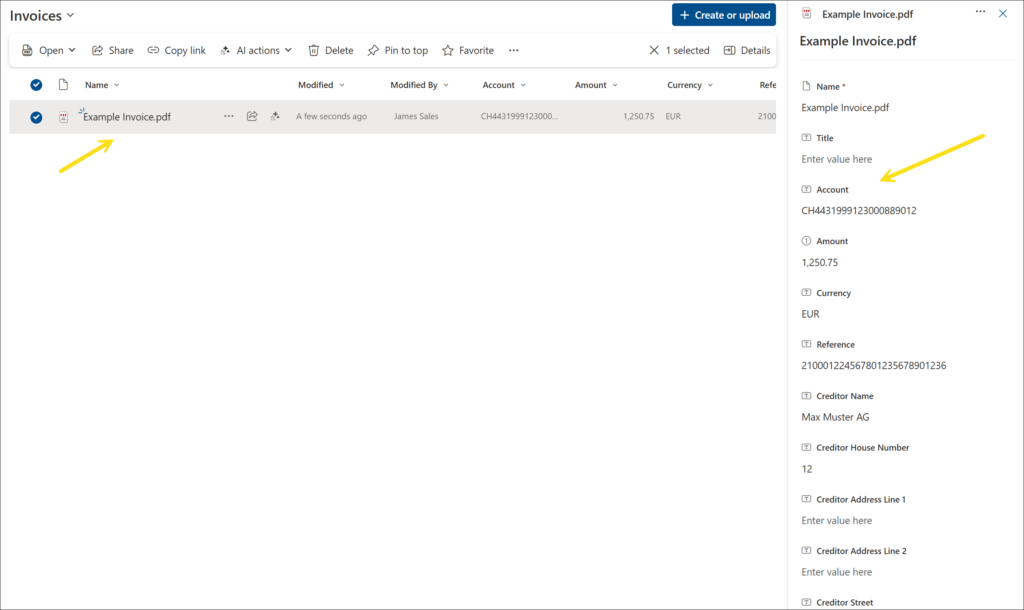
Depending on the invoice and QR code contents, the extracted data can include:
This makes the extracted data immediately usable in finance and document workflows without manual rekeying.
Once the data has been extracted, you can use it to support wider automation scenarios such as:
For example, when a supplier invoice is uploaded, Power Automate can extract the Swiss QR data, populate SharePoint metadata, notify the relevant team, and pass the values into a downstream approval or payment process.
Swiss QR codes standardise and make payment information machine-readable, but many organisations still handle invoice documents manually once they are received.
Automating Swiss QR invoice processing in Power Automate removes that bottleneck by extracting structured payment data directly from uploaded documents. This reduces manual effort, improves accuracy, and makes invoice data immediately available for workflow automation.
Using Encodian Flowr, this can be implemented in just a few steps within your existing SharePoint and Power Automate processes.
Flowr


Automate and generate documents.
CEO