When a company changes its name or branding, updating every document manually can be tedious and time-consuming. With Encodian Flowr and Power Automate, you can automatically replace text (such as a company name) and even insert a new logo across multiple files in seconds.
In this guide, we’ll show you how to:
This is a beginner-friendly tutorial designed for users who want to automate simple document content changes at scale.
The two Encodian actions we will be using to achieve this are:
We’ll create an Instant Cloud Flow that:
1.a. Action: Use the ‘Manually trigger a flow’ trigger.
1.b. Inputs (optional): You can add fields like “Folder Path” if you want flexibility.
This allows the user to trigger the document update process manually whenever changes are needed.
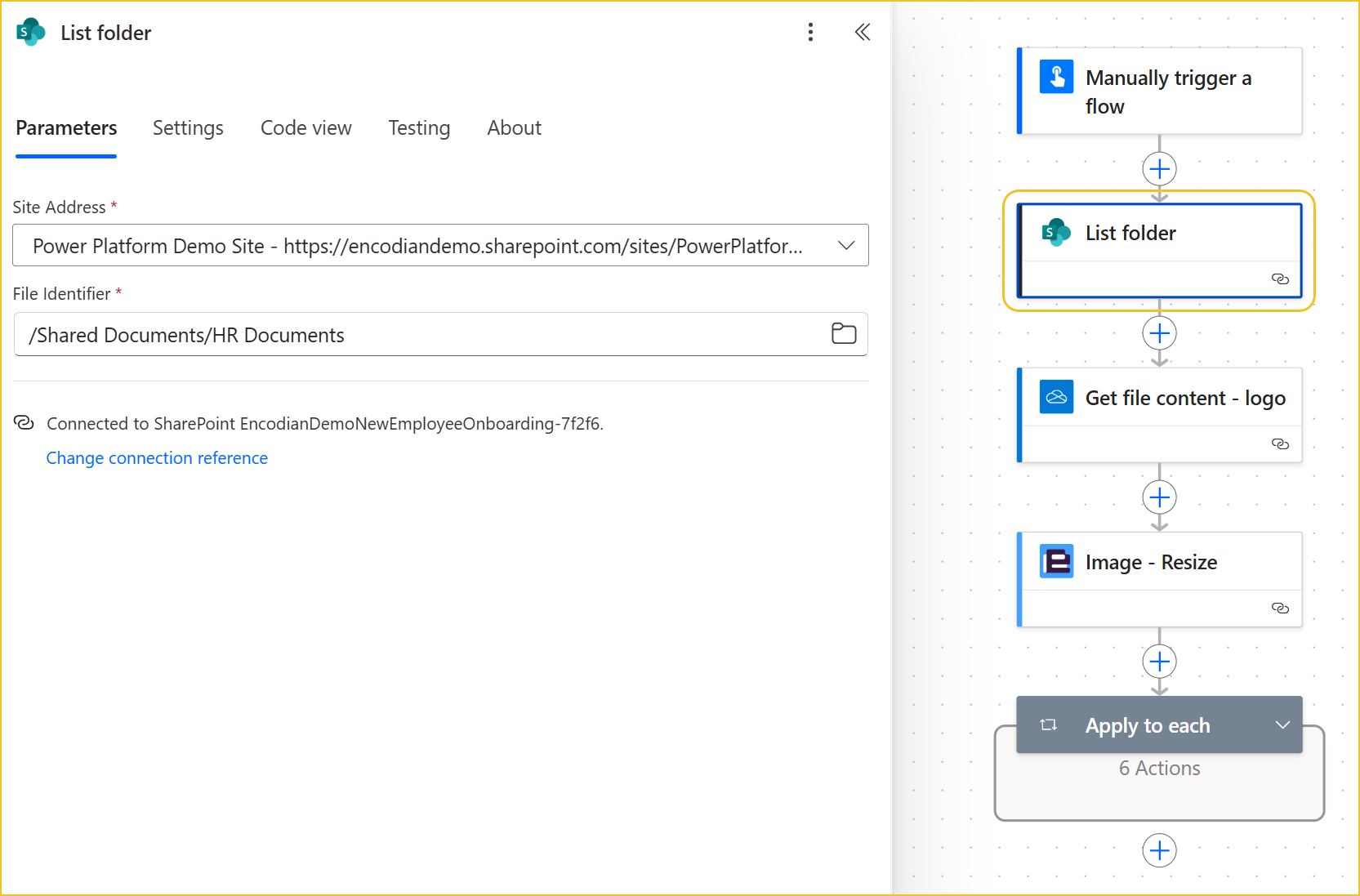
2.a. Action: Add the SharePoint ‘List folder’ action.
2.b. Site Address: Select your SharePoint site.
2.c. File Identifier: Choose the folder containing the HR documents.
This returns a list of all files within the specified folder.
3.a. Action: Add the OneDrive ‘Get file content’ action.
3.b. File: Select the logo image file (e.g., NewLogo.png).
This retrieves the binary content of the new logo so we can insert it into documents later.

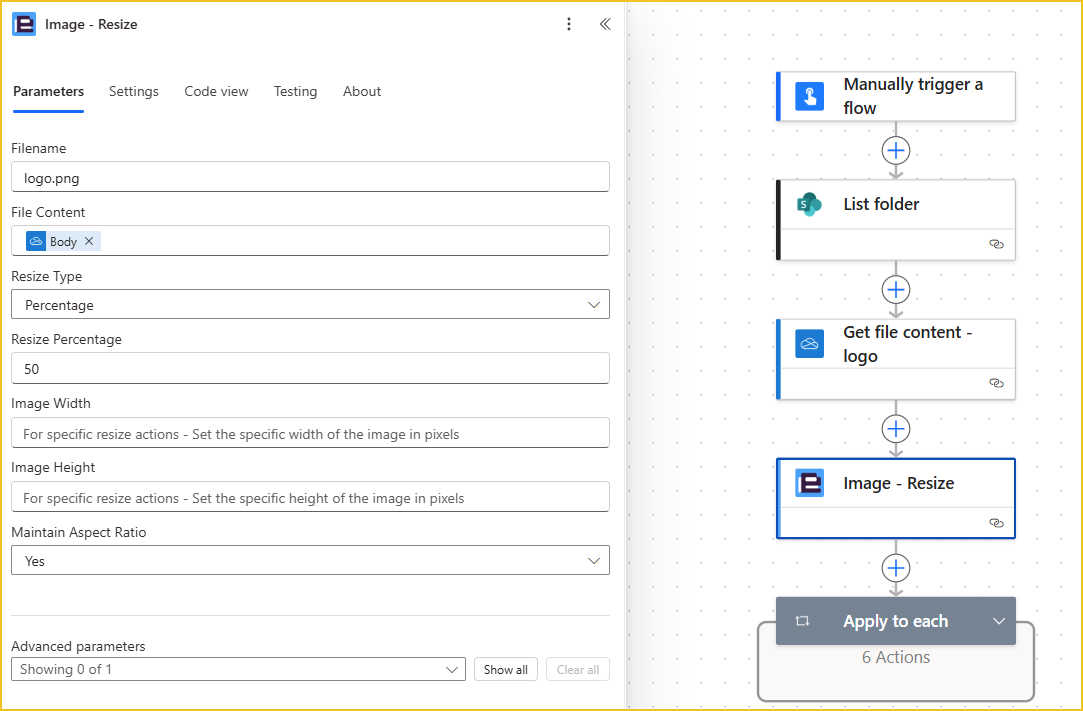
4.a. Action: Add the Image – Resize action from the Encodian connector.
4.b. File Content: Select the ‘File Content’ output from OneDrive.
4.c. Resize Type: Choose Percentage.
4.d. Resize Percentage: Enter 50% to reduce the logo size by half.
You can also resize by pixels or dimensions with Image Width and Height if you need precise control.
5.a. Action: Add an ‘Apply to each’ loop.
5.b. Input: Select the ‘Body’ output from the ‘List folder’ action.
We’ll now use nested actions to retrieve the file metadata, properties, and content.
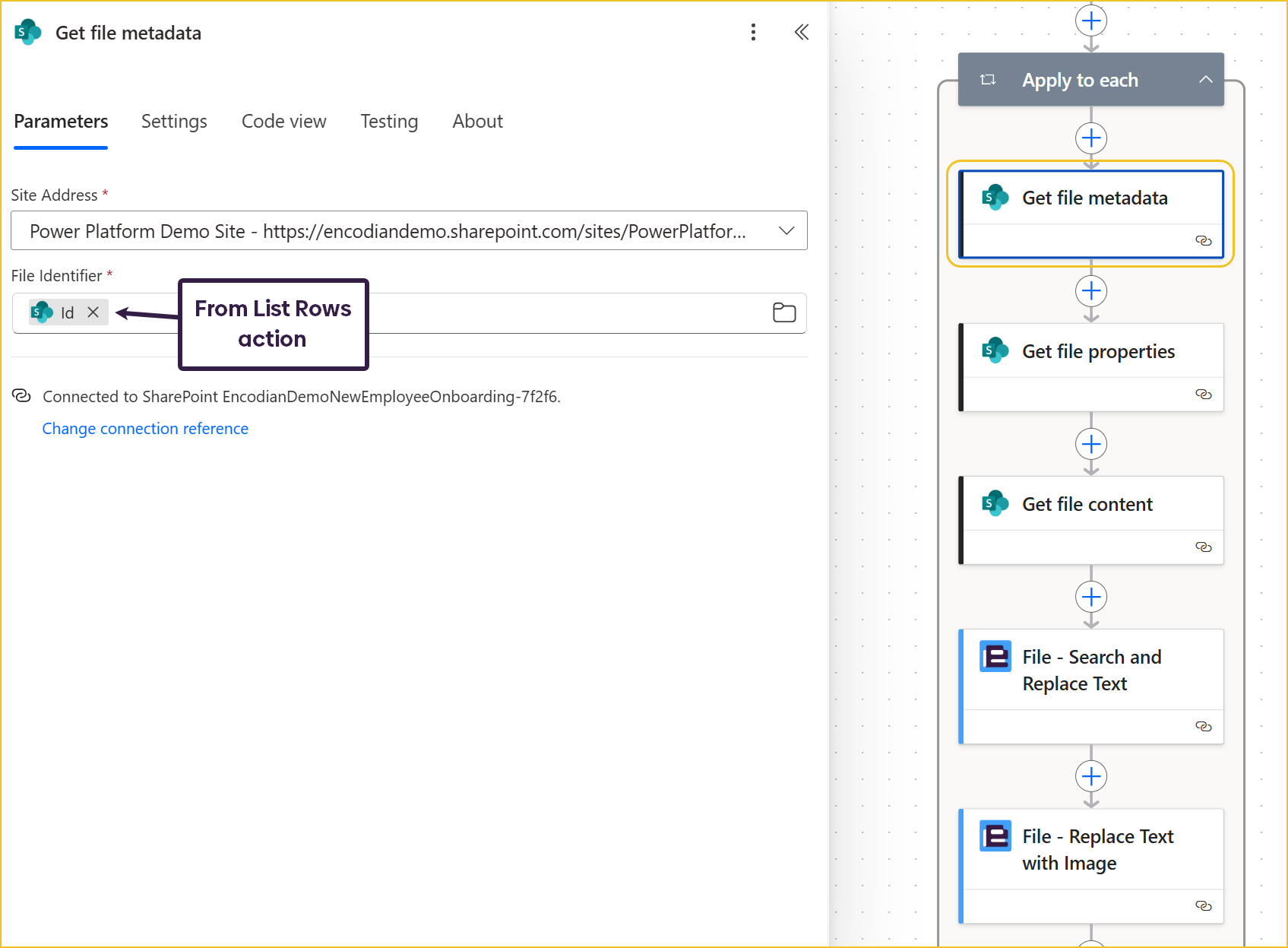
6.a. Action: Add SharePoint’s ‘Get file metadata’ action inside the loop.
6.b. File Identifier: Select the ‘Identifier’ from ‘List folder’ from List Rows action.
This retrieves key identifiers for the document.
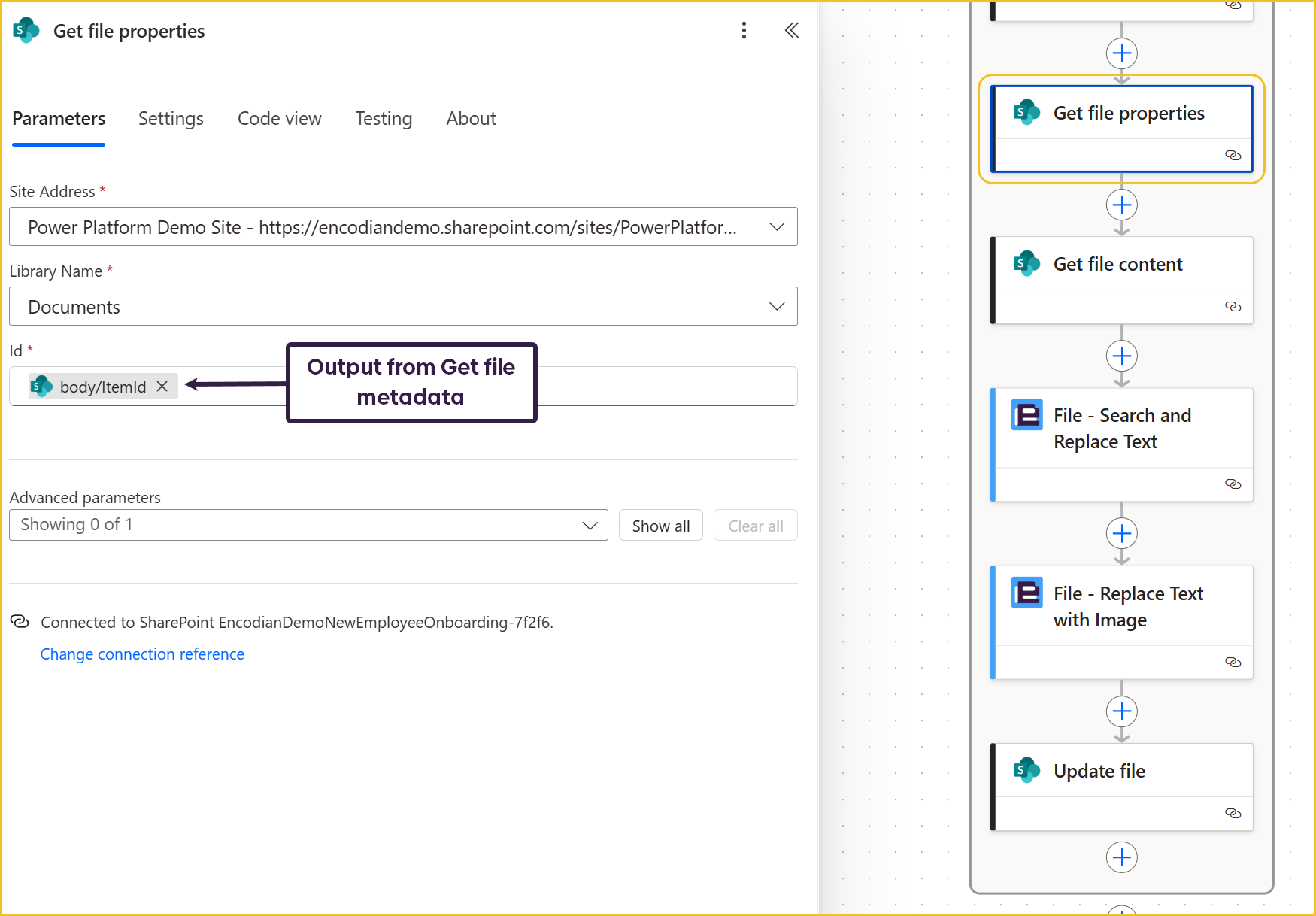
7.a. Action: Add SharePoint’s ‘Get file properties’ action.
7.b. Item Id: Select the ‘ItemId’ output from ‘Get file metadata’.
This step ensures we have access to document metadata, such as location and filename.
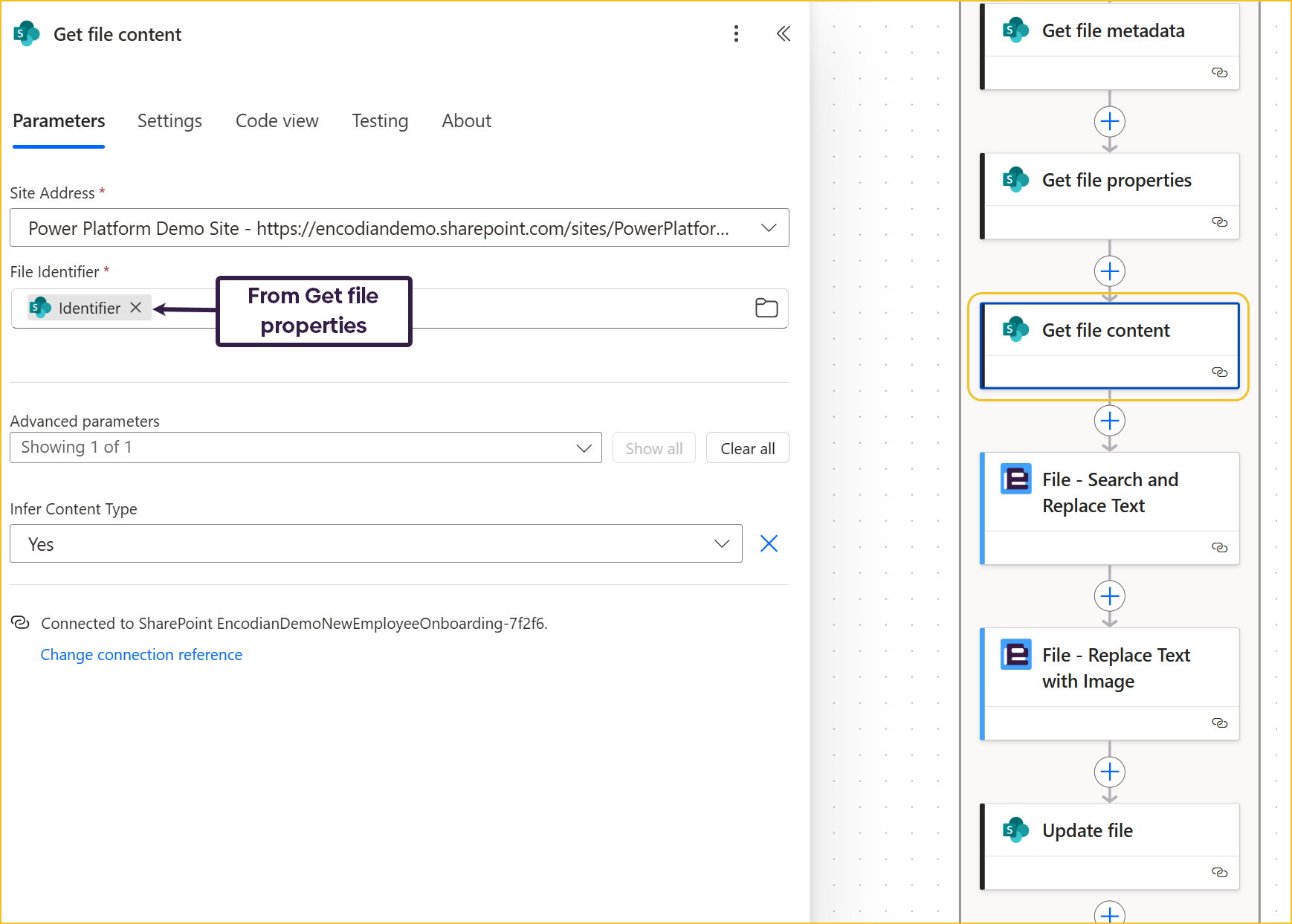
8.a. Action: Add SharePoint’s ‘Get file content’ action.
8.b. File Identifier: Select the ‘Identifier’ output from ‘Get file properties’.
Now we can access the actual document data to make text and image replacements.
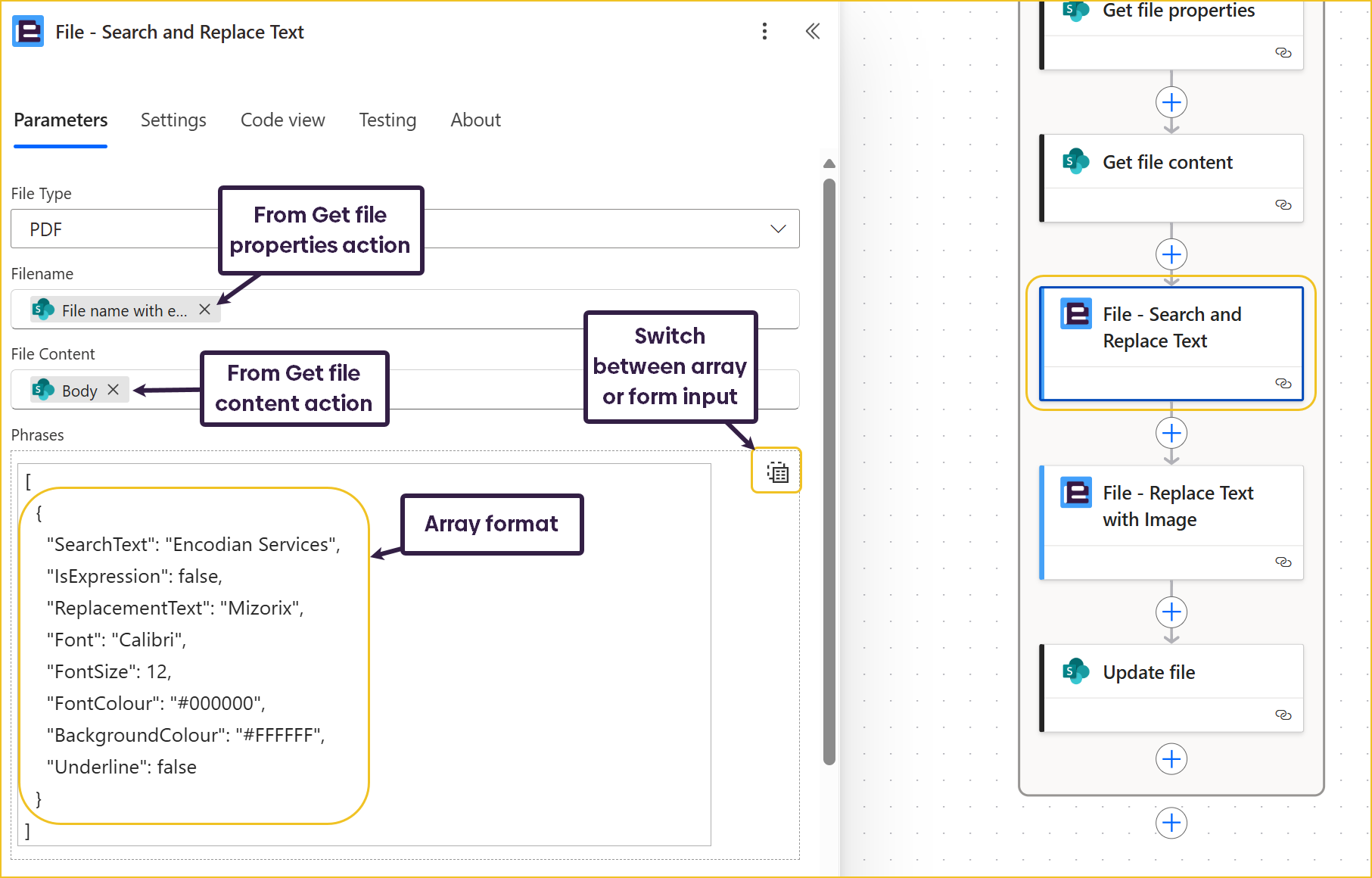
9.a. Action: Add the File – Search and Replace Text action.
9.b. Filename: From Get File Properties action.
9.c. File Content: Select the document’s file content from the previous step.
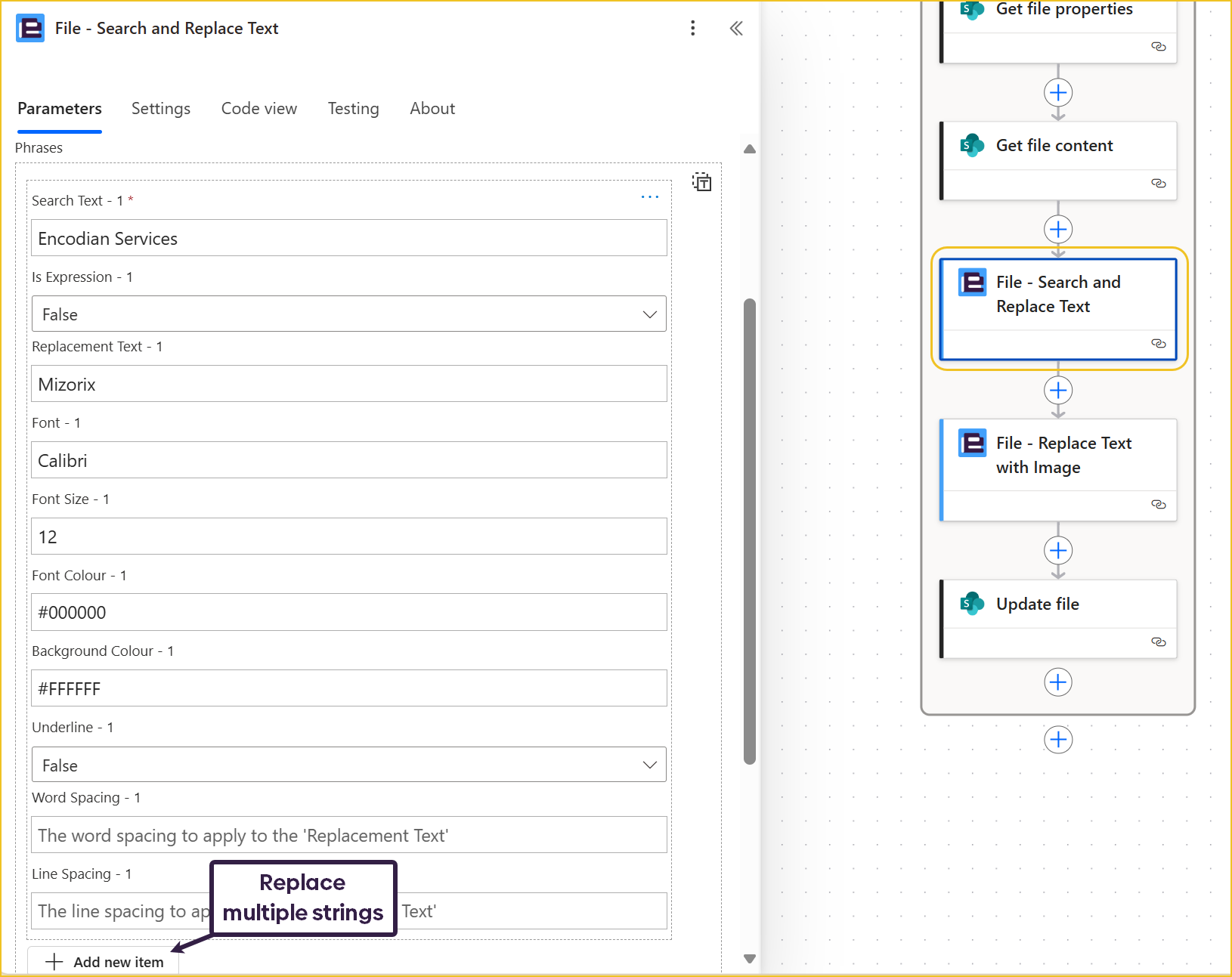
9.d. Text to Find: Enter the old company name (e.g., Old Company Ltd).
9.e. Replace With: Enter the new company name (e.g., Encodian Ltd).
9.e. (Optional) Is Expression: Set to False if using Regex.
You can replace multiple strings at once by clicking ‘Add new item’ or providing an input array.
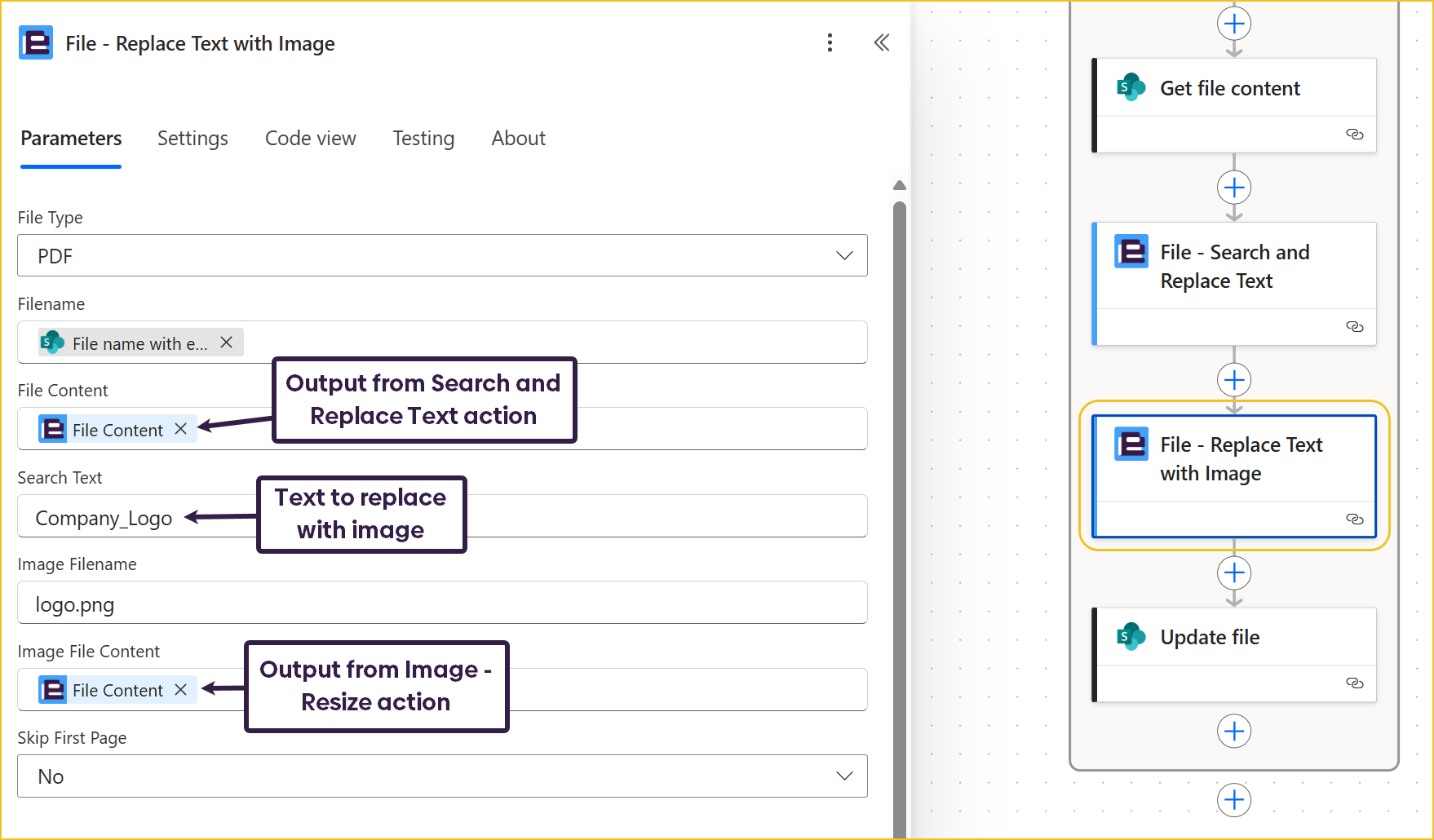
10.a. Action: Add the PDF – Replace Text with Image action.
10.b. File Content: Use the output from the previous step.
10.c. Search Text: Enter the placeholder text where the logo should appear (e.g., Company_Logo).
10.d. Image Content: Select the resized image output from Step 4.
This replaces the placeholder text in each PDF or Word file with your new company logo image.
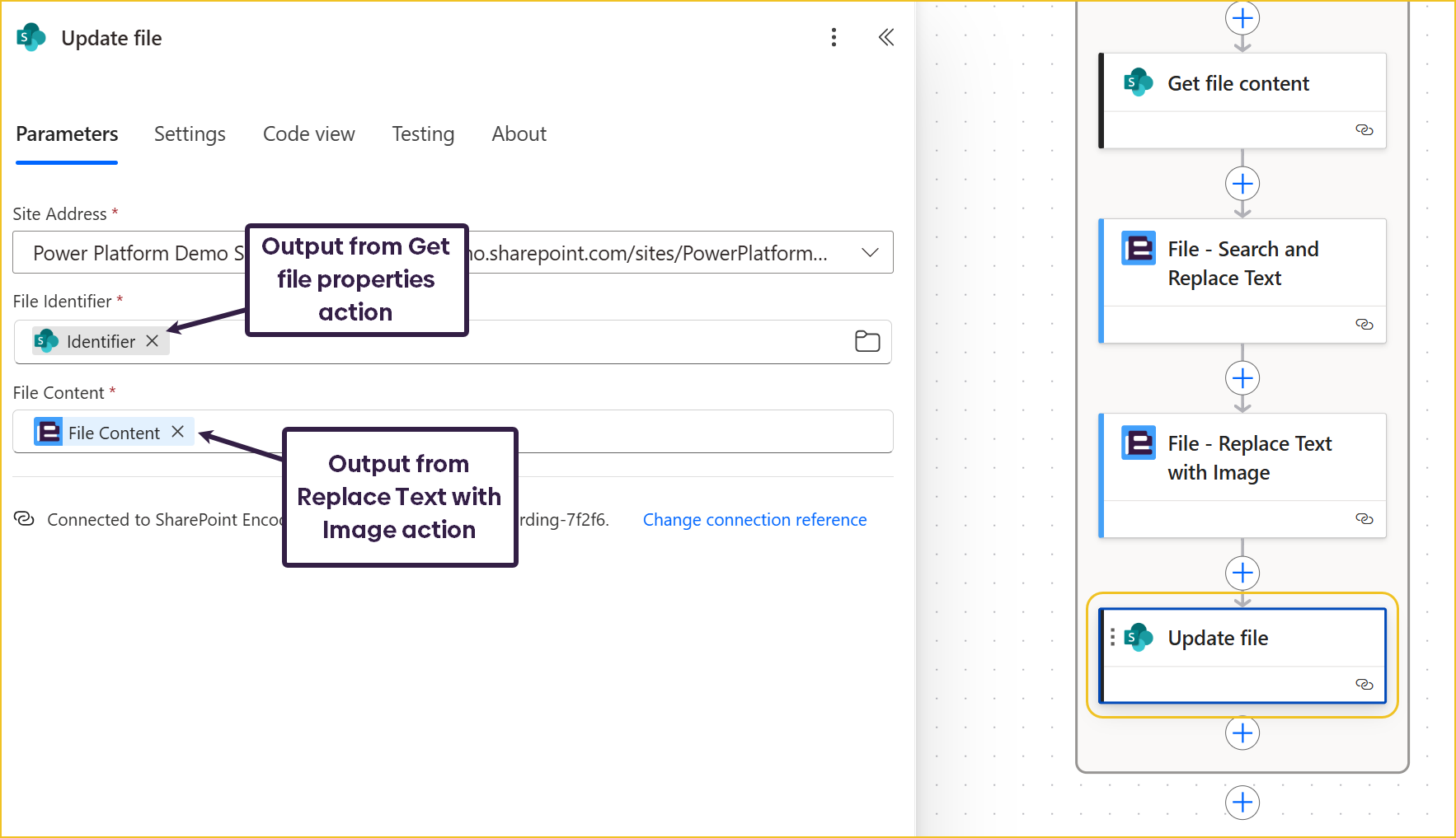
11.a. Action: Add the SharePoint ‘Create file’ or ‘Update file’ action.
11.b. Site Address: Same SharePoint site.
11.c. File Identifier: Output from Get File Properties action.
11.d. File Content: Select the updated file content from the Encodian action.
This step overwrites or creates the updated document, completing the automation.
Please note, the following document has been generated using Chat GPT and is not a real HR document used at Encodian.
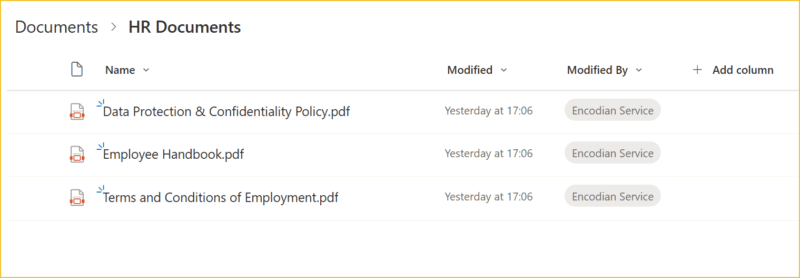
This is one of the documents before the flow is ran:

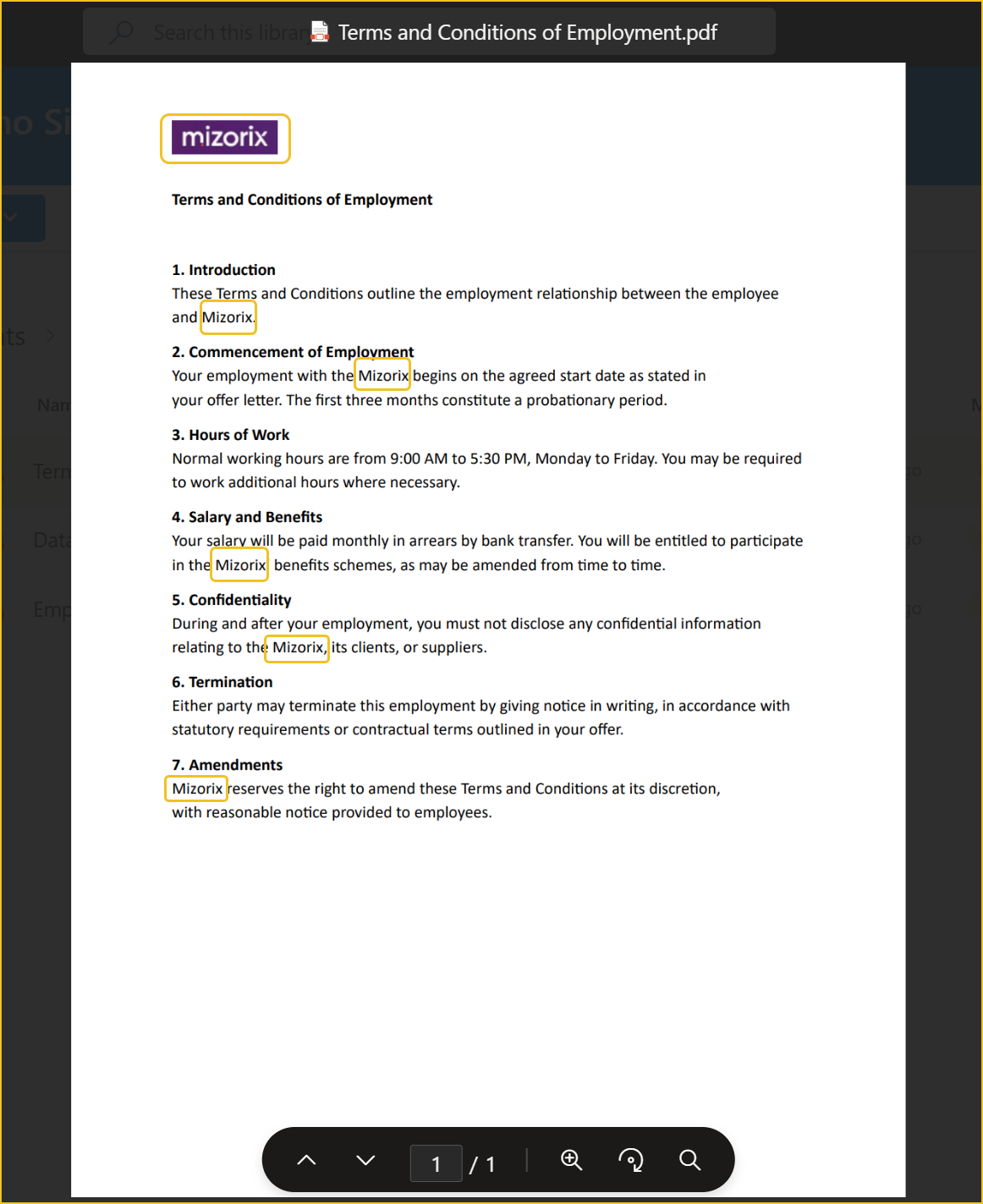
As we can see, all the items we expected to be replaced have been replaced correctly.
This solution is ideal for:
Automating text and image replacement eliminates human error, ensures brand consistency, and significantly reduces manual document editing time.
By combining Power Automate with Encodian Flowr, you can automatically:
Encodian Flowr makes enterprise document management faster, smarter, and fully compliant.
Rebranding or updating documents doesn’t have to be manual. With Encodian Flowr, you can make consistent, secure changes across thousands of files in just a few clicks.
Start your free Encodian Flowr trail today and see how easy automated document updates can be.
Search 200+ Actions to see how Flowr can save you time
Sign up for your free 30-day trial; no cards, catches, or contracts.
Technical Evangelist