As electronic invoicing becomes increasingly standardised across Europe, many businesses are adopting ZUGFeRD to meet compliance requirements and enable end-to-end invoice automation.
ZUGFeRD (Central User Guide of the Forum for Electronic Invoices Germany) is a hybrid e-invoice format that embeds a machine-readable XML file inside a human-readable PDF.
This dual structure enables:
All using Encodian’s ‘PDF – Create ZUGFeRD Invoice‘ Power Automate action.
For a deeper dive into the ZUGFeRD format and Germany’s invoicing regulations, see Stripe’s guide to ZUGFeRD invoices.
If you need to process (rather than create) ZUGFeRD invoices, please see our related guide:
Automating ZUGFeRD Invoice Processing in Power Automate with Encodian Flowr →
Download the sample files for testing:
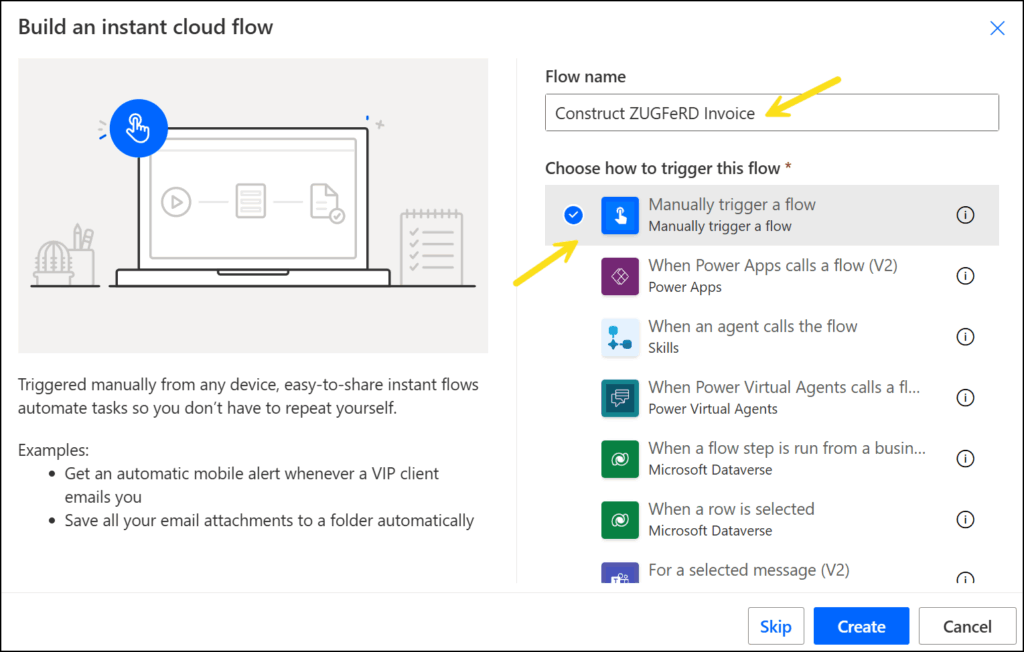
1.a. Flow name: Provide a name for your flow
1.b. Trigger: Select the SharePoint ‘Manually trigger a flow‘ trigger action
1.c. Click ‘Create‘.
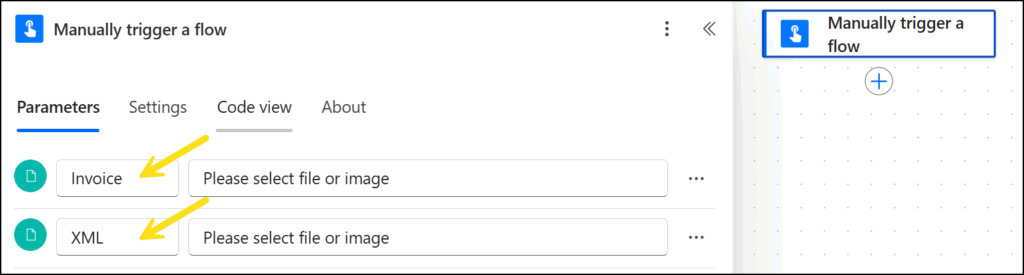
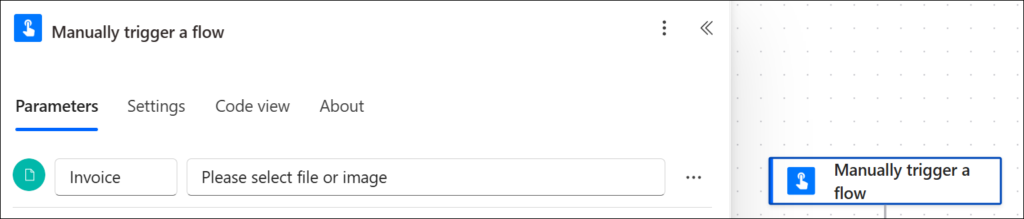
2.a. Create two ‘File‘ inputs named ‘Invoice‘ and ‘XML‘
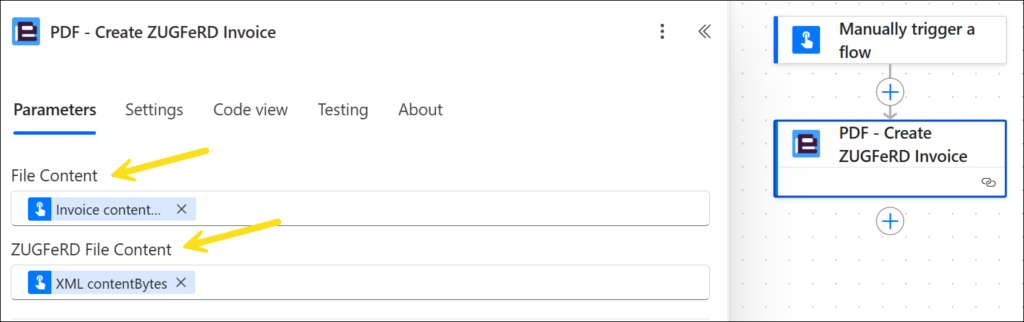
We now need to add the XML file as a PDF attachment.
3.a. File Content: Select ‘Invoice contentBytes’ from the outputs of the ‘Manually trigger a flow’ trigger action.
3.b. ZUGFeRD File Content: Select ‘XML contentBytes‘ from the outputs of the ‘Manually trigger a flow‘ trigger action.
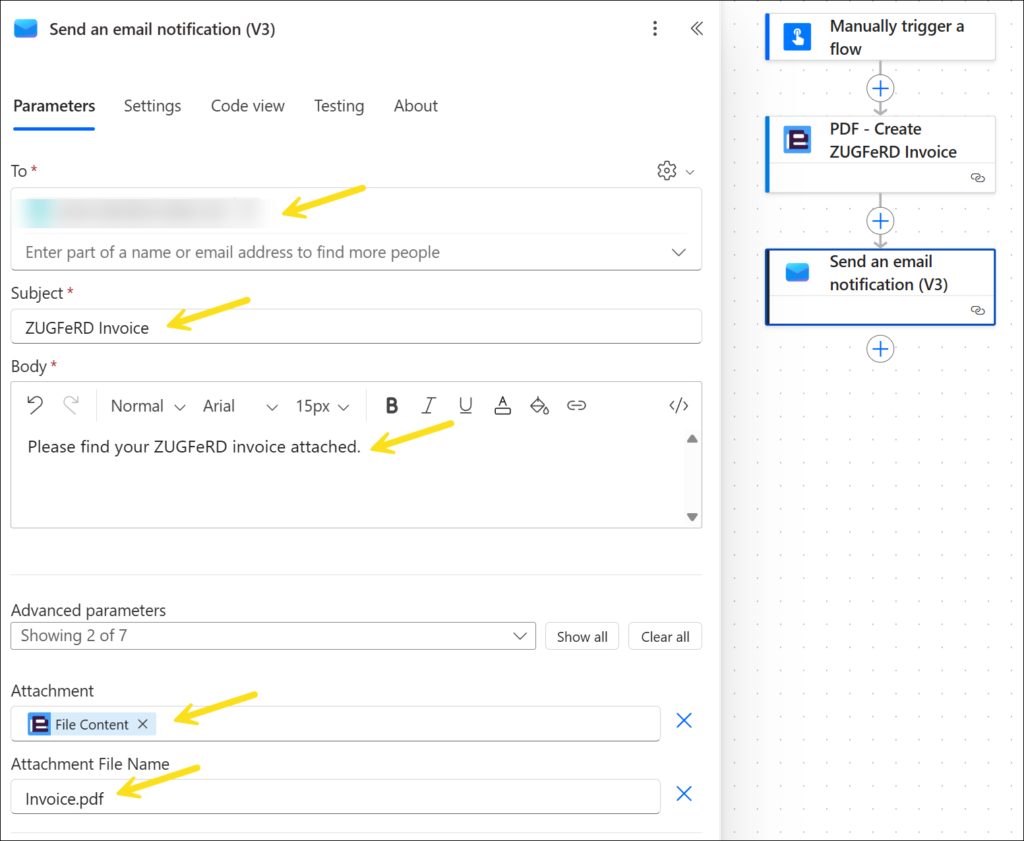
Finally, we will send the output PDF via email.
4.a. To: Enter a recipient email address.
4.b. Subject: Enter a suitable subject line message.
4.c. Body: Enter a suitable body message.
4.d. Attachment: Select the ‘File Content’ output from the Encodian ‘PDF – Create ZUGFeRD Invoice‘ action.
4.e. Attachment File Name: Enter ‘Invoice.pdf’.
5.a. From the Power Automate designer, select ‘Test’ > ‘Manually’.
5.b. Invoice: Select the test invoice PDF file supplied.
5.c. XML: Select the test XML file supplied.
5.d. Run Flow
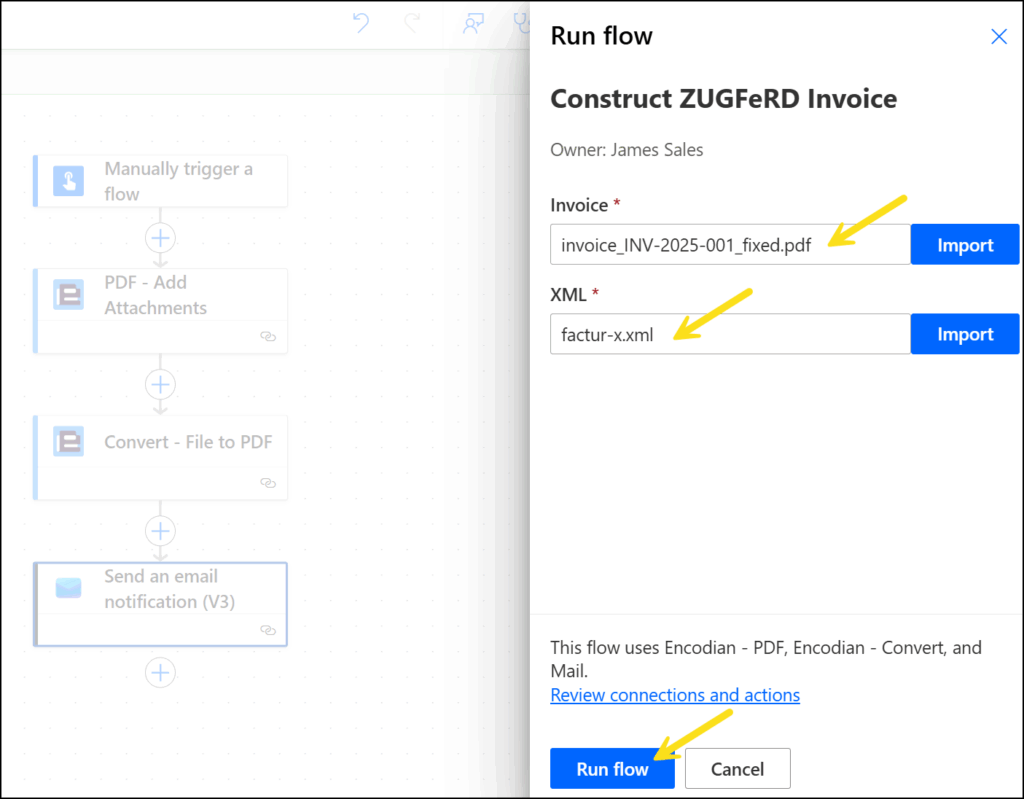
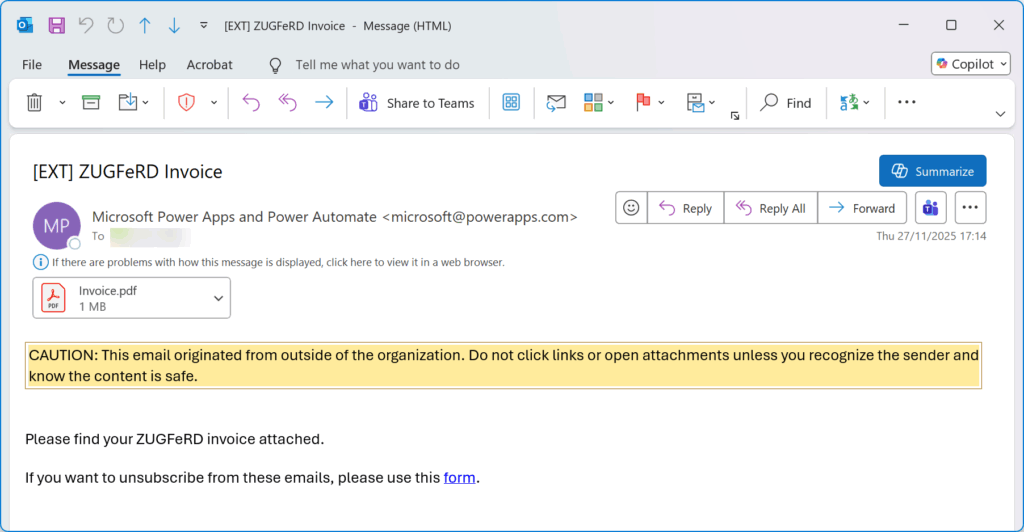
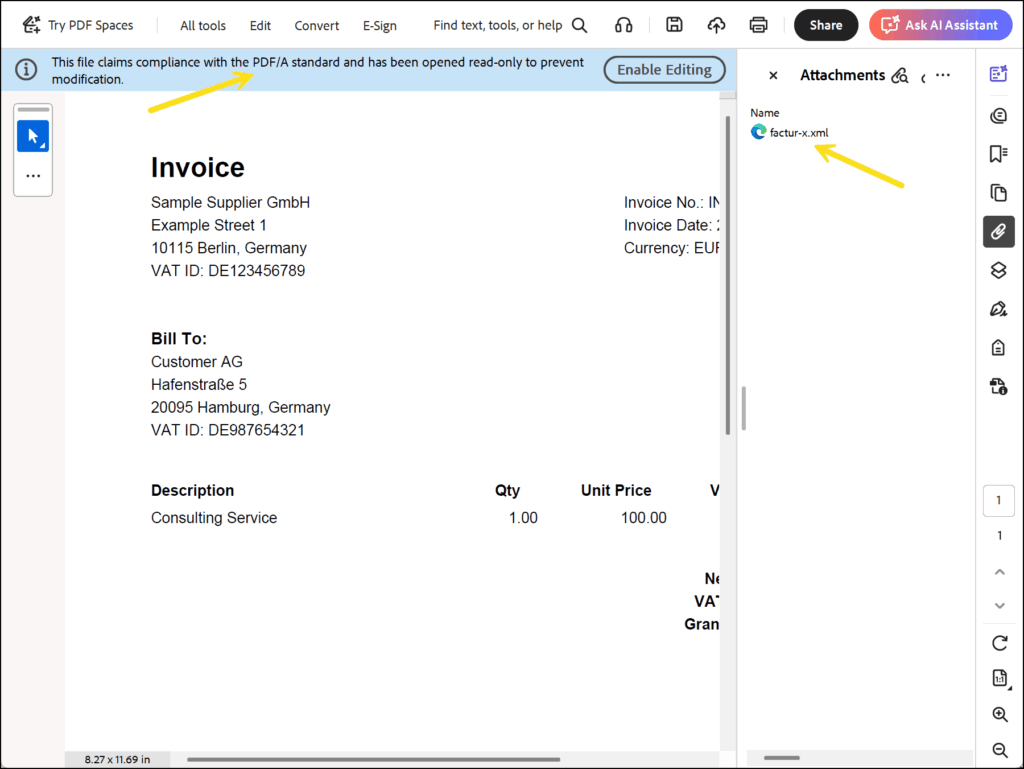
The PDF will demonstrate compliance with the PDF/A standard, with factur-x.xml embedded as an attachment.
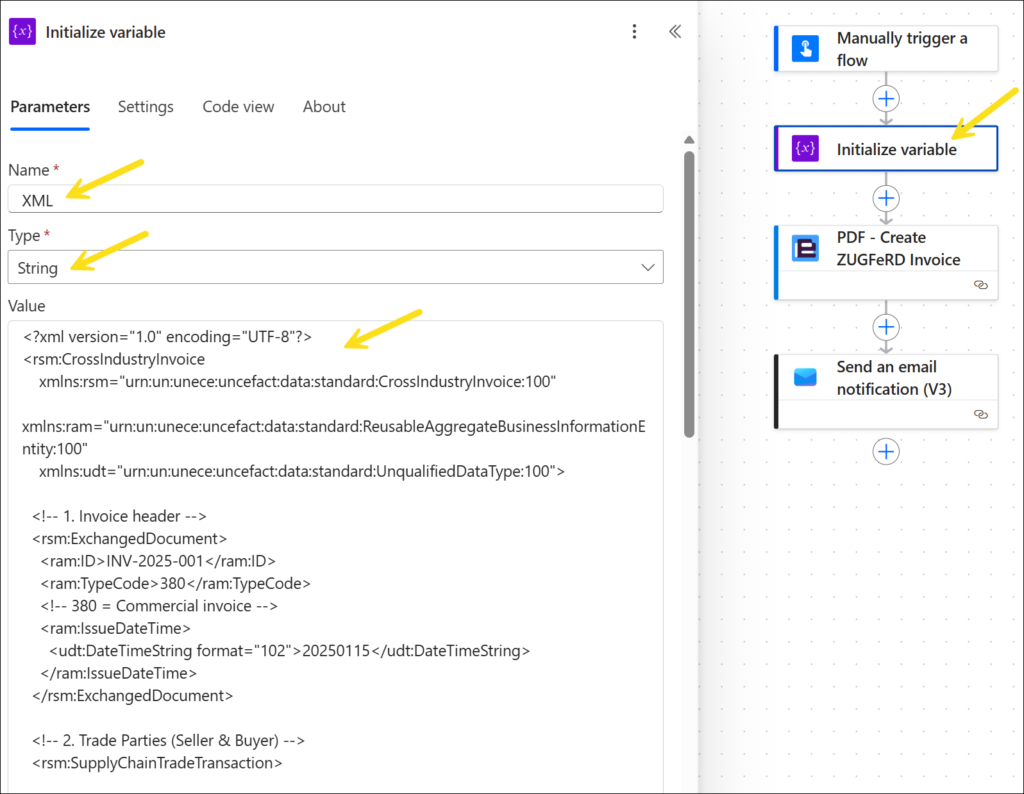
It could be the case that you generate the XML dynamically within the Flow or that it comes from a 3rd party system not already in a file format. In this case you would need to convert the XML to binary file content so that it can be ingested by the Encodian ‘PDF – Create ZUGFeRD Invoice‘ action. The following steps build on the previous flow to simulate this scenario by starting with the XML in a string variable.
2.a. Name: Enter ‘XML’ as the variable name.
2.b. Type: Select ‘String’.
2.c. Value: Enter the contents of the file ‘factur-x.xml’.
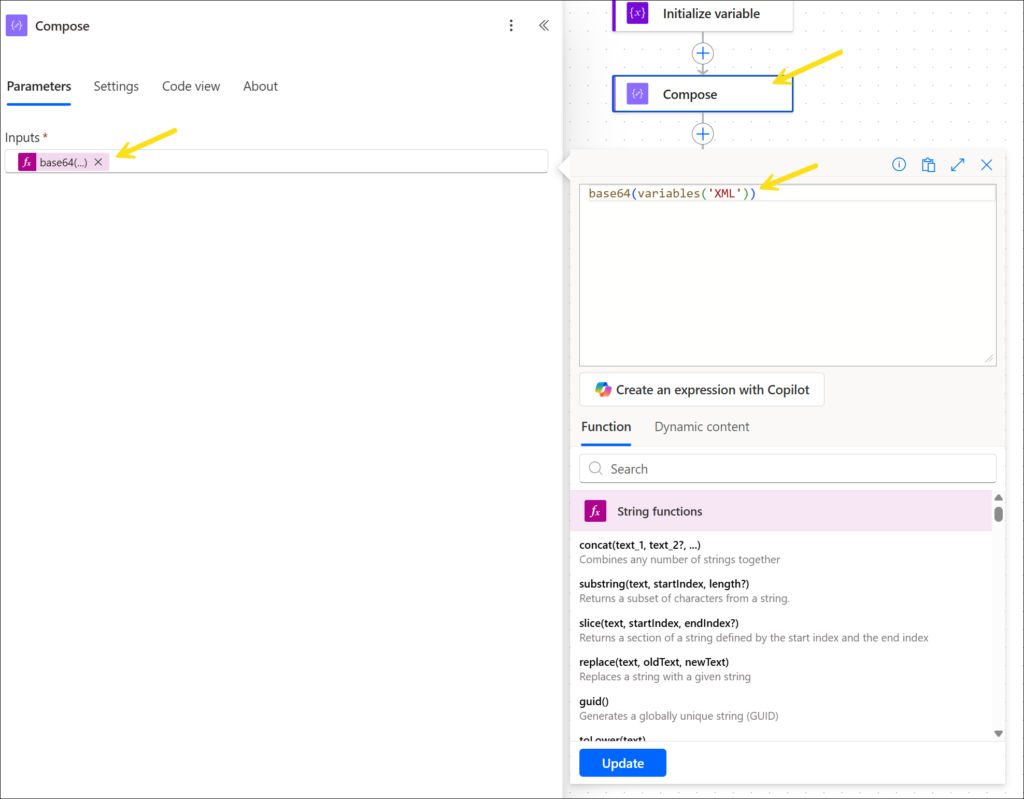
3.a. Inputs: Add the expression ‘base64(variables(‘XML’))’.
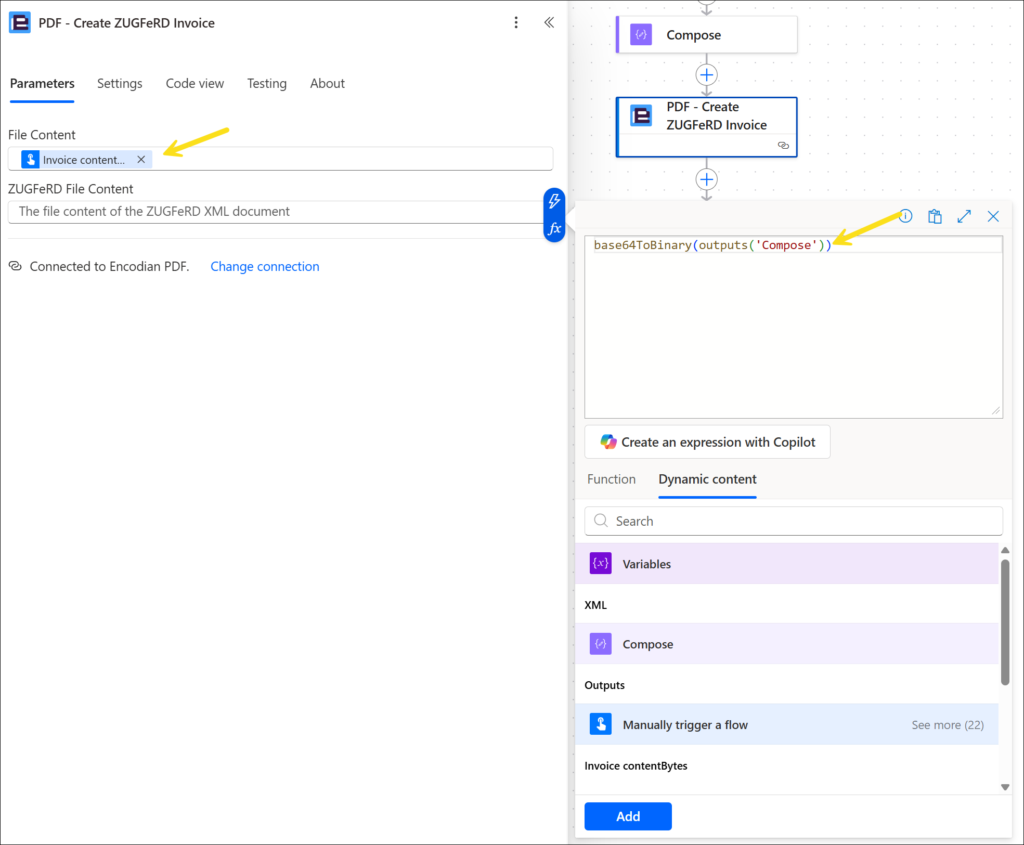
4.a. ZUGFeRD File Content: Enter the express ‘base64ToBinary(outputs(‘Compose’))’.
Test the flow again using the same steps as before without the requirement to upload the XML file.
Once you’ve automated ZUGFeRD invoice creation, you can further expand the solution to include:
We hope this guide helps you automate the creation of ZUGFeRD-compliant invoices using Power Automate and Encodian Flowr.
Start your free 30-day trial for Encodian Flowr and begin automating identity intelligence today.
Learn more about Flowr →
For further assistance, visit our support portal or raise a ticket with our team.
We welcome all feedback and comments.
Search 200+ Actions to see how Flowr can save you time
Sign up for your free 30-day trial; no cards, catches, or contracts.
CEO